> For the complete documentation index, see [llms.txt](https://user.netmera.com/netmera-user-guide/llms.txt). Markdown versions of documentation pages are available by appending `.md` to page URLs; this page is available as [Markdown](https://user.netmera.com/netmera-user-guide/reports-and-analytics/reports/delivery/campaigns/email-reports.md).
# Email reports
Email Reports track an email campaign from send to delivery, engagement, unsubscribes and conversion.
Email Reports shows how an email campaign performs from send to delivery, engagement, unsubscribe, and conversion. It helps you understand not only whether the campaign was sent successfully, but also how recipients behaved after it reached the inbox.
Use it to answer five practical questions:
* Did the campaign reach the intended audience?
* How many emails were delivered, opened, clicked, bounced, or unsubscribed?
* How do provider-specific metrics differ?
* Which links and users engaged with the message?
* Why did emails bounce, and where can you analyze bounce reasons?
Use this page together with:
* [Email](/netmera-user-guide/omnichannel-engagement/email.md) for campaign creation and sending
* [Event Insight](/netmera-user-guide/reports-and-analytics/analytics/event-insight.md) for event-level analysis
* [Segments](/netmera-user-guide/targeting/segments.md) for bounce-aware audience building
### Email summary
The summary section gives you the campaign context before you inspect the numbers.
Field definitions:
* **Campaign name** and **Message ID** — the campaign title and its unique system identifier. Use them to confirm you are reviewing the correct message.
* **Message type** — the category of email being sent, such as campaign or notification.
* **Mail subject** — the subject line recipients see in the inbox.
* **Creator** — the user who created the campaign.
* **Method** — how the audience was selected, such as broadcast or targeted delivery.
* **Campaign status** — the current send state, such as sending or finished.
* **Create**, **Start**, and **End** times — the timestamps for when the campaign was created, when sending started, and when sending ended.
Use this area to confirm you are reading the right campaign and targeting setup. This is especially useful when subject lines, audiences, or campaign names are similar.
### Overview
The overview section summarizes delivery and engagement at campaign level. It is the fastest place to see whether the campaign reached the inbox and created interaction.
### Provider-specific metrics
Email providers can surface different metric labels in reports. These sections explain how to read them, so the provider-specific differences do not create confusion in interpretation.
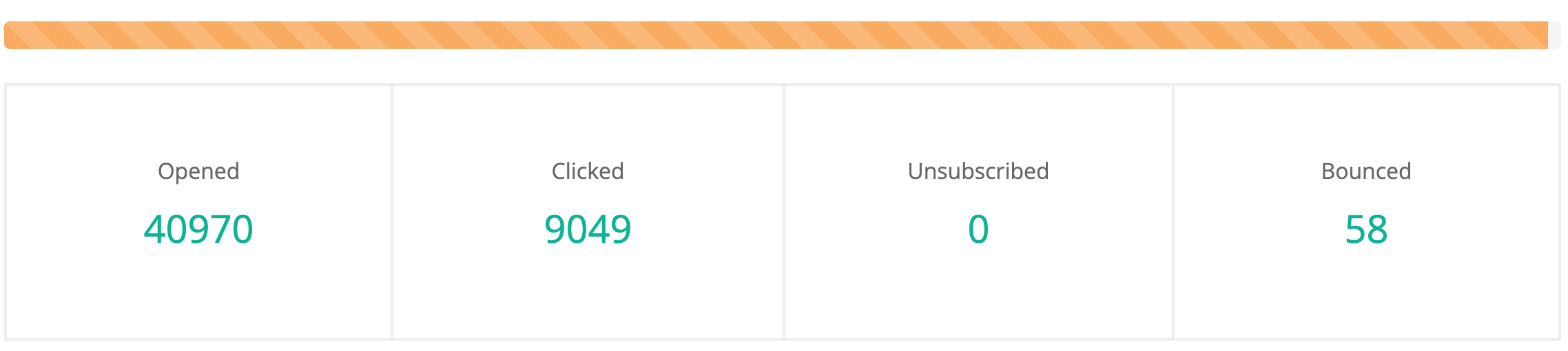
#### Amazon AWS email report
Field definitions:
* **Opened** — the number of recipients who opened the email. Opens are usually tracked through a pixel load.
* **Clicked** — the total number of clicks on links or clickable elements in the email.
* **Unsubscribed** — the number of recipients who opted out after receiving the email.
* **Bounced** — the number of emails that did not reach the inbox.
These metrics tell you how the campaign performed after send. In practice, **Opened** and **Clicked** speak to message interest, while **Bounced** and **Unsubscribed** often point to list quality or recipient dissatisfaction.
Bounce types:
* **Hard bounce** — a permanent issue, such as an invalid or non-existent email address.
* **Soft bounce** — a temporary issue, such as a full inbox or temporary server problem.
#### Uzman Posta email report
Field definitions:
* **Total Opened** — the total number of opens, including repeated opens by the same recipient.
* **Unique Opened** — the number of distinct recipients who opened the email at least once.
* **Clicked** — the total number of clicks on links or clickable elements in the email.
* **Unsubscribed** — the number of recipients who opted out after receiving the email.
* **Bounced** — the number of emails that did not reach the inbox.
* **Conversion** — the number of times the selected conversion event was triggered.
* **Revenue** — the total revenue value associated with the selected conversion event.
These extra fields are especially useful when email is used as a business driver rather than only a communication channel. They help connect engagement with measurable outcome.
{% hint style="warning" %}
To display **Conversion** and **Revenue** metrics, define a conversion event while creating your email campaign in [Step 2: What](/netmera-user-guide/omnichannel-engagement/email/send-email-campaign/step-2-what.md). Revenue also requires sending revenue data with the conversion event. See the [Developer Guide](https://user.netmera.com/netmera-developer-guide/platforms/unity/events#revenue-event).
{% endhint %}
### Detailed campaign metrics
This section explains the main campaign-level performance metrics in detail. Use it when you want to compare delivery health, inbox engagement, and click quality more carefully.
Field definitions:
* **Target Audience** — the total number of recipients intended to receive the campaign.
* **Control Group** — the percentage of randomly selected users excluded from the email send when control group is enabled for Conversion Analytics.
* **Successful Deliveries** — the number of emails that reached recipients' inboxes successfully.
* **Bounced** — the number of emails that could not be delivered.
* **Total Opened** — the total number of opens, including repeated opens by the same recipient.
* **Unique Opened** — the number of unique recipients who opened the email at least once.
* **Open Rate** — the percentage of successful deliveries that were opened.
* **Unique Open Rate** — the percentage of successful deliveries opened by unique recipients.
* **Total Clicked** — the total number of clicks on any link in the email.
* **Click-through Rate (CTR)** — the percentage of successful deliveries that generated at least one click.
* **Click-to-open Rate (CTOR)** — the percentage of opened emails that resulted in a click.
* **Unsubscribed** — the number of users who unsubscribed from the email campaign.
* **Last Opened** — the timestamp of the latest recorded open.
Formulas:
```
Open Rate = (Total Opened / Successful Deliveries) × 100
CTR = (Total Clicked / Successful Deliveries) × 100
CTOR = (Total Clicked / Total Opened) × 100
```
### Export Control Group
If **Use Control Group to Calculate Conversion** is enabled during campaign setup, the campaign report displays **Control Group** as a separate row under the overview metrics.
You can export the control group audience by clicking the export icon next to the **Control Group** row. The control group includes randomly selected users who were excluded from the email send. This list can be used for analysis, retargeting, or comparison with users who received the campaign.
{% hint style="warning" %}
The **Control Group** is displayed only for campaigns where control group was enabled during campaign setup.
{% endhint %}
### Click performance
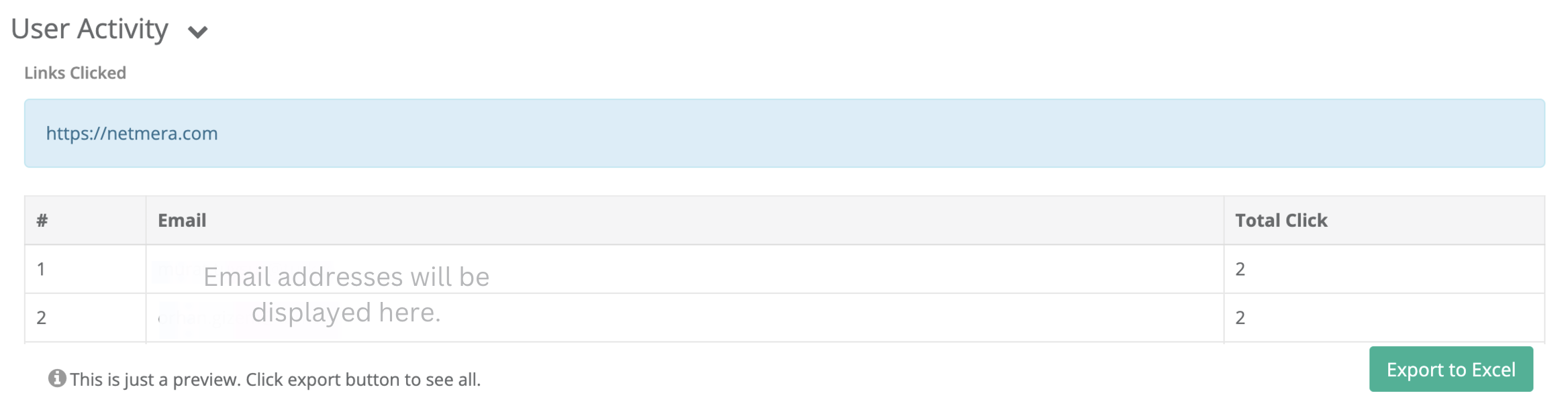
Click Performance shows how recipients interacted with the URLs included in your email. This is useful when one campaign includes several calls to action and you need to see which destination received the most interest.
Field definitions:
* **Total Clicks** — the total number of clicks on a URL, including repeated clicks by the same recipient.
* **Unique Clicks** — the number of distinct recipients who clicked a URL at least once.
Click the green metrics in the table to open the user-level list for that URL.
The detail view includes:
* **Email** — the recipient’s email address
* **Total Clicks** — the number of times that recipient clicked links in the email
This makes it possible to move from a link-level view into a recipient-level view. For example, you can see whether one URL attracted many different users or a smaller group that clicked repeatedly.
{% hint style="success" %}
The table is a preview.
Use export when you need the full list of URLs and their click metrics.
{% endhint %}
### User activity
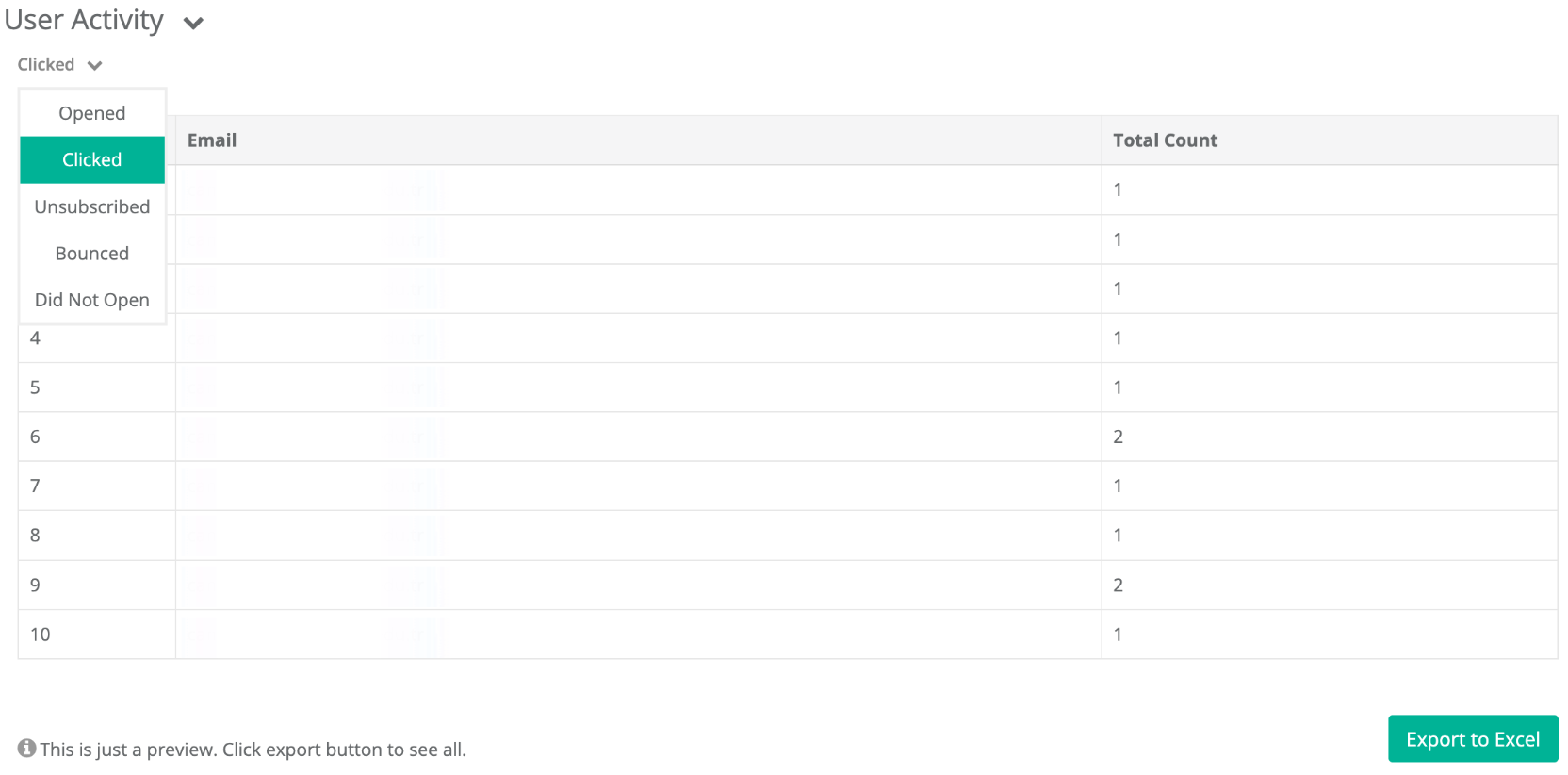
User Activity lets you inspect engagement at recipient level. Use it when you want to move from campaign totals into the actual recipients behind those totals.
Field definitions:
* **Email** — the recipient’s email address.
* **Total Count** — the number of times that recipient triggered the selected metric.
Available filters:
* **Opened** — recipients who opened the email.
* **Clicked** — recipients who clicked one or more links.
* **Unsubscribed** — recipients who opted out after receiving the email.
* **Bounced** — recipients whose emails failed to deliver.
* **Did Not Open** — recipients who received the email but did not open it.
{% hint style="success" %}
Use export when you need the full user list behind the preview table.
{% endhint %}
### Conversion and revenue
Email reports can include conversion and revenue metrics when conversion tracking is configured. This is what turns the report from a delivery dashboard into an outcome dashboard.
Field definitions:
* **Conversion** — the number of times the selected conversion event is triggered after the email.
* **Revenue** — the total revenue value aggregated from those conversion events.
To use these metrics:
1. Define a conversion event in [Step 2: What](/netmera-user-guide/omnichannel-engagement/email/send-email-campaign/step-2-what.md) while creating the email campaign.
2. Send revenue data with the conversion event if you want revenue reporting.
### Bounce reasons across Netmera
Bounce analysis is not limited to campaign-level totals. When bounce rates matter, campaign totals are usually only the starting point.
Netmera also exposes bounce details in Event Insight, User Details, and Behavior Segments.
Use these areas to understand whether bounces are soft or hard, and why they happened.
#### Event Insight: Bounce Reason and Bounce Detail
In **Event Insight**, analyze the **Email Bounce** event and break it down by:
* **Bounce Type**
* **Bounce Reason**
* **Bounce Detail**
Example drill-down:
`External ID → Bounce Type → Bounce Reason`
Use this to:
* compare soft and hard bounces,
* identify invalid addresses, mailbox-full cases, domain issues, and other common causes,
* spot list-quality or infrastructure problems faster.
This kind of drill-down is valuable because the same bounce total can hide very different underlying causes. One pattern may point to invalid addresses, while another points to temporary provider or mailbox issues.
#### User Details: Error Code and Error Message
In **User Details**, bounce-related activity can show:
* **Error Code** — the technical code returned by the email provider
* **Error Message** — the human-readable explanation of the bounce
Use this to investigate individual recipients and decide whether to retry, clean the email address, or suppress future sends. It is especially helpful for support workflows and list hygiene.
#### Behavior Segments: Email Bounce Attributes
In **Behavior Segments**, you can build audiences based on the **Email Bounce** event and bounce-related attributes.
Typical use cases:
* exclude users with hard bounces caused by invalid or non-existent addresses,
* isolate soft-bounced users for retry or cleanup workflows,
* build bounce-aware suppression or remediation segments.
#### Bounce and Suppression Management
Email deliverability depends on bounce behavior. Repeated bounces, especially hard bounces, can damage sender reputation. Email providers may then restrict or stop sending.
Netmera provides bounce and suppression management for each app.
Each app starts with default rules for frozen duration, suppression threshold, and suppression duration. You can adjust these rules to match your deliverability strategy.
Based on the active rules, users can be temporarily frozen or added to the suppression list according to bounce type and bounce reason. You can also manage suppression records and remove users from suppression when needed.
{% hint style="info" %}
Bounce and suppression management is handled by Netmera. If you need changes to these rules, contact us.
{% endhint %}
{% hint style="success" %}
This structure helps you protect audience quality, reduce repeated delivery failures, and support IP warm-up. It also gives you more control over deliverability actions such as IP restrictions and rate limits.
{% endhint %}
#### How a user enters the suppression list
Frozen status on user details
Bounce handling can be configured using **Frozen Days**, **Threshold**, and **Suppress Days**. These parameters determine how long a user remains frozen after a bounce and when repeated bounce behavior results in suppression.
| Parameters | Explanation |
| ----------------- | -------------------------------------------------------------------------------------------------------- |
| **Frozen Days** | Defines how many days the user remains in the **Frozen** status after a bounce is received. |
| **Threshold** | Defines how many times the frozen cycle can occur before the user is moved to the **Suppressed** status. |
| **Suppress Days** | Defines how many days the user remains in the **Suppressed** status after the threshold is reached. |
When an email delivery fails due to bounce behavior, Netmera may assign a bounce-related status to the user.
When the first bounce occurs, the user enters the **Frozen** status for the configured **Frozen Days** period. If another bounce occurs after the frozen period, a new frozen period starts.
Once the number of bounce occurrences reaches the configured **Threshold**, the user is no longer placed in the **Frozen** status. Instead, the user is moved directly to the **Suppressed** status for the configured **Suppress Days** period.
You can think of this flow as repeated temporary restrictions eventually turning into a longer suppression period.
#### Example: How Frozen Status Leads to Suppression
Suppose the following bounce rules are the configured:\
**Frozen Days**: 7\
**Threshold**: 3\
**Suppress Days**: 100
The user's bounce status changes as follows:
{% stepper %}
{% step %}
#### Day 1
The first bounce occurs. The user is placed in the **Frozen** status for 7 days.
{% endstep %}
{% step %}
#### Day 8
Another bounce occurs. The user enters a new **Frozen** period for another 7 days.
{% endstep %}
{% step %}
#### Day 15
A third bounce occurs. Since the configured threshold of 3 has been reached, the user is placed directly in the **Suppressed** status for 100 days instead of entering another frozen period.
{% endstep %}
{% endstepper %}
You can think of the first two occurrences as a **soft restriction**, while reaching the threshold results in a **hard suppression**.
{% hint style="info" %}
**Note:** The values **7**, **3**, and **100** are examples only. Actual **Frozen Days**, **Threshold**, and **Suppress Days** values depend on the bounce configuration used for your account.
{% endhint %}
You can check a user’s bounce status from the user details page.
To view the user details:
1. Go to **Targeting > People> Find Person**.
2. Search for the user by email address or user identifier.
3. Open the user details page.
4. Check the bounce status label shown next to the user’s email information.
**Email Bounce Details**
The **Email Bounce Details** tab shows the user’s bounce records.
The table includes the following information:
* **Dsn Code**: The delivery status notification code returned for the email bounce.
* **Bounce Type**: Indicates whether the bounce is a soft bounce or hard bounce.
* **Reason**: The bounce reason returned for the failed delivery.
* **Last Bounce Date**: The latest date and time when the bounce occurred.
* **Count**: The number of times the bounce occurred for the user.
* **Current Action**: The current action applied to the user, such as frozen or suppressed.
* **Remaining Days**: The remaining number of days for the current action.
You can also check the **Messages** tab to review which email campaign caused the bounce event.
Email Bounce Details Tab
{% hint style="info" %}
Bounce status and bounce history help you understand why a user may be temporarily or permanently excluded from email targeting.
{% endhint %}
### Where you can analyze email performance
You can review email analytics from several parts of Netmera:
* **Reports → Campaigns → Email Reports** — campaign-level delivery and engagement metrics
* **Analytics → Event Insight** — event-level breakdowns for sends, deliveries, opens, clicks, bounces, and unsubscribes
* **User Details** — user-level activity, including bounce details when available
* **Behavior Segments** — bounce-aware and engagement-based audience building
Taken together, these views let you move from campaign reporting to recipient-level investigation and then into targeting action.
### FAQs
Why can Delivered and Bounced differ from the target audience?
The target audience is the intended recipient set. Delivery and bounce metrics reflect the actual outcome after sending, validation, and provider-side processing.
What is the difference between Total Opens and Unique Opens?
**Total Opens** counts every open event. **Unique Opens** counts each recipient once, even if they opened the email multiple times.
Where can I see detailed bounce reasons?
Use **Event Insight** for bounce reason breakdowns, **User Details** for recipient-specific error code and error message, and **Behavior Segments** for bounce-based targeting.
Can I export click and user activity data?
Yes. The tables on this page show previews. Use export to download the full click-performance and user-activity data sets.
---
# Agent Instructions
This documentation is published with GitBook. GitBook is the documentation platform designed so that both humans and AI agents can read, navigate, and reason over technical content effectively. Learn more at gitbook.com.
## Querying This Documentation
If you need additional information that is not directly available in this page, you can query the documentation by asking a question.
Perform an HTTP GET request on the following URL with the `ask` and `goal` query parameters:
```
GET https://user.netmera.com/netmera-user-guide/reports-and-analytics/reports/delivery/campaigns/email-reports.md?ask=&goal=
```
`ask` is the immediate question: it should be specific, self-contained, and written in natural language.
`goal` is what the user is ultimately trying to achieve, the reason they need the answer. Sharing it helps GitBook give you a better, more relevant answer. A goal is most helpful when it describes the outcome the user wants rather than restating the question. For example, with `ask=how do I create an API token`, a goal like `automate deployments from our CI pipeline` lets GitBook tailor the answer to that use case.
The response will contain a direct answer to the question and relevant excerpts and sources from the documentation.
Use this mechanism when the answer is not explicitly present in the current page, you need clarification or additional context, or you want to retrieve related documentation sections.