> For the complete documentation index, see [llms.txt](https://user.netmera.com/netmera-user-guide/llms.txt). Markdown versions of documentation pages are available by appending `.md` to page URLs; this page is available as [Markdown](https://user.netmera.com/netmera-user-guide/messaging-features/multilingual-messaging.md).
# Multilingual messaging
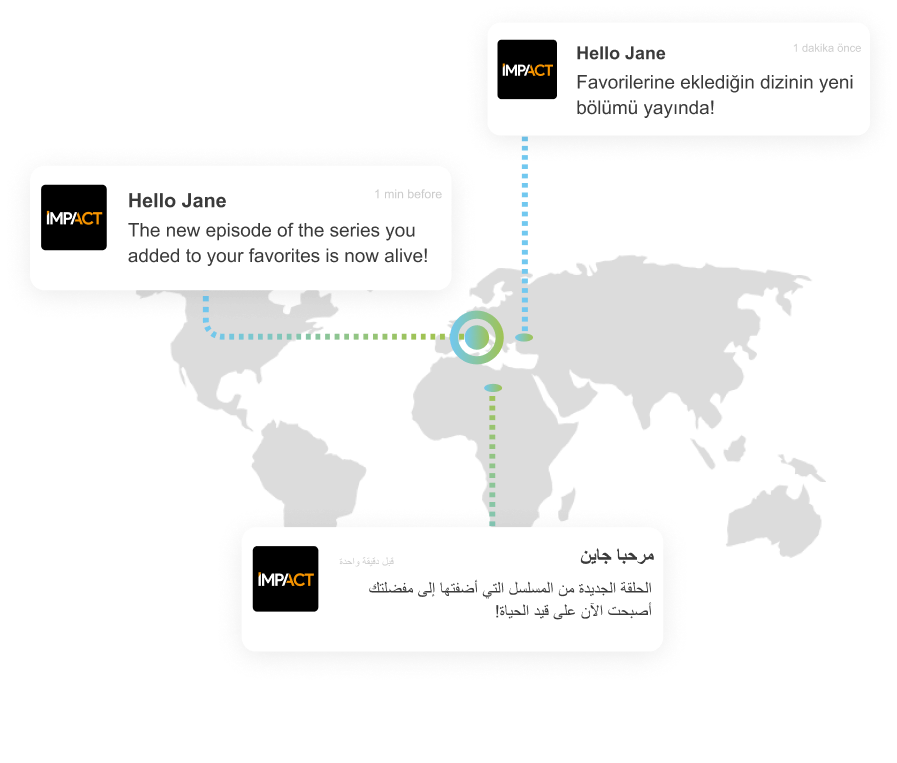
Multilingual messaging sends one push campaign in multiple languages, matched to each user automatically.
Multilingual Messaging lets you send one push campaign in multiple languages.
Netmera selects the right language for each user automatically. It uses either the user's device language or a custom profile attribute. If no matching translation exists, Netmera sends the default language.
{% hint style="info" %}
This flow applies to push campaigns.
{% endhint %}
### Before you start
Make sure:
* multilingual messaging is enabled in **Settings > General > Language**,
* your users have a detectable device language or a populated language attribute,
* and you choose one default language for fallback.
### Step 1: Enable multilingual messaging
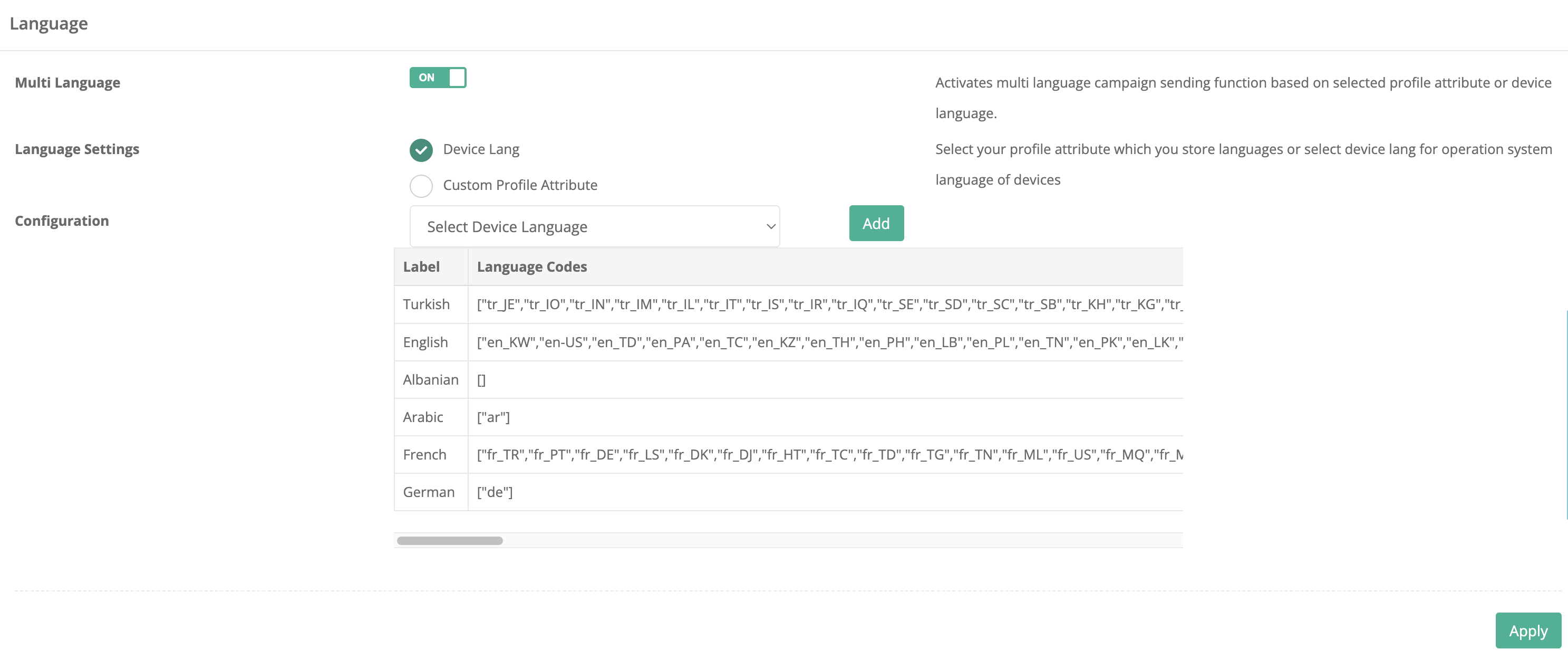
Go to **Settings > General > Language**.
Turn **Multi Language** on, then click **Apply**.
{% @arcade/embed url="" flowId="fAZEtBCjtdLKC9XSXy4i" %}
### Step 2: Choose the language source
Choose how Netmera determines each user's language.
#### Device Language
Use this when the app language usually matches the user's device locale.
Netmera reads the operating system language from the user's device. If a campaign includes that language, Netmera sends that version.
#### Custom Profile Attribute
Use this when you store language preference on the user profile.
This option is useful when language comes from your app logic, CRM, or signup flow rather than the device. To create and manage language attributes, see [Profile Attributes](/netmera-user-guide/customer-data/profile-attributes.md).
Language
### Step 3: Create the campaign
Go to **Messages > Campaigns > Create New Campaign**.
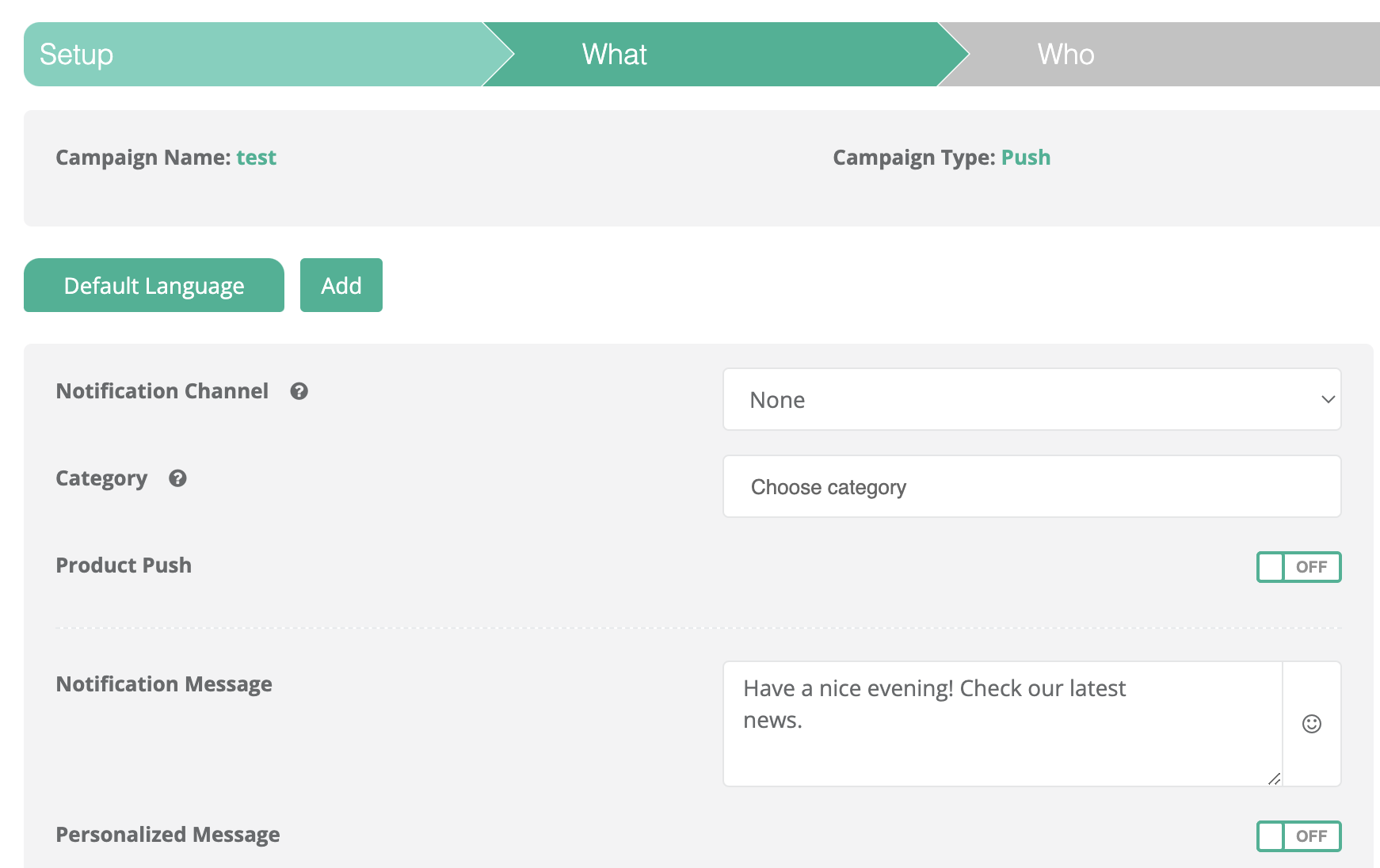
Continue with the regular campaign flow until **Step 2: What**.
{% @arcade/embed url="" flowId="2ucSHujbcH9G9wuSZU4m" %}
### Step 4: Set the default language
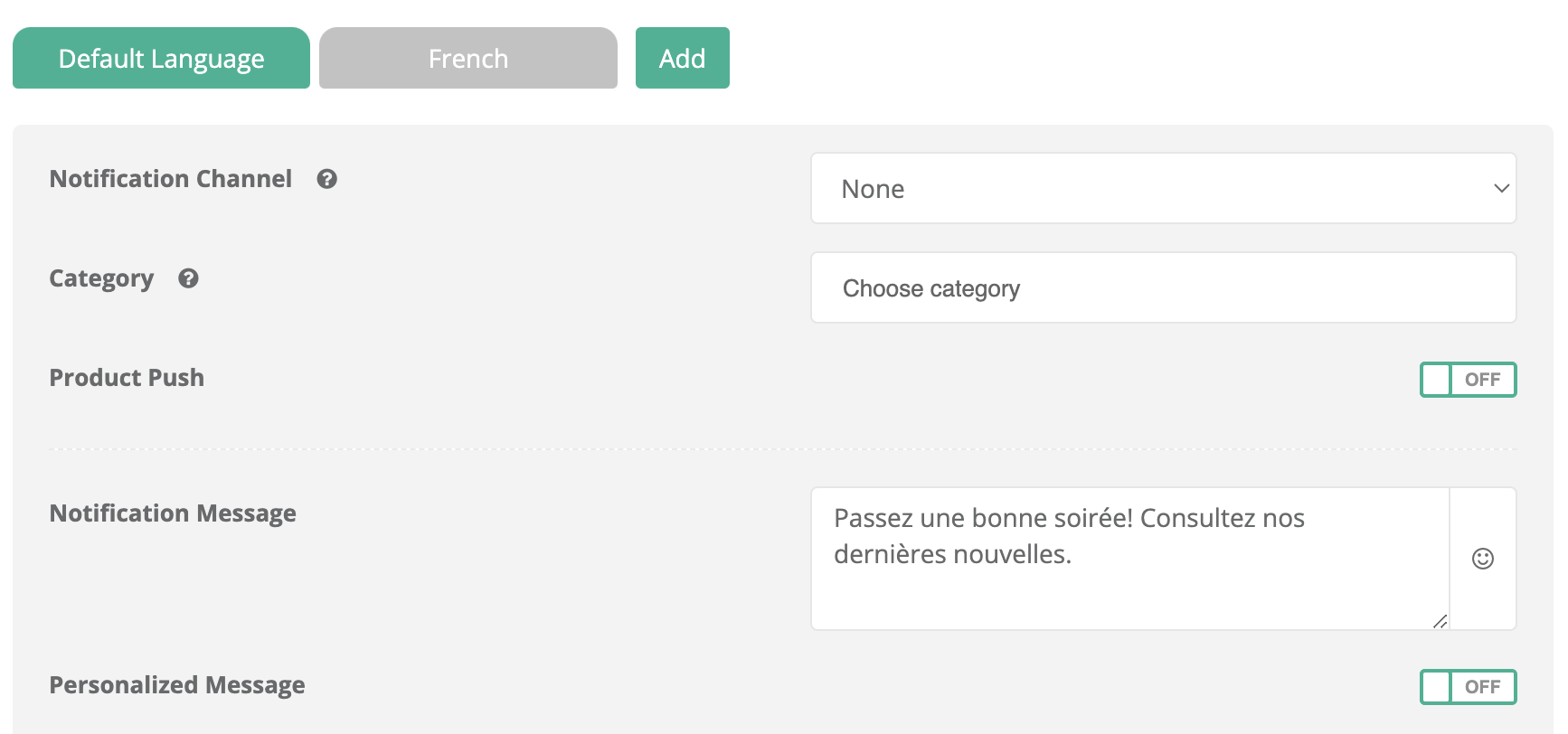
In **Step 2: What**, select **Default Language**.
This is the fallback version of the message. Netmera sends it when a user's preferred language is not available in the campaign.
{% hint style="info" %}
If a user language is missing, Netmera sends the **default language** version.
{% endhint %}
### Step 5: Add translations
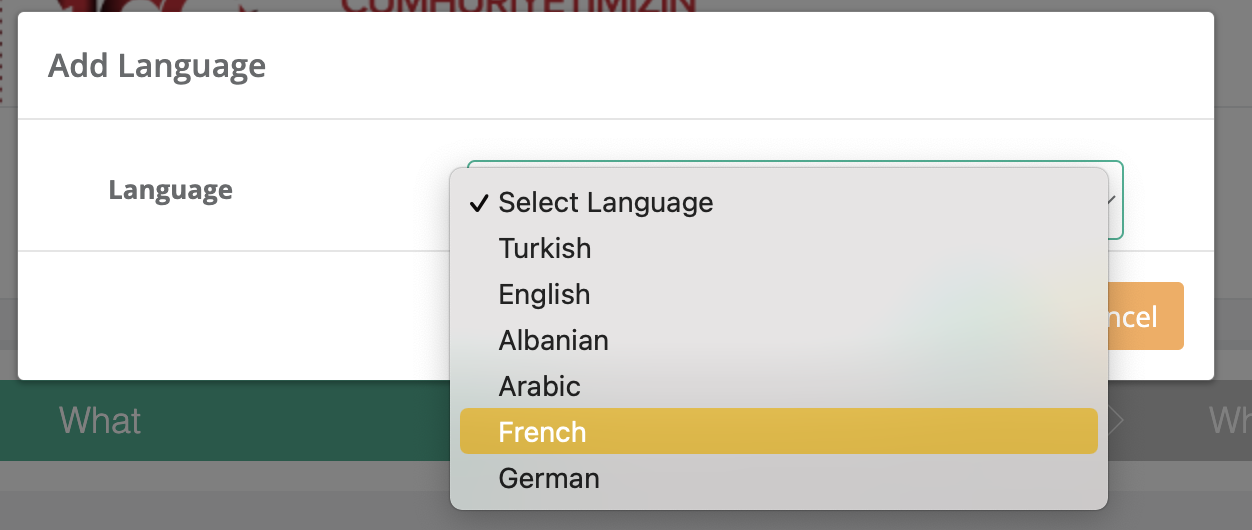
Click **Add** next to **Default Language**.
Add each language you want to support, then enter the translated content for that language.
Translate all message fields you use in the campaign. This can include title, body, subtext, and other content fields available for the selected push type.
{% hint style="info" %}
Keep each language version semantically equivalent. Do not change the campaign intent between translations.
{% endhint %}
### How language selection works
Netmera resolves the message language in this order:
1. Check the selected language source.
2. Find the matching language in the campaign.
3. Send that version if it exists.
4. Fall back to the default language if it does not.
Example:
* Default language: **English**
* Added languages: **Turkish**, **Spanish**
* User language: **German**
* Result: Netmera sends the **English** version
### Best practices
* Choose a widely understood default language.
* Use **Custom Profile Attribute** if language preference is managed outside the device.
* Test with users or devices that represent each target language.
* Check translated button labels, links, and media before launch.
---
# Agent Instructions
This documentation is published with GitBook. GitBook is the documentation platform designed so that both humans and AI agents can read, navigate, and reason over technical content effectively. Learn more at gitbook.com.
## Querying This Documentation
If you need additional information that is not directly available in this page, you can query the documentation by asking a question.
Perform an HTTP GET request on the following URL with the `ask` and `goal` query parameters:
```
GET https://user.netmera.com/netmera-user-guide/messaging-features/multilingual-messaging.md?ask=&goal=
```
`ask` is the immediate question: it should be specific, self-contained, and written in natural language.
`goal` is what the user is ultimately trying to achieve, the reason they need the answer. Sharing it helps GitBook give you a better, more relevant answer. A goal is most helpful when it describes the outcome the user wants rather than restating the question. For example, with `ask=how do I create an API token`, a goal like `automate deployments from our CI pipeline` lets GitBook tailor the answer to that use case.
The response will contain a direct answer to the question and relevant excerpts and sources from the documentation.
Use this mechanism when the answer is not explicitly present in the current page, you need clarification or additional context, or you want to retrieve related documentation sections.