> For the complete documentation index, see [llms.txt](https://user.netmera.com/netmera-user-guide/llms.txt). Markdown versions of documentation pages are available by appending `.md` to page URLs; this page is available as [Markdown](https://user.netmera.com/netmera-user-guide/omnichannel-engagement/whatsapp/whatsapp-reports.md).
# WhatsApp reports
Validate WhatsApp campaign results across Netmera, Meta and users: check sent, delivered, failed and read counts and investigate delivery failures.
WhatsApp Reports help you validate send results across Netmera, Meta, and end-user engagement. Use them to confirm delivery, investigate failures, and understand whether users actually read the message after it was delivered.
{% hint style="info" %}
To populate **Delivery (Success)** and **Read** metrics, you must configure Meta WhatsApp webhooks. See [WhatsApp Integration](/netmera-user-guide/omnichannel-engagement/whatsapp/whatsapp-integration.md).
{% endhint %}
#### Overview (KPI cards)
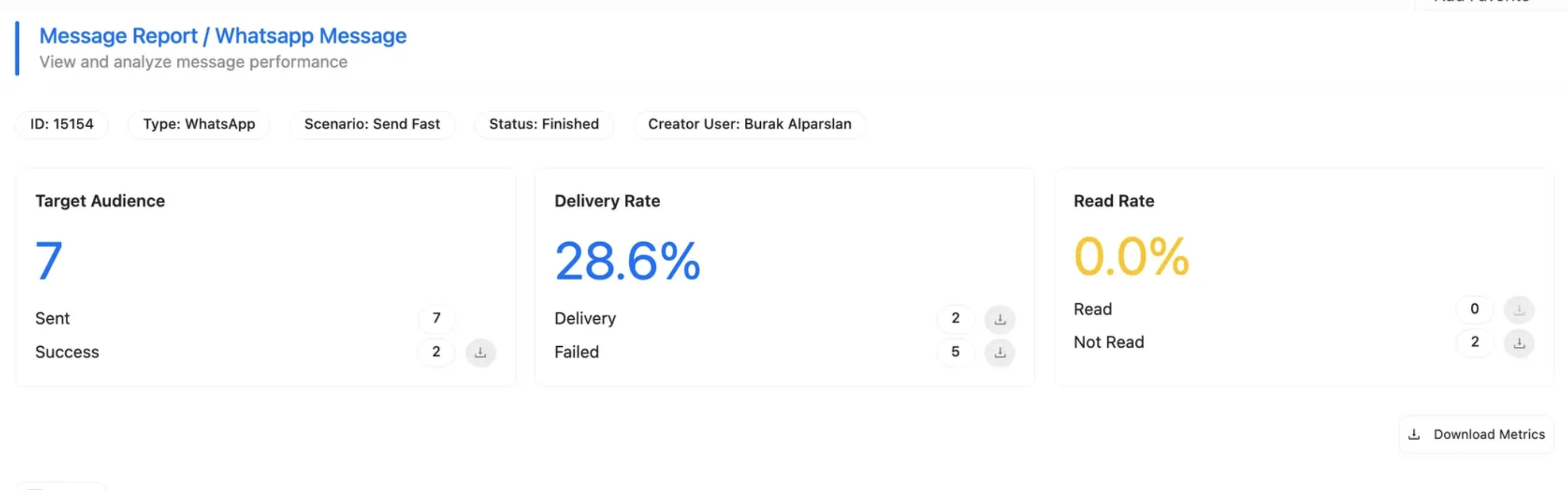
These cards summarize the full campaign lifecycle. They start with your planned audience, then move through sending, delivery, failures, and reads.
This makes the report useful for both operational checks and performance review. You can confirm whether the message went out successfully and then see how much user attention it received.
Overview (KPI cards)
### Metrics explained
#### Target Audience
The total audience size selected for the campaign.
#### Sent
The number of messages **successfully submitted** by Netmera to the Meta (WhatsApp) APIs.
This metric means Netmera completed the technical send successfully. It does not mean the message has already reached the end user.
#### Delivery (Success)
The number of messages **successfully delivered** to end users by Meta.
This value is based on the `delivered` events received via Meta WhatsApp webhooks. That is why webhook setup is essential for accurate delivery reporting.
{% hint style="info" %}
Delivery can lag behind Sent.
This is expected while Meta is still processing message statuses.
{% endhint %}
#### Delivery Rate (%)
Shows what percentage of sent messages were delivered to users.
**Formula:** `(Delivery / Sent) × 100`
#### Failed
Messages marked as failed by Meta (`failed` status).
{% hint style="info" %}
Failed messages are counted when Meta returns a final failure status.
While a campaign is still sending, you may see temporary gaps between Sent and (Delivery + Failed).
{% endhint %}
#### Read
Shows the number of messages opened and read by users.
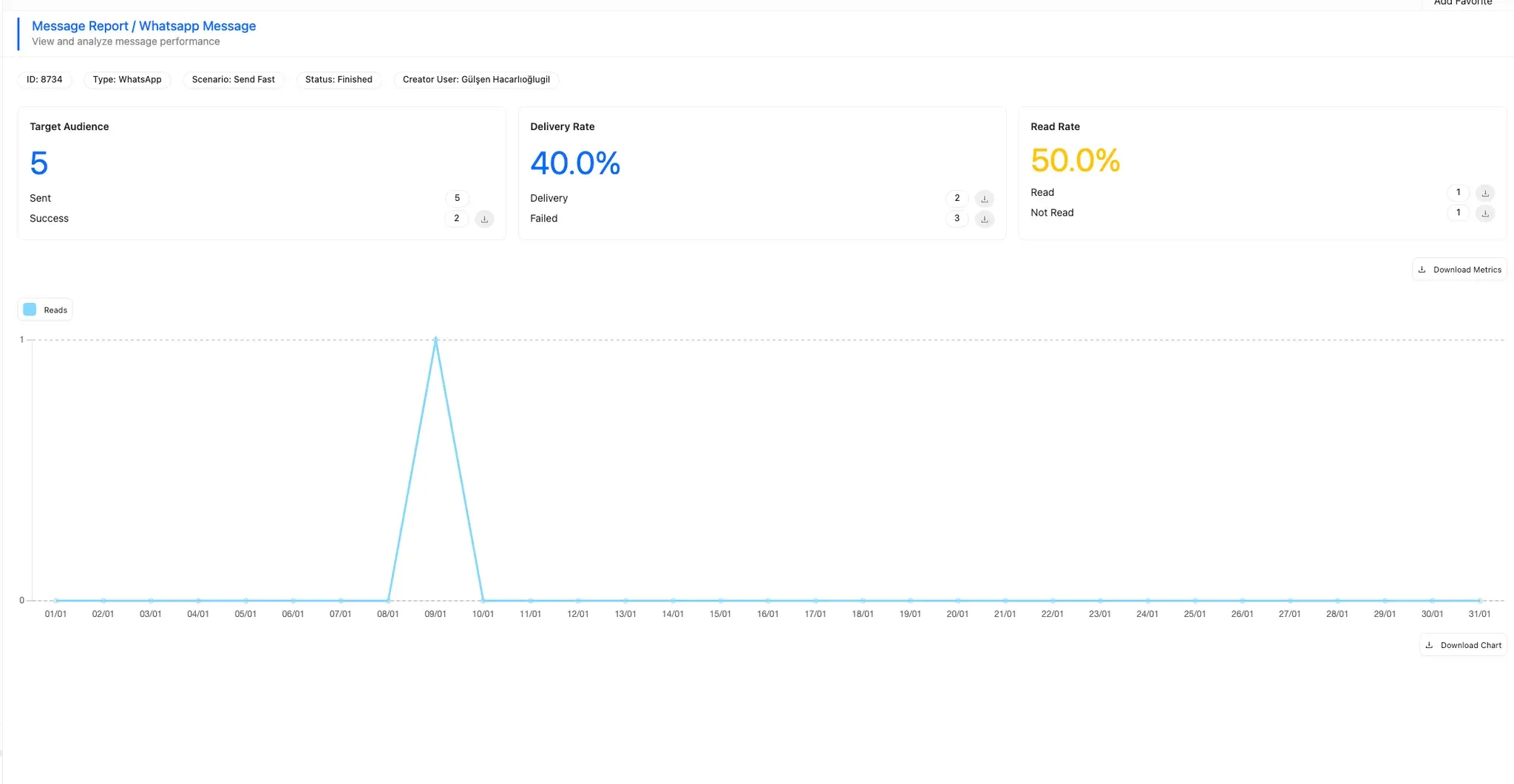
Read events are displayed as a **line chart** on the report page.
This metric is based on the `read` events received from Meta. Read performance is often the clearest sign of message attention after delivery.
#### Not Read
Messages that were delivered but not read yet.
Calculated as `(Delivery – Read)`.
#### Read Rate (%)
Shows what percentage of delivered messages were read.
**Formula:** `(Read / Delivery) × 100`
### How to interpret the numbers
#### Expected relationships
These checks help you quickly spot anomalies:
* **Read ≤ Delivery (Success)**\
A message cannot be read before it is delivered.
* **Not Read = Delivery – Read**\
This is a calculated field, not a webhook status.
These relationships help you sanity-check the report quickly. If the values do not behave as expected, the first thing to review is webhook completeness and status timing.
#### Example
If you have:
* `Sent = 10,000`
* `Delivery (Success) = 9,200`
* `Read = 3,680`
Then:
* `Delivery Rate (%) = (9,200 / 10,000) × 100 = 92%`
* `Not Read = 9,200 – 3,680 = 5,520`
* `Read Rate (%) = (3,680 / 9,200) × 100 = 40%`
#### Read trend (line chart)
The report also visualizes read activity over time. Use it to spot when users actually read the message after delivery.
For example, an immediate spike often means the audience engaged right after receiving the message, while a slower pattern can point to delayed attention later in the day.
Read trend (line chart)
**How to read this chart**
* **X-axis**: Time buckets within the selected report range.
* **Y-axis**: Number of `read` events.
* Spikes usually mean users opened the message after delivery.
---
# Agent Instructions
This documentation is published with GitBook. GitBook is the documentation platform designed so that both humans and AI agents can read, navigate, and reason over technical content effectively. Learn more at gitbook.com.
## Querying This Documentation
If you need additional information that is not directly available in this page, you can query the documentation by asking a question.
Perform an HTTP GET request on the following URL with the `ask` and `goal` query parameters:
```
GET https://user.netmera.com/netmera-user-guide/omnichannel-engagement/whatsapp/whatsapp-reports.md?ask=&goal=
```
`ask` is the immediate question: it should be specific, self-contained, and written in natural language.
`goal` is what the user is ultimately trying to achieve, the reason they need the answer. Sharing it helps GitBook give you a better, more relevant answer. A goal is most helpful when it describes the outcome the user wants rather than restating the question. For example, with `ask=how do I create an API token`, a goal like `automate deployments from our CI pipeline` lets GitBook tailor the answer to that use case.
The response will contain a direct answer to the question and relevant excerpts and sources from the documentation.
Use this mechanism when the answer is not explicitly present in the current page, you need clarification or additional context, or you want to retrieve related documentation sections.