# SMS Reports
SMS Reports help you track campaigns from **sent** to **delivered** and **failed**. Use them to validate provider delivery receipts and investigate failures. The summary table lists your SMS campaigns and their key metadata. Click a campaign to open its details.
#### Campaign Name & Message ID
* **Campaign Name**:\
Every campaign is given a unique, descriptive title that makes it easy to locate and reference. For example, titles like "Holiday Promo 2024" or "Product Update Alert" can instantly inform marketers about the campaign’s purpose or timing.
* **Message ID**:\
Each message is assigned a distinct ID, which acts as a tracking tool to manage and monitor specific messages. It ensures no overlap or confusion, especially in large-scale campaigns.
#### Message Type
Shows the category of the message (for example, campaign vs notification).
#### Message Text
The SMS content that recipients receive.
#### Delivery Method
How the audience was selected:
* **Creator**: Who created the campaign.
* **Broadcasting**: Sent to all eligible users.
* **Segments/Tags**: Sent to a targeted audience.
#### Campaign Status
* **Finished**: Sending completed.
* **Sending**: Campaign is still delivering.
#### Timing
* **Create**: When the campaign was created.
* **Start**: When sending started.
* **End**: When sending finished.
#### Key Metrics
#### Target Audience
The total number of recipients the campaign was intended to reach.
### Sent
The total number of messages dispatched to devices on each platform, representing the campaign's reach.
### Delivered
The total number of SMS messages dispatched to the provider. The number of messages confirmed as delivered by the provider (delivery receipt).
*Example:* If you sent 1000 messages and 750 were delivered, **Delivered = 750**.
Failed messages are shown as a **separate metric**, so your campaign totals are clearer:
**Failed** refers to messages that were **not delivered** after the provider completes its delivery attempts.
### Failed
* **Target Audience** → who you intended to reach
* **Sent** → what was dispatched to the provider
* **Delivered** → confirmed deliveries
* **Failed** → confirmed failures
{% hint style="info" %}
**Delivery status can be finalized later.**
Some providers (for example, Figensoft) may keep retrying delivery for up to **3 days**. If delivery is not completed within that window, the provider returns a **Failed** status and may include a **failed reason** (error code / message).
{% endhint %}
{% hint style="warning" %}
**Don’t expect Sent = Delivered.**
If you receive delivery receipts from your provider, **Sent** and **Delivered** can differ. Also, **Delivered + Failed** may lag behind **Sent** until the provider returns final statuses.
{% endhint %}
#### See failure reasons per user (User Details → Messages)
Use campaign-level **Failed** when you need totals. Use user-level history when you need to answer “why did *this user* fail?”.
1. Go to **Targeting > People > Find Person**.
2. Search by **External ID**, **MSISDN** (phone), or **email**.
3. Open the user to go to **User Details**.
4. Open the **Messages** tab.
5. Find the message and check the **status** and **failure reason** (provider error code / message).
{% hint style="info" %}
The Messages tab works with **30-day date ranges** and supports up to **6 months** of history. See [People](https://user.netmera.com/netmera-user-guide/targeting/people) for details.
{% endhint %}
### Performance
#### By platform
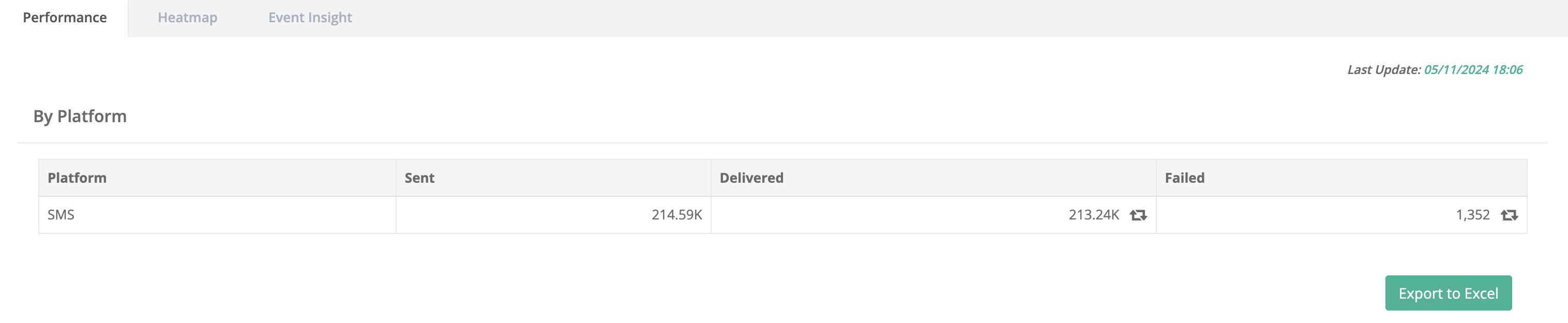
Break down results by platform. You can tag users by delivery outcome.
* **Sent:** The total number of messages dispatched to devices on each platform, representing the campaign's reach.
* **Delivered**: The number of messages confirmed as successfully delivered.
* **Failed:** The number of messages that failed to be delivered due to issues such as invalid device tokens, network errors, or other delivery obstacles.
### Heatmap
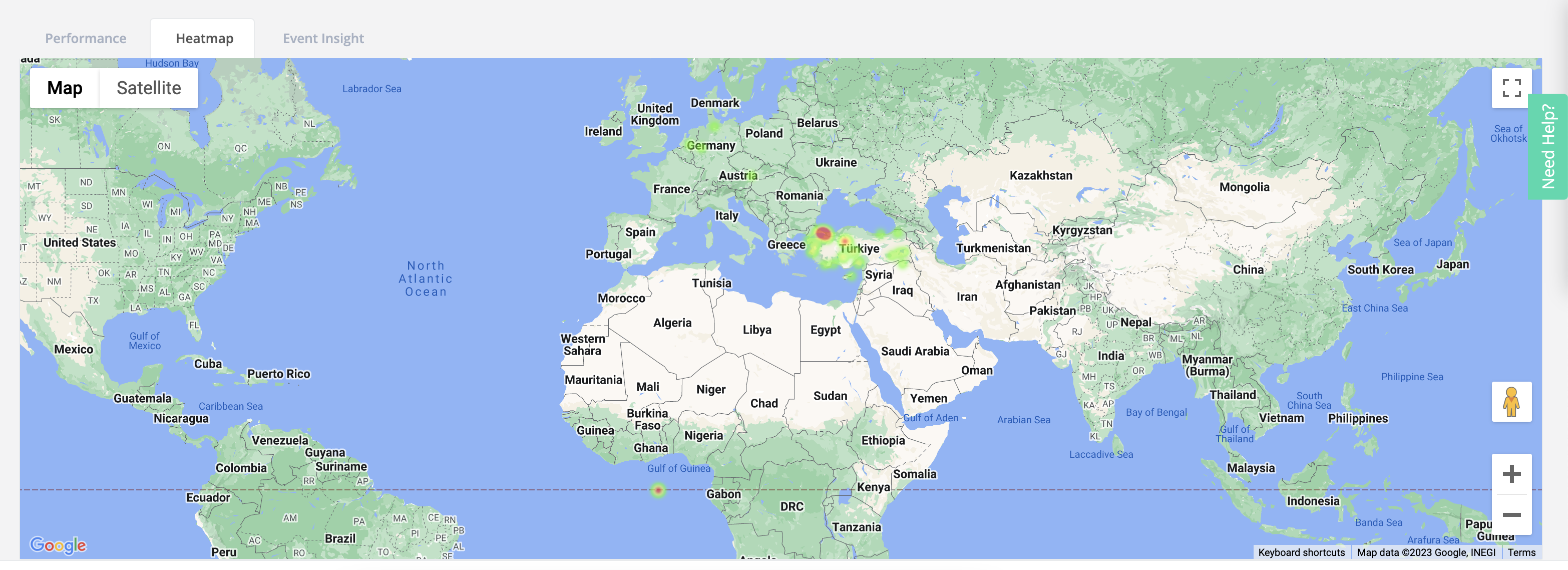
The heatmap shows the distribution of **delivered** messages over time. Use it to spot delivery spikes and low-delivery windows.
**Color Representation in the Heatmap**
* **Warmer Colors (e.g., Red, Orange)**: Indicate areas or segments where a larger number of messages were successfully received. These regions or groups have the highest concentration of delivered messages.
* **Cooler Colors (e.g., Blue, Green)**: Indicate areas or segments with fewer messages received, reflecting a lower delivery density.
### Event Insight
Use Event Insight when you need user-level breakdowns, not just campaign totals. This is the fastest way to answer “who received what, and when?”.
#### SMS Delivered event
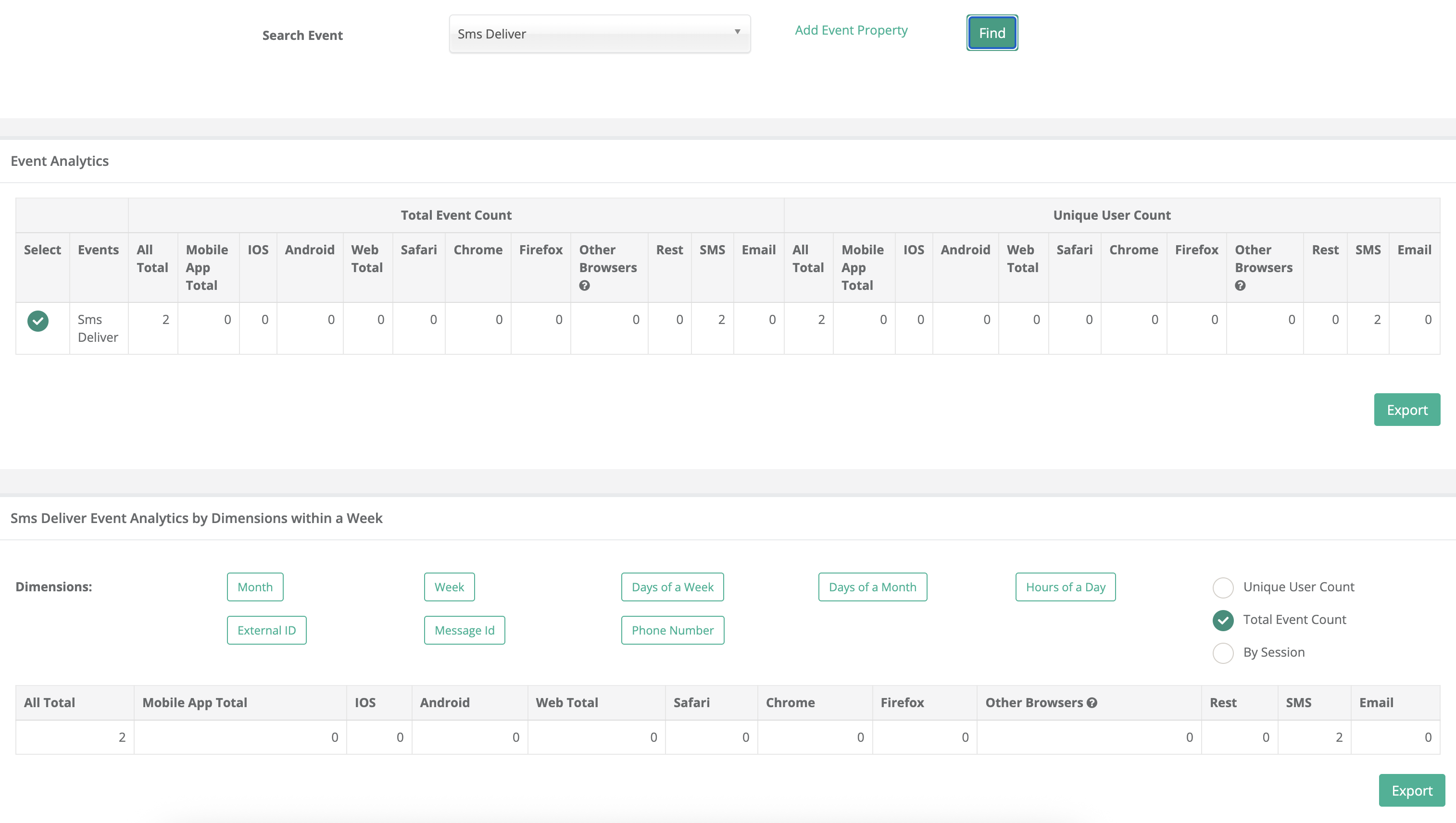
This feature makes it easy to zoom in on the specific event you want to analyze, improving the precision of your insights.
Netmera provides an **SMS Delivered** event for delivery-receipt based tracking. Use it to break down delivery results by:
* **External ID**
* **Phone Number (MSISDN)** (if available)
* **Message ID**
#### Drill-down by dimensions
After selecting a specific event in the Event Insight section, you can narrow down your analysis further by choosing specific dimensions. These dimensions provide deeper insights into the selected event, such as:
Add dimensions to get the level of detail you need. Use **External ID** when you need a user list.
The table generated after selecting these dimensions shows detailed results, such as:
* How many users performed the event (e.g., "Open App") in each month.
* The specific exterrnal IDs tied to the event, allowing you to identify high-value users or understand specific user behavior.
By drilling down into these dimensions, you gain a more granular understanding of how users are engaging with your app after receiving messages.