Adjust
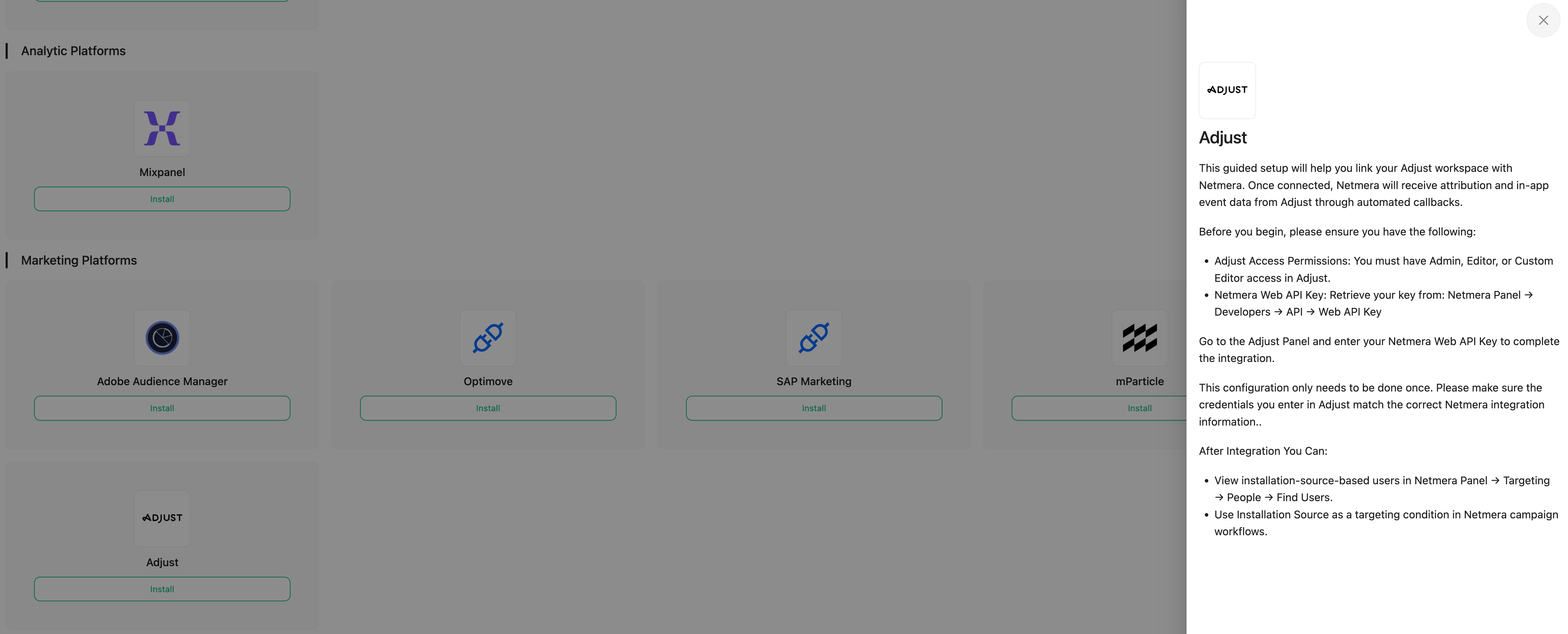
The Adjust Integration connects Netmera with the Adjust mobile measurement partner (MMP) platform. This connection allows Netmera to receive crucial attribution data and user events determined by Adjust, enabling marketers to perform precise segmentation and targeting based on user acquisition sources and campaign performance.
Overview
Connector Name
Adjust
Category
Marketing Platforms / Mobile Attribution and Analytics
Primary Function
Inbound synchronization of mobile attribution data and event payloads.
Data Flow
Inbound (Adjust > Netmera)
Netmera Component
Dedicated API Controller (AdjustController) for receiving webhooks/callbacks.
Status
Active
The existence of a specific AdjustController confirms that Netmera maintains a dedicated API endpoint structure designed to securely listen for and process data sent from the Adjust attribution platform.
Use Cases and Benefits
Attribution-Based Segmentation: The most critical use case is leveraging Adjust's attribution data (e.g., campaign name, ad creative, network) to create highly granular segments in Netmera. This allows for tailored welcome journeys or re-engagement campaigns based on how a user was acquired.
Profile Enrichment: Adjust data is used to enrich Netmera's
installationanduserrecords, updating attributes related to the installation source (RestSetSourceCmd). Netmera’s own SDK supports updating attribution tracking information via the/3.0/device/updateTrackInfoendpoint, demonstrating internal architecture support for this data.Cross-Platform Measurement: By integrating attribution data, marketers can accurately measure the ROI of messaging campaigns (Push, Email, SMS) by linking user engagement back to the original advertising campaign tracked by Adjust.
Real-Time Event Synchronization: Key in-app events tracked by Adjust can be forwarded to Netmera as custom events (
NmSdkEvent), feeding Netmera’s Automation Engine and Real-Time Analytics (RTA) module.
Data Flow
The Adjust integration is primarily Inbound, meaning Netmera is a receiver of data.
Inbound (Adjust > Netmera)
Post-install data, device IDs, campaign metadata, in-app event payloads.
Adjust sends server-to-server (S2S) callbacks/webhooks to Netmera's dedicated REST API endpoint.
The data reception is managed by the specific controller: AdjustController (located in the api-rest module). This mechanism allows Netmera to process high volumes of attribution data independently of standard SDK traffic.
Setup Instructions

Basic Setup
To initiate Adjust’s integration with Netmera, adhere to the following steps:
Locate your app and navigate to your app options caret (^).
Choose Partner Setup > ADD PARTNERS.
Click the add (+) icon adjacent to Netmera.
Input your NetmeraWebAPIKey. Please see Enabling Data Sharing to see how to setup.
Save your settings.
Netmera will receive callbacks for the following activities:
install
Locating Your Netmera Web API Key
Each application integrated with Netmera is assigned a unique Web API Key. This key is required for authenticating requests made to the Netmera Web API.
To access your Web API Key:
Log in to the Netmera Panel.
Navigate to Developers in the left-hand menu.
Click on API.
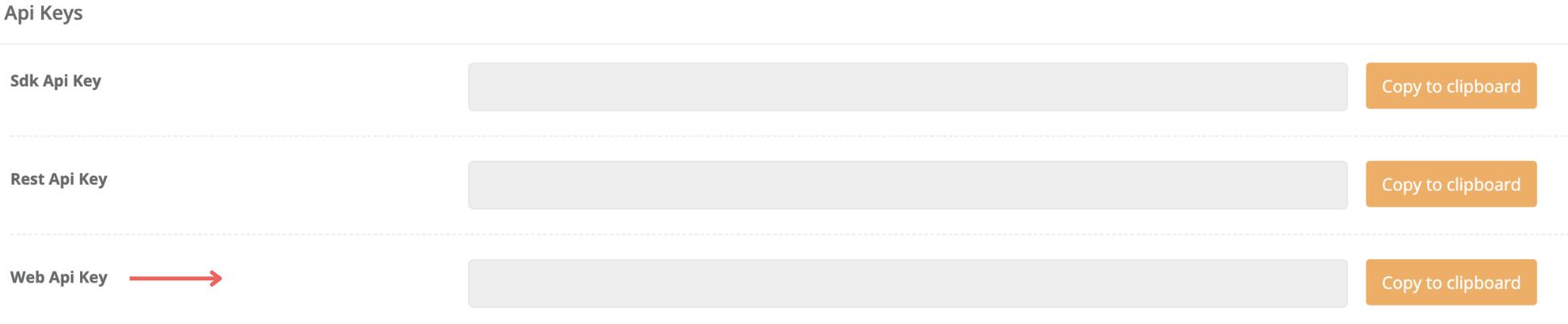
Select the Web API Key (third tab) and copy.
What is Your Netmera Web API Key?
Each application has a unique Netmera API Key.
To obtain your Web API Key nagivate to:
Netmera Panel > Developers > API > Web API Key

Enabling Data Sharing
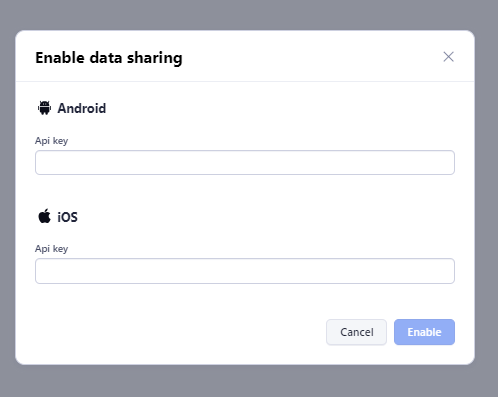
When setting up data sharing between Adjust and Netmera, the number of entry fields you’ll encounter may vary based on your app configuration in Adjust:
Multiplatform Apps: You’ll see one entry field.
Separate Android and iOS Apps: You’ll see two entry fields.
To complete the setup, enter the same Web API Key in each field, regardless of whether there is one or two.

List of Parameters Forwarded to Netmera
You may tailor the data transmitted to Netmera from Adjust by customizing your setup. Netmera necessitates Adjust to transmit the following parameters (data points) with your callbacks.
{gps_adid}
Google Play Store advertising ID
{idfa}
ID for advertisers (iOS only)
{idfv}
Uppercase iOS ID for vendors
{activity_kind}
Type of user activity
{adgroup_name}
Adgroup name, as taken from the tracker
{campaign_name}
Campaign name, as taken from the tracker
{created_at}
Activity timestamp
{installed_at}
Install (i.e., first app open) timestamp
Accessing Data on Netmera Panel
After this integration, you may see the transferred data in the following spaces on Netmera Panel:
Targeting > People > Find Users > By Installation Source (explained in User Guide)
Messages > Campaigns > Create New Campaign > Step 3: Who > By Installation Source (explained in User Guide)
Adjust Documentation
For more information, please refer to the Adjust Documentation.
Last updated
Was this helpful?