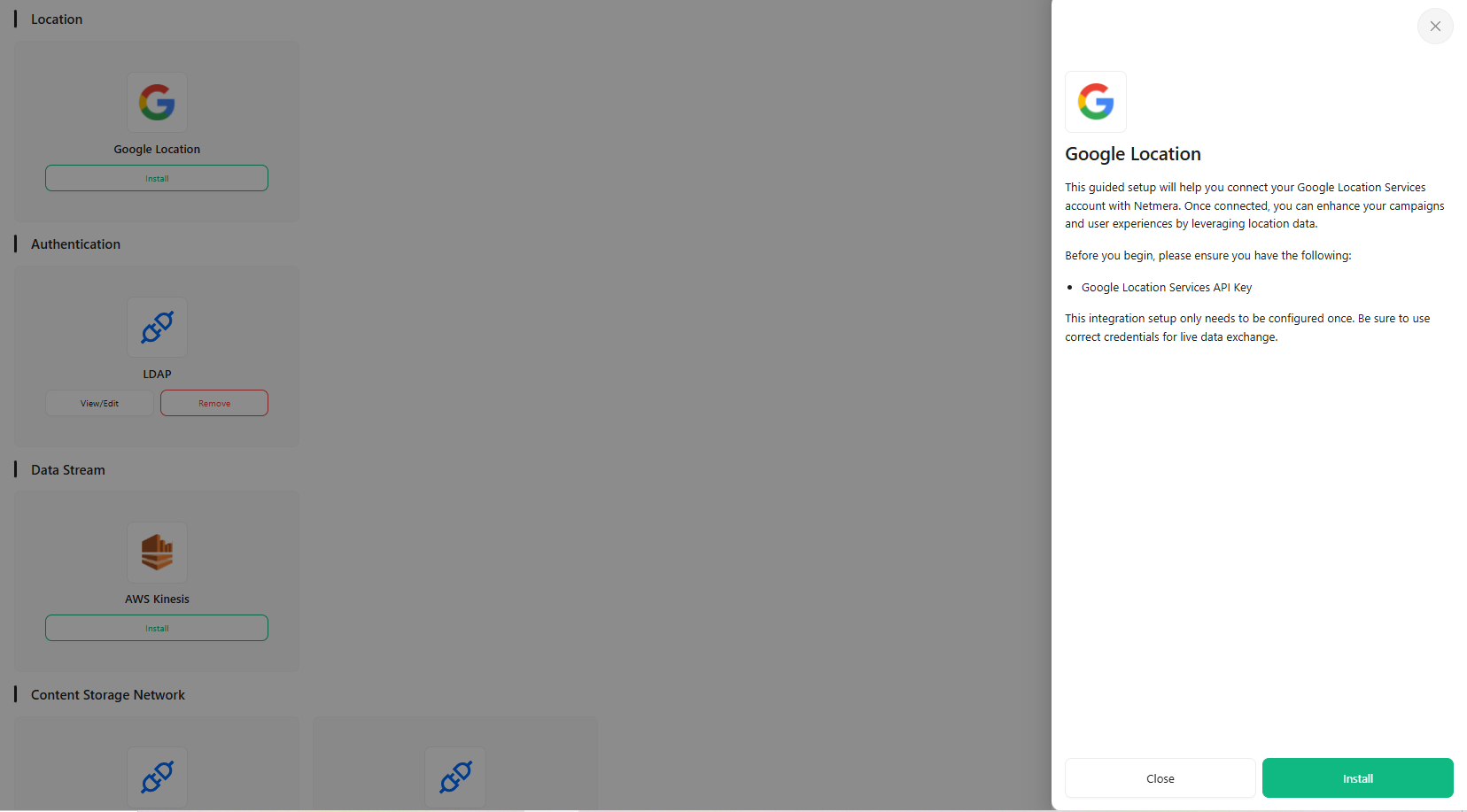
Google Location

Based on the provided documentation regarding Netmera's integration connectors and internal services, here is the detailed explanation of the Google Location (Geocoding API) connector.

The Google Location connector integrates the Netmera platform with the Google Geocoding API, enabling the enrichment of raw GPS coordinates (latitude/longitude) with structured address information.

Overview

Attribute
Details

Connector Name

Google Location

Category

Location Services

Provider

Google (Geocoding API)

Primary Function

Reverse Geocoding (Converting coordinates to human-readable addresses)

Netmera Component

GoogleGeofenceService, InternalDeviceServiceImpl, LocationEventConsumer

Data Flow

Inbound (Mobile App > Netmera) triggers Outbound (Netmera > Google API)

Integration Type

API Call (REST/HTTP)

Priority Ranking

Implicitly prioritized within the LocationEventConsumer workflow.

This connector's functionality is vital for location-based targeting and segmentation within Netmera, as it translates ephemeral GPS data into usable profile attributes like City and Country.

Use Cases and Benefits

  1. Automated Profile Enrichment: The primary use case is automatically updating user profiles with derived location data (City, County, Country, District) whenever a location update event is received from the mobile SDK.

  2. Targeting and Segmentation: The enriched location attributes (CITY, COUNTY, COUNTRY, DISTRICT) can then be used in the Netmera Control Panel's targeting step (Messages > Create Message > Who Step > Add Condition > Location) for precise marketing campaigns.

  3. Geofence Operations: Although the service is named "Google Location" and uses the Geocoding API, the output data is crucial for supporting broader geofence (geographical boundary) and location-based segmentation operations.

  4. Data Consistency: It converts raw coordinate data into consistent, structured profile attributes, maintaining data quality for analytics and targeting.

Data Flow

The data flow is transactional: an inbound event from the mobile application triggers an outbound API call to Google.

  1. Inbound Trigger: The mobile SDK fires a Location Event or any NmSdkEvent containing location data (latitude, longitude). This event is published to the Kafka topic EVENT_LOCATION.

  2. Consumer Processing: The LocationEventConsumer handles the event (operating in an OrderedQueueConsumer manner for sequential consistency).

  3. Validation and Optimization: The system checks:

    • If the Google Location Config is active and the API Key is present.

    • Performance Optimization: If the new location is less than 100 meters away from the last recorded location, the update is skipped to prevent unnecessary database writes.

    • Quota Optimization: If reverse geocoding was already performed within the last 5 km, it is skipped to conserve Google API quota.

  4. Outbound API Call (Reverse Geocoding): If the criteria are met, the GoogleGeofenceService.getLocationInfo() method is called, which makes an HTTP request to the Google Geocoding API using the coordinates and the configured apiKey.

  5. Inbound Update: The Google API response is parsed, and the resulting address components are written back to the user's data:

    • The raw location (NmLocation object) is saved in the installation collection.

    • The extracted address details (CITY, COUNTY, COUNTRY, DISTRICT) are saved in the user's profileAttributes within the user collection.

Configuration Reference

The configuration for the Google Location connector is straightforward, requiring only the API access credential.

Parameter
Type
Description
Provider Context

apiKey

String

The Google Maps API key obtained from the Google Cloud Console.

Required for authenticating requests to the Geocoding API.

Setup Instructions

Setting up the Google Location connector requires obtaining the necessary API credentials from Google Cloud Platform.

  1. Prerequisites in Google Cloud:

    • Create a Google Cloud account and a project.

    • Enable the Geocoding API for that project.

  2. Obtain API Key:

    • In the Google Cloud Console, navigate to APIs & Services > Credentials.

    • Create an API Key and apply appropriate security restrictions (e.g., HTTP referrer or IP address restrictions).

  3. Configure in Netmera:

    • Navigate to the Netmera Control Panel's Connectors settings.

    • Select the Google Location connector.

    • Input the API Key into the configuration form.

    • Save the configuration.

Usage Notes & Considerations

  1. API Quota and Cost: Google Maps API usage is paid, and clients must manage their API quotas. Excessive location updates, especially if optimization rules are misconfigured, can quickly lead to high costs or exceeding Google's daily limits. If quotas are exceeded, the system will log a warning (Cannot get response from google geocoding...) and cease address updates.

  2. Low Priority Consumer: The LocationEventConsumer operates with only 3 threads. If there is a large volume of location updates, this consumer can experience lag, especially if external API calls (to Google) are slow.

  3. Missing API Key: If the apiKey is null, the system logs a DEBUG message (googleLocationConfig api key is null for appKey...) and skips the reverse geocoding process, meaning profile attributes (CITY, COUNTRY, etc.) will not be updated based on location events.

  4. Performance Optimization Rules: The system enforces two rules to limit API calls:

    • Updates are skipped if the new location is within 100 meters of the last recorded location.

    • Updates are skipped if reverse geocoding was already performed within the last 5 km. If the application needs real-time, highly granular address updates, these internal optimizations may be seen as a limitation.

  5. Location Event Prerequisite: The entire process relies on receiving location data within an EVENT_LOCATION command (or any NmSdkEvent processed by the SDK event consumer), meaning the mobile application must be successfully configured to send GPS coordinates to Netmera.

Last updated

Was this helpful?