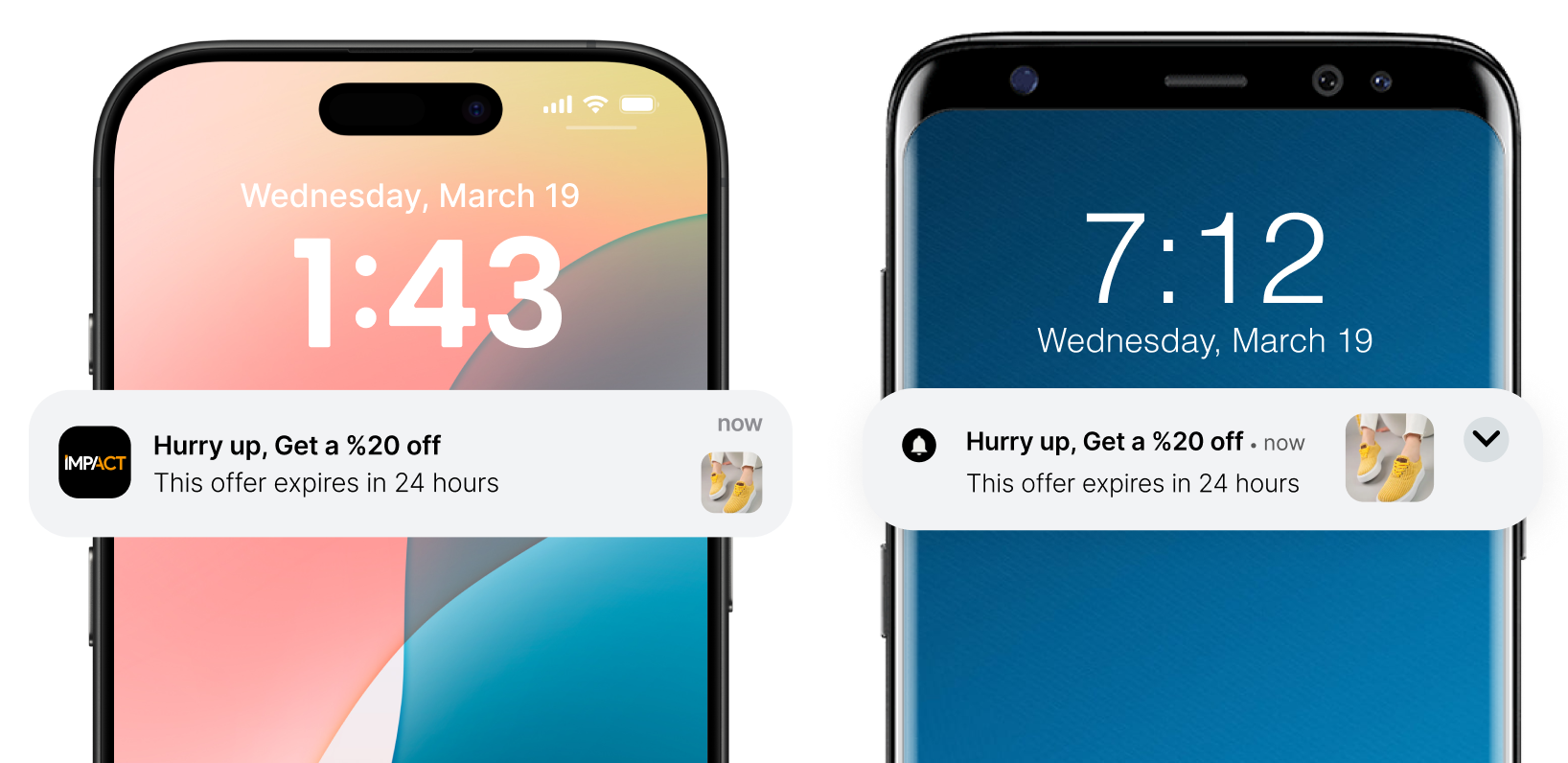
# What

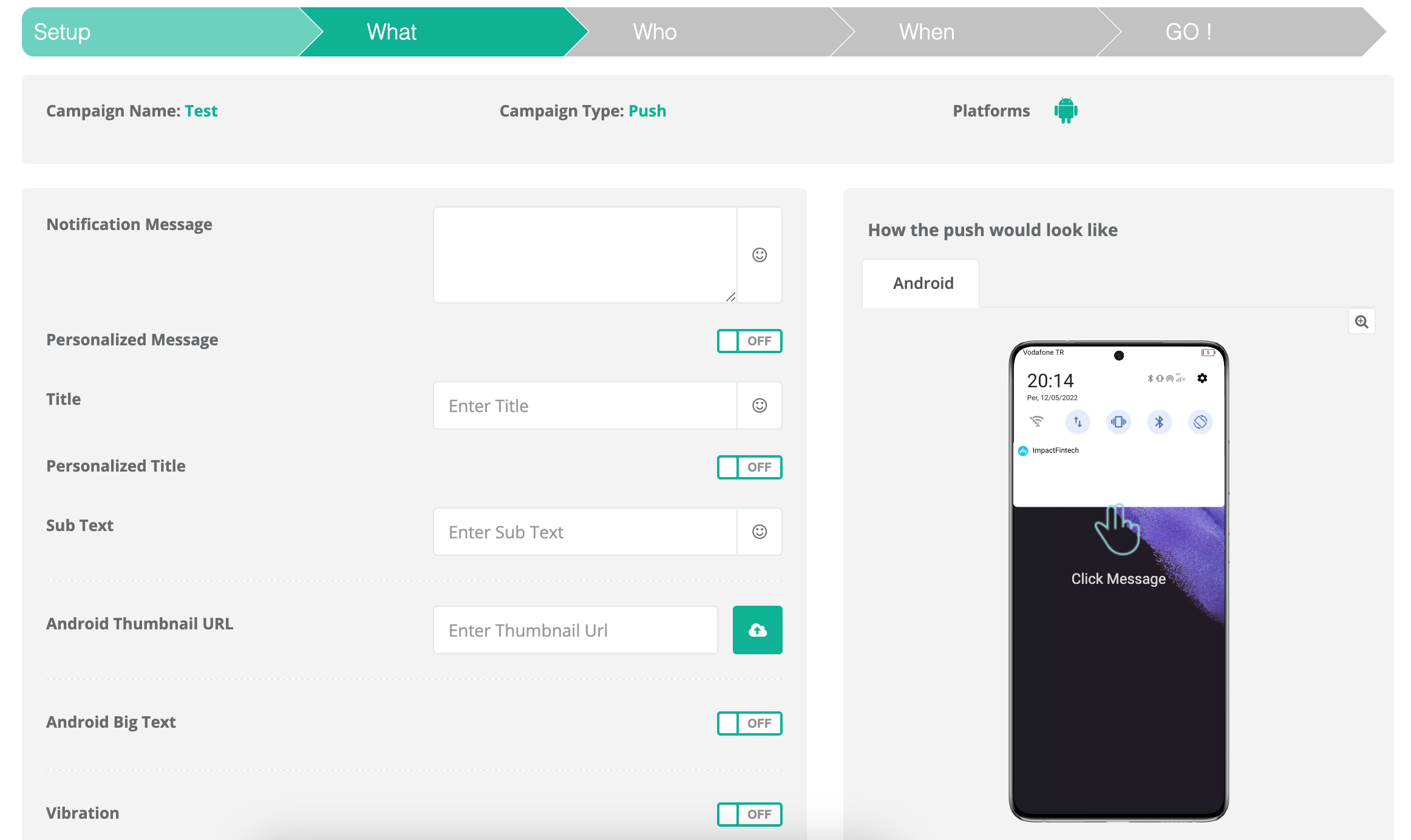
The **What** step is where you define the content of your push notification. In this step, you will configure the core components of your message—such as the title, body, visuals, and personalization settings—that will appear on users’ devices.

<figure><img src="https://1642824329-files.gitbook.io/~/files/v0/b/gitbook-x-prod.appspot.com/o/spaces%2FX6uilbEAw42gqsudlclY%2Fuploads%2FzJ6iCW3PWrRTj8JWkMsH%2FScreenshot%202023-04-13%20at%2013.54.23.png?alt=media&#x26;token=9d0afe82-82d2-49ae-ab98-7a2d39469ef1" alt="" width="563"><figcaption><p>Step 2: What</p></figcaption></figure>

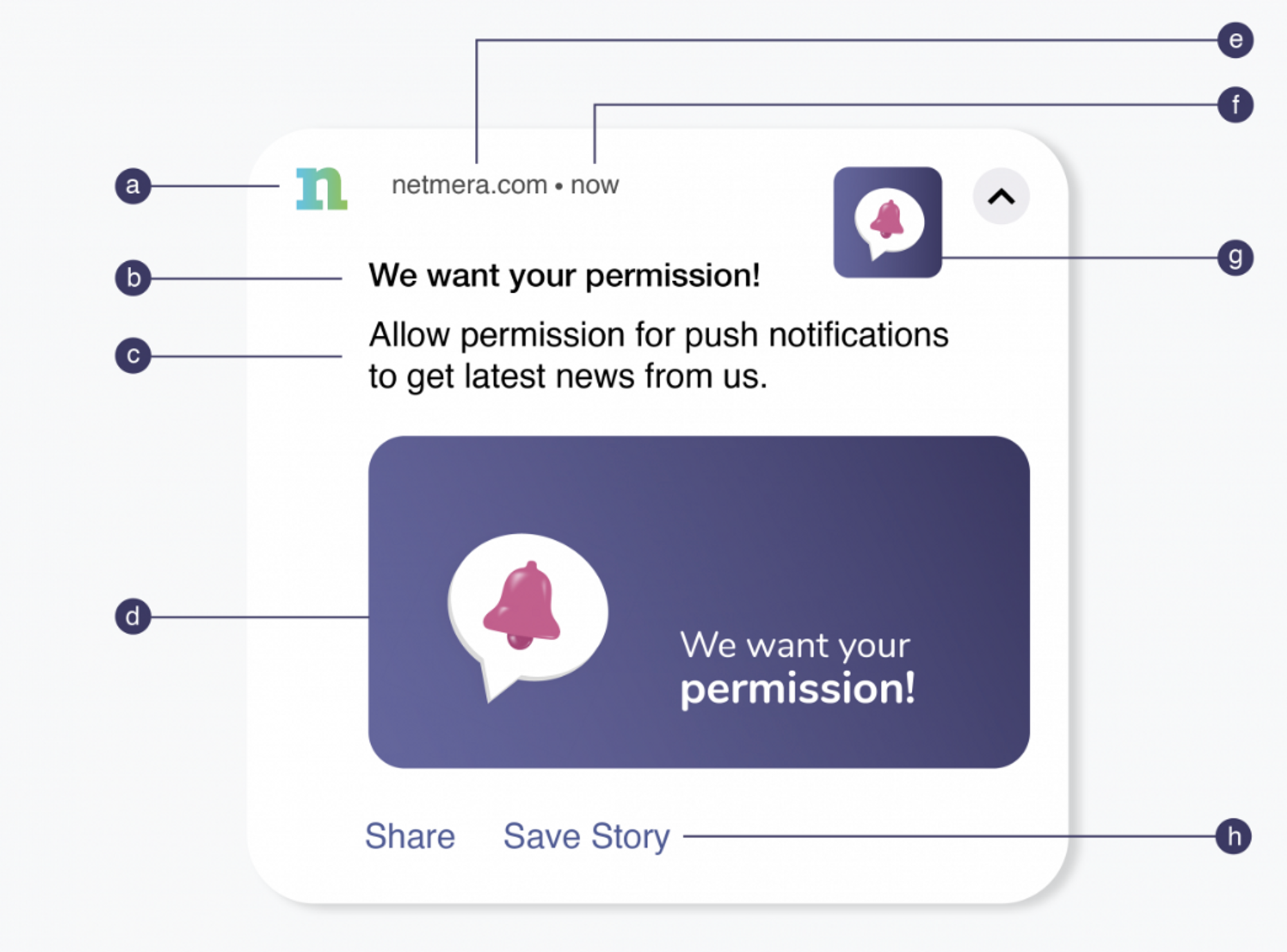
### Mobile Push Notifications Elements

{% columns %}
{% column width="58.333333333333336%" %}

<table><thead><tr><th width="109.44879150390625">Element</th><th>Description</th></tr></thead><tbody><tr><td>Small Icon</td><td>24×24 – 96×96, white PNG with transparent background.</td></tr><tr><td>Title</td><td>Max 50 characters.</td></tr><tr><td>Body (Notification Message)</td><td>Max 150 characters with maximum payload of 4096 bytes. <a href="https://developer.apple.com/library/archive/documentation/NetworkingInternet/Conceptual/RemoteNotificationsPG/CreatingtheNotificationPayload.html">Apple</a>, <a href="https://firebase.google.com/docs/cloud-messaging/concept-options">Firebase</a>.</td></tr><tr><td>Image</td><td>1440×720 (2:1 ratio), PNG/JPG/GIF (not animated).</td></tr><tr><td>App Name</td><td>Shown as notification source. Cannot be customized.</td></tr><tr><td>Time Stamp</td><td>Shows when the message was received.</td></tr><tr><td>Thumbnail (Icon)</td><td>192×192+, PNG/JPG/GIF (not animated).</td></tr><tr><td>Action Buttons</td><td>Configurable in Settings > <a href="../button-sets">Button Sets</a> (up to 3).</td></tr></tbody></table>

{% endcolumn %}

{% column width="41.666666666666664%" %}

<figure><img src="https://1642824329-files.gitbook.io/~/files/v0/b/gitbook-x-prod.appspot.com/o/spaces%2FX6uilbEAw42gqsudlclY%2Fuploads%2FndrcIiUT8gMUAbOWl72H%2Fimage.png?alt=media&#x26;token=a0c06376-c138-4915-be68-f8d572005edf" alt="" width="563"><figcaption><p>Elements of Push Notifications</p></figcaption></figure>

{% endcolumn %}
{% endcolumns %}

<table><thead><tr><th width="171">Title</th><th width="381.3333333333333">Description</th><th>Requirement</th></tr></thead><tbody><tr><td><a href="#title">Title</a></td><td>Title of your notification</td><td><em><strong>Necessary</strong> in all notification types</em></td></tr><tr><td><a href="#notification-message">Notification Message</a></td><td>Your message to be delivered in your notification</td><td><em><strong>Necessary</strong> in all notification types</em></td></tr><tr><td><a href="#android-ios-media-url">Android Media URL</a></td><td>Images that appear inside of your notification</td><td><em><strong>Necessary</strong> if any media notification is chosen</em></td></tr><tr><td><a href="#category">Category</a></td><td>Category of your messages based on your own predefined criteria or use case</td><td><em>Optional</em></td></tr><tr><td><a href="#personalized-message">Personalized Message</a></td><td>Your personalized message aiming your user information</td><td><em>Optional</em></td></tr><tr><td><a href="#personalized-title">Personalized Title</a></td><td>Your personalized title aiming your user information </td><td><em>Optional</em></td></tr><tr><td><a href="#sub-text">Subtext</a></td><td>Additional text to be shown next to your application name</td><td><em>Optional</em></td></tr><tr><td><a href="#personalized-subtext">Personalized Subtext</a></td><td>Personalized attribute using the {@} format</td><td><em>Optional</em></td></tr><tr><td><a href="#custom-push-icon">Custom Push Icon</a></td><td>Send message with custom icons (needs integration, please refer to <a href="https://user.netmera.com/netmera-developer-guide/messages/push-notifications/ios-push/ios-push-icon">iOS Push Icon</a> or <a href="https://user.netmera.com/netmera-developer-guide/messages/push-notifications/android-push/push-icon">Android Push Icon</a>)</td><td><em>Optional</em></td></tr><tr><td><a href="#android-ios-thumbnail-url">Android / iOS Thumbnail URL</a></td><td>Images that appear next to text messages that can't be expanded  </td><td><em>Optional</em></td></tr><tr><td><a href="#vibration">Vibration</a></td><td>Notifications will be delivered via vibration if you switch on</td><td><em>Optional</em></td></tr><tr><td><a href="#show-in-push-inbox">Show in Push Inbox</a></td><td>Send message to application inbox (needs integration, please refer to <a href="https://user.netmera.com/developer-guide/">Developer Guide</a>)</td><td><em>Optional</em></td></tr><tr><td><a href="#opt-out-inbox-enabled">Opt-out Inbox Enabled</a></td><td>Send message to all targeted users’ inbox regardless they are opt-in or not</td><td><em>Optional</em></td></tr><tr><td><a href="#dont-notify">Don't Notify</a></td><td>Your message will not be shown as notification. Use only for inbox.</td><td><em>Optional</em></td></tr><tr><td><a href="#play-sound">Play Sound</a></td><td>Notification are delivered with sound (needs integration, please refer to <a href="https://user.netmera.com/developer-guide/">Developer Guide</a>)</td><td><em>Optional</em></td></tr><tr><td><a href="#disable-webhooks">Disable Webhooks</a></td><td>Message logs won’t be directed to application backend</td><td><em>Optional</em></td></tr><tr><td><a href="#push-click-action">Push Click Action</a></td><td>Actions can be taken when the user clicks the notification</td><td><em>Optional</em></td></tr><tr><td><a href="#fallback">Fallback</a></td><td>Scenarios can be created for the users that did not receive your notification (needs integration, please refer to <a href="https://user.netmera.com/developer-guide/">Developer Guide</a>)</td><td><em>Optional</em></td></tr><tr><td><a href="#conversion-analytics">Conversion Analytics</a></td><td>Conversion event can be determined according to your aim</td><td><em>Optional</em></td></tr></tbody></table>

{% @arcade/embed flowId="kEgA2niJhGxTDpoHvdRQ" url="<https://app.arcade.software/share/kEgA2niJhGxTDpoHvdRQ>" fullWidth="false" %}

### Message Content

#### Message Category

**Purpose**: Organize your campaigns based on their function or content.

Use the **Category** field to classify your campaign under a label such as:

* Promotions
* Announcements
* Account Alerts
* Transactional Messages

Categorizing helps with future campaign filtering, reporting, and analytics.

#### Notification Message (Body)

**Purpose**: Communicates the primary message to users.

This is the main text content of your push notification. Keep it:

* Informative
* Concise
* Action-oriented

You may use **text and emojis** for added emphasis and visual appeal.

> Example:\
> “Your payment was successful 🎉” or\
> “🚨 Suspicious login detected. Tap to secure your account.”

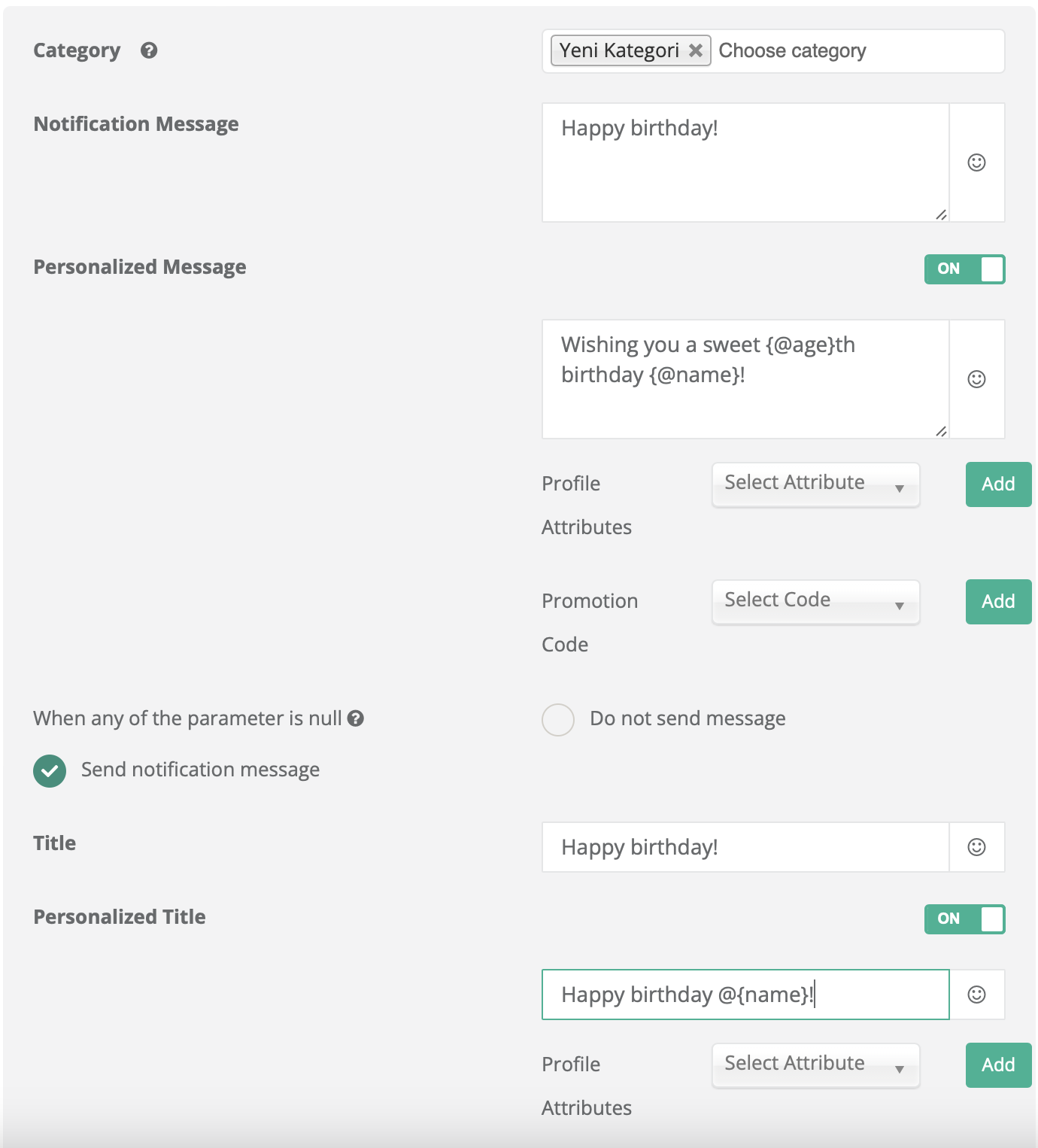
#### Personalized Message

**Purpose**: Increases engagement by tailoring content using user profile data.

You can personalize messages using attributes such as name, age, or preferences stored in Netmera. Use `{@attribute}` syntax or the dropdown selector to insert available attributes. You must create [profile attributes](https://user.netmera.com/netmera-user-guide/customer-data/profile-attributes) before using them in your notifications.

> Example:
>
> * Default: “Happy birthday!”
> * Personalized: “Wishing you a sweet {@age}th birthday, {@name}!”\
>   → Displays as: “Wishing you a sweet 26th birthday, Simon!”

Use cases include:

* Greeting users by name
* Recommending products based on past behavior
* Sending localized or weather-based messages

> **Tip**: Ensure your app transmits the necessary profile data to Netmera beforehand.

#### Title

**Purpose**: Grabs attention and provides immediate context.

Create a compelling **notification title** that encourages the user to engage. You can use emojis and concise text to improve visibility.

#### Personalized Title

If user profile data is available, personalize the title for stronger impact.

> Example:\
> “Hey {@name}, your exclusive offer is here!”\
> → Becomes: “Hey Emily, your exclusive offer is here!”

Personalized titles can:

* Increase open rates
* Strengthen user-brand connection
* Improve retention metrics

<figure><img src="https://1642824329-files.gitbook.io/~/files/v0/b/gitbook-x-prod.appspot.com/o/spaces%2FX6uilbEAw42gqsudlclY%2Fuploads%2FmaYlPuRCV9eLWIQsENBt%2Fimage.png?alt=media&#x26;token=68009429-baea-4ddb-8cda-bd4f4c30c394" alt="" width="563"><figcaption><p>Message Content</p></figcaption></figure>

#### Subtext

**Purpose**: Adds secondary context, shown next to your app’s name.

Subtext supports personalization and often appears in the notification header on supported devices. It can include:

* Additional details
* A brief summary
* A call to action

> Example: “Limited-time offer · Ends tonight!”

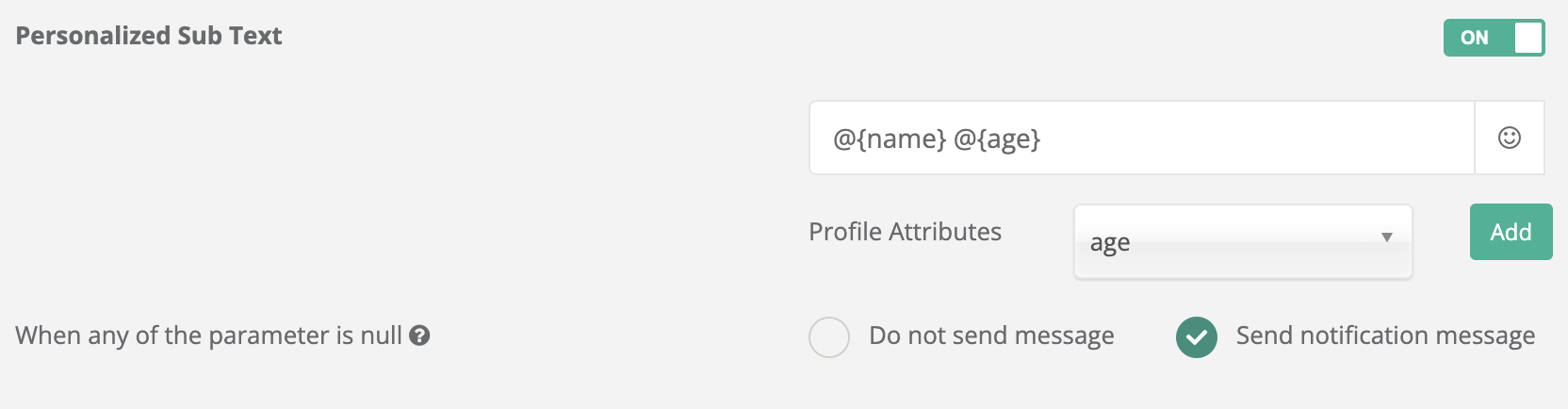
#### Personalized Subtext

You can use the same `{@}` format or dropdown menu to insert dynamic user data into the subtext.

> Example:\
> “Your challenge score: {@score}” → “Your challenge score: 850”

<figure><img src="https://1642824329-files.gitbook.io/~/files/v0/b/gitbook-x-prod.appspot.com/o/spaces%2FX6uilbEAw42gqsudlclY%2Fuploads%2FfnenKBtzB4eN6hFKknjT%2FScreenshot%202024-05-28%20at%2014.39.13.png?alt=media&#x26;token=cdb2edef-5e27-4cab-81a4-827d706d96cb" alt=""><figcaption></figcaption></figure>

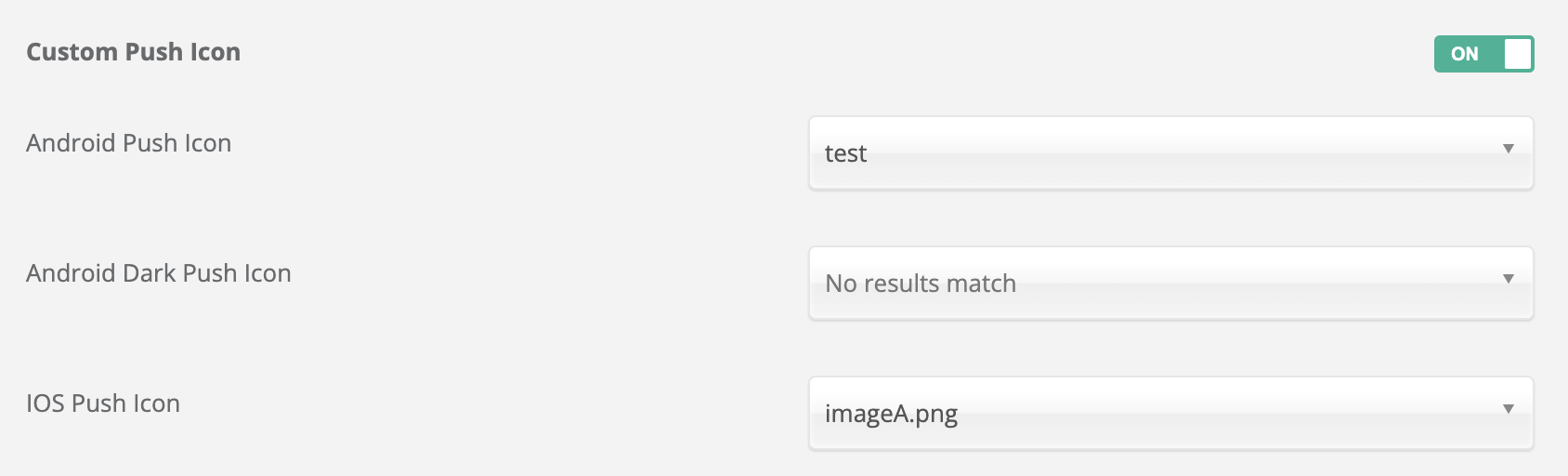
#### Custom Push Icon

**Purpose**: Displays a custom app logo or image beside the notification (platform-specific).

* Requires additional SDK configuration.
* If not configured, the **default icon** from your app settings will be used.

Refer to:

* [iOS Push Icon](https://user.netmera.com/netmera-developer-guide/messages/push-notifications/ios-push/ios-push-icon)
* [Android Push Icon](https://user.netmera.com/netmera-developer-guide/messages/push-notifications/android-push/push-icon)

{% hint style="info" %}
**When Custom Push is Turned Off:**

If a default notification icon is provided and custom push icon is turned off, the default icon from the Developer App Info will be used.
{% endhint %}

<figure><img src="https://1642824329-files.gitbook.io/~/files/v0/b/gitbook-x-prod.appspot.com/o/spaces%2FX6uilbEAw42gqsudlclY%2Fuploads%2FLjWENqLLocQRURjFBhje%2FScreenshot%202024-05-28%20at%2014.40.24.png?alt=media&#x26;token=a07cc96b-685e-496e-a61b-2e8be52ec6c2" alt=""><figcaption></figcaption></figure>

#### Android/iOS Thumbnail URL

**Purpose**: Displays a **thumbnail** **image** alongside the notification text.

* Can be uploaded or referenced via direct URL.
* Offers a static, non-expandable visual.
* Ideal for logos, product previews, or branded content.

<figure><img src="https://1642824329-files.gitbook.io/~/files/v0/b/gitbook-x-prod.appspot.com/o/spaces%2FX6uilbEAw42gqsudlclY%2Fuploads%2FtfUR2OsJnZHXPtHJez57%2Fthumbnail.png?alt=media&#x26;token=dfe0e4ad-2a5c-4d49-b988-2d6033af43ca" alt="" width="563"><figcaption><p>Push Thumbnail Views</p></figcaption></figure>

#### Android/iOS Media URL

**Purpose**: Embeds rich media (images or videos) in the notification.

* Media is shown more prominently than thumbnails.
* Enhances visual appeal and message clarity.

> Example Use Case:\
> Include a product image in a push notification announcing a new collection.

Upload from your computer or insert a URL. Ensure the media is optimized for fast loading.

#### Vibration

**Adds a vibration alert** when the notification is received.

* Enhances visibility for users in noisy or muted environments.
* Can be enabled or disabled per campaign.

#### Show in Push Inbox

{% hint style="info" %}
**Requires SDK integration**

This option needs integration, please refer to [**Developer Guide**](https://user.netmera.com/developer-guide/)**.** After you have integrated this option with your developers, you may choose this option on this step. \
Once integrated, selecting this option allows the message to be stored in your app’s internal **Push Inbox**, enabling users to revisit it later.
{% endhint %}

Use this feature for:

* Important announcements
* Time-sensitive content
* Summarized communications

#### Opt-out Inbox Enabled

Enables message delivery **even to users who have opted out of push notifications**. The message is silently delivered to the inbox without triggering a notification.

Useful for:

* Critical updates
* Transactional information

#### Don't Notify

If selected, the message will **only appear in the push inbox** and will **not trigger an actual notification** on the device.

Use this to:

* Avoid disturbing the user
* Provide contextual messages inside the app

#### Play Sound

{% hint style="info" %}
**Requires SDK integration**

This option needs integration, please refer to [**Developer Guide**](https://user.netmera.com/developer-guide/)**.** After you have integrated this option with your developers, you may choose this option on this step. \
After setup, you can upload or select a **custom sound** to play when the notification arrives.
{% endhint %}

* Use distinct sounds for priority messages
* Ensure sound files meet platform requirements

#### Disable Webhooks

When this option is enabled, any **webhooks** connected to the campaign are deactivated for this notification.

This is useful when:

* Testing a message
* Sending isolated notifications that should not trigger backend workflows

### Push Click Actions

The **Click Action** defines what happens when a user taps the notification. Each action allows you to create specific user journeys based on your campaign goals.

<figure><img src="https://1642824329-files.gitbook.io/~/files/v0/b/gitbook-x-prod.appspot.com/o/spaces%2FX6uilbEAw42gqsudlclY%2Fuploads%2F2CtPacDNpkgHfTjPzJ8E%2FScreenshot%202025-03-10%20at%2019.04.07.png?alt=media&#x26;token=9f2d90f5-bbd5-45be-b28b-ff7b68c6cde4" alt="" width="563"><figcaption></figcaption></figure>

#### Available Actions

<table><thead><tr><th width="199.6302490234375">Action Type</th><th>Description</th></tr></thead><tbody><tr><td><strong>Open App</strong></td><td>Opens the app's main screen. Suitable for general awareness messages.</td></tr><tr><td><strong>Show Web Page</strong></td><td>Opens a specific URL in the device's browser. Useful for external content or promotions.</td></tr><tr><td><strong>Go to Deeplink</strong></td><td>Navigates to a specific screen in the app using a deeplink URL. Ideal for contextual or personalized experiences.</td></tr><tr><td><strong>Show Custom Page</strong></td><td>Displays an in-app landing page or message. Great for promos or targeted in-app content.</td></tr><tr><td><strong>Open Widget</strong></td><td>Opens a widget already defined in your app. Widgets must be created in advance.</td></tr><tr><td><strong>Nothing</strong></td><td>No action is taken. The notification is dismissed. Used for informational alerts.</td></tr></tbody></table>

#### Open App

* Opens the main screen or homepage of your app. Ideal for general engagement campaigns where no specific destination is required.

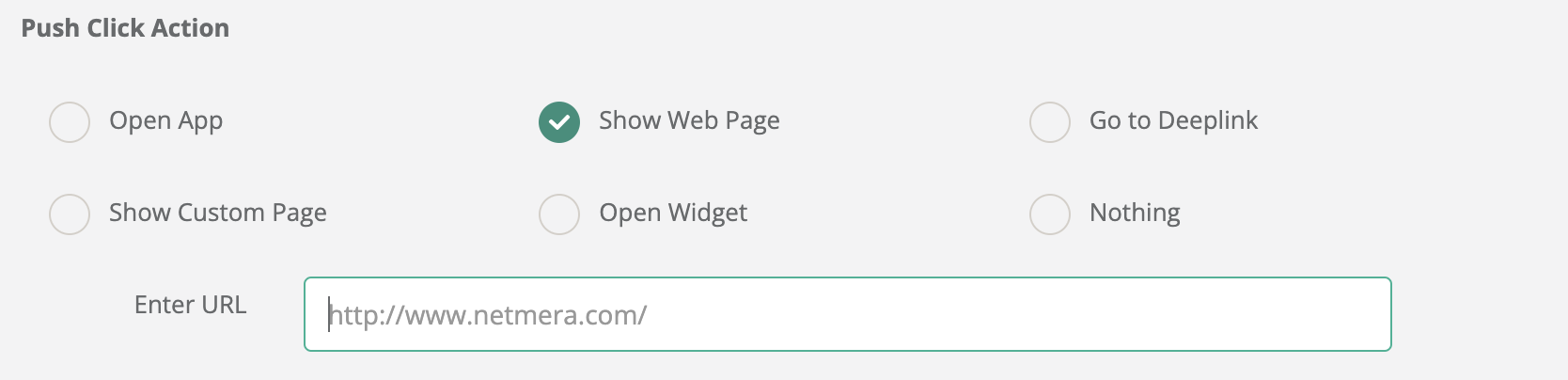
#### Show Web Page

* Opens a web page in the device’s browser. A valid URL must be entered. Useful for:
  * Redirecting users to campaign-specific landing pages.
  * Linking to help center articles.
  * Promoting time-sensitive offers.

<figure><img src="https://1642824329-files.gitbook.io/~/files/v0/b/gitbook-x-prod.appspot.com/o/spaces%2FX6uilbEAw42gqsudlclY%2Fuploads%2Fqx5pvi1vNGmsRLNsIQ0q%2FScreenshot%202025-03-10%20at%2019.04.21.png?alt=media&#x26;token=febc10bf-c9a0-4341-a19e-b9189c2cc695" alt="" width="563"><figcaption></figcaption></figure>

#### Go to Deeplink

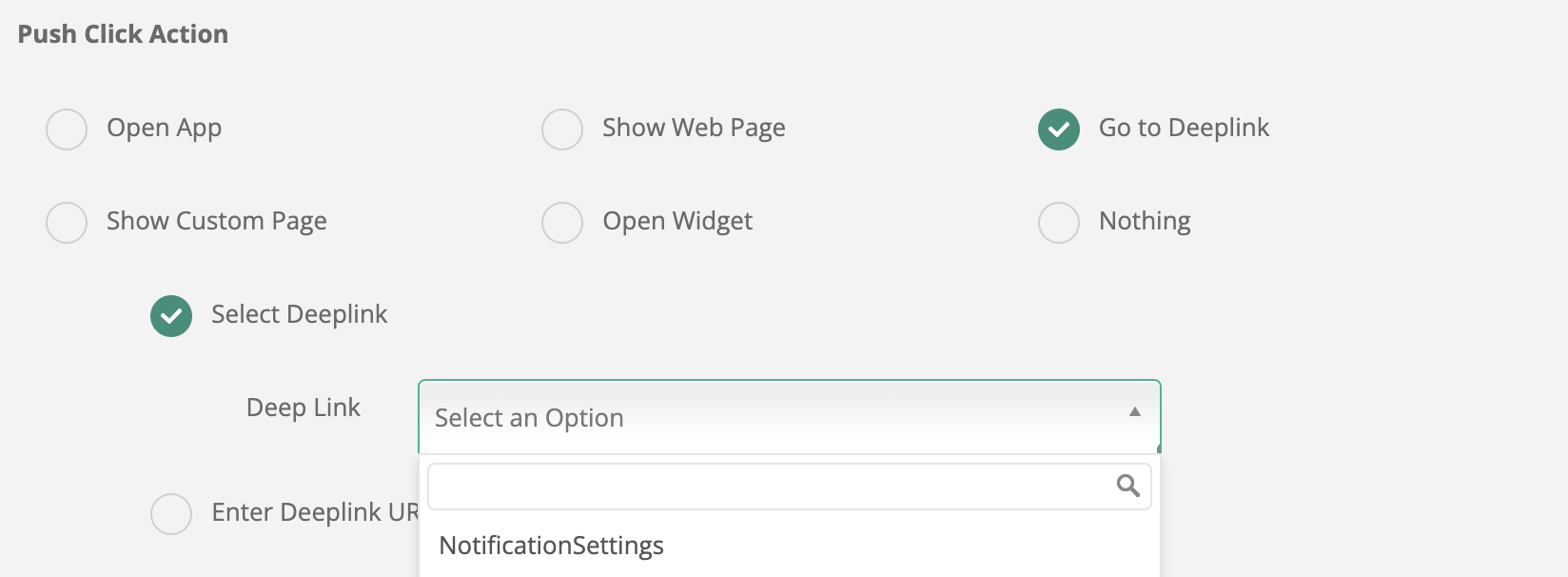
* Navigates users to a specific page or section within your app using a deeplink. This is recommended for personalized or feature-specific campaigns.
  * You can choose from a list of predefined deeplinks or input a custom one.
  * Deeplinks must be registered in your app’s routing system.

<figure><img src="https://1642824329-files.gitbook.io/~/files/v0/b/gitbook-x-prod.appspot.com/o/spaces%2FX6uilbEAw42gqsudlclY%2Fuploads%2FKO8mMwSNfA4OP5Glxtdc%2FScreenshot%202025-03-10%20at%2019.04.43.png?alt=media&#x26;token=3ea40fcc-0bfc-4352-b86e-d54ffd6cf894" alt="" width="563"><figcaption></figcaption></figure>

#### Show Custom Page

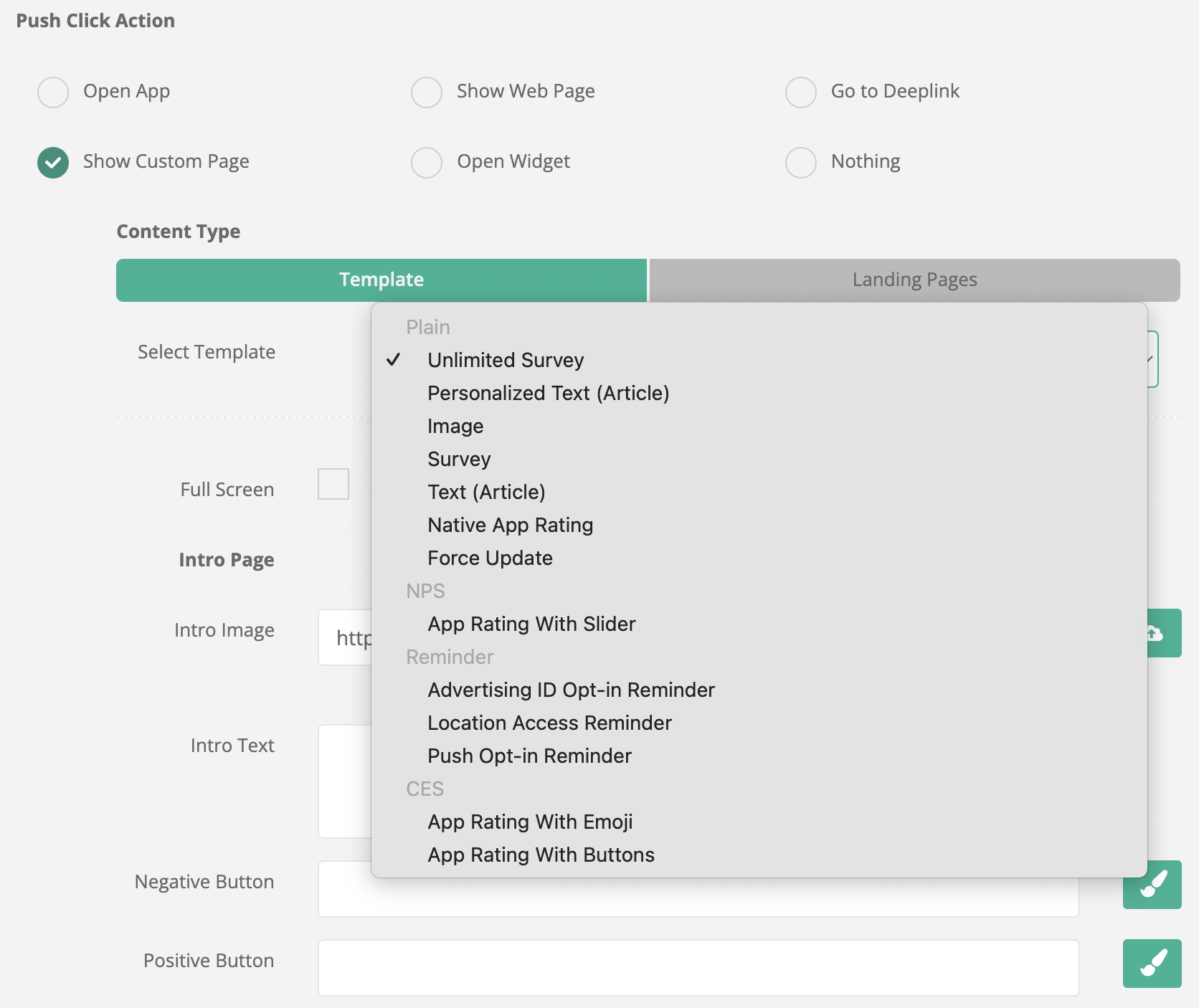
* Displays a custom in-app page. Often used for:
  * In-app promotional screens.
  * Full-screen messages.
  * Targeted announcements without navigating away from the app.

<figure><img src="https://1642824329-files.gitbook.io/~/files/v0/b/gitbook-x-prod.appspot.com/o/spaces%2FX6uilbEAw42gqsudlclY%2Fuploads%2FISC127vARuyuulOpgziI%2FScreenshot%202025-03-10%20at%2019.02.36.png?alt=media&#x26;token=69d58b4e-4ab8-4ca9-a624-cfc89d880c12" alt="" width="563"><figcaption></figcaption></figure>

#### Open Widget

{% hint style="info" %}

### Minimum Supported SDK Versions

To use the **Open Widget push click action** feature, your mobile app must use at least the following SDK versions:

* **Android SDK:** 4.13.1 or later

* **Swift SDK:** 4.14.2 or later
  {% endhint %}

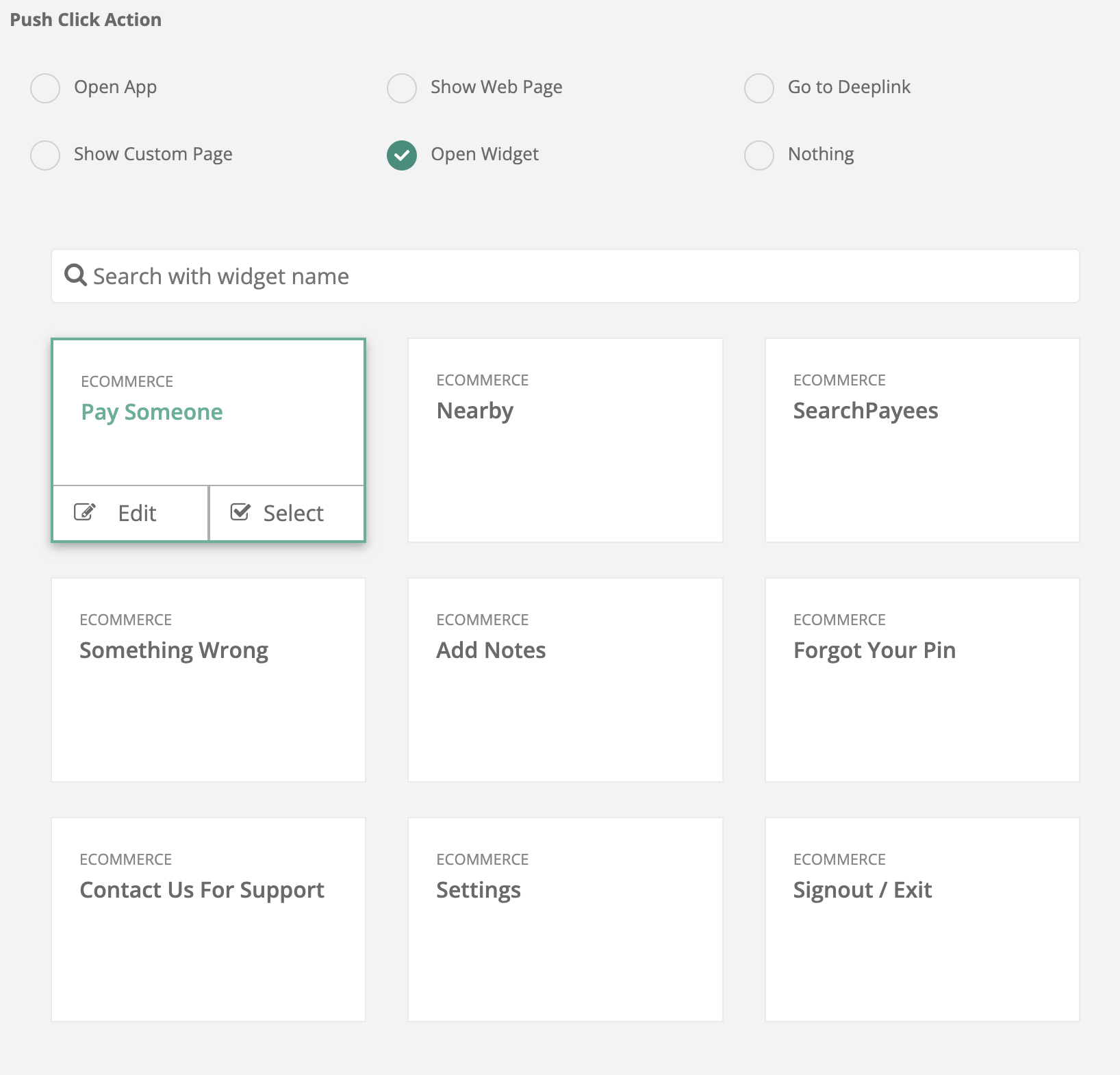
* Triggers an in-app widget. Widgets must be created in advance and can be used to:
  * Collect feedback.
  * Display dynamic offers.
  * Show embedded content directly.

<details>

<summary>Example Use Cases</summary>

* **Surveys & Feedback Forms**: Prompt users to complete a short survey or provide feedback.
* **Live Reports & Dashboards**: Show real-time analytics, personalized reports, or updates.
* **Product Recommendations**: Display items or content tailored to the user's interests.
* **Gamification with Spin to Win:** Engage users with gamified elements.
* **Quick Actions**: Enable users to complete actions like confirming appointments, redeeming offers, or checking their latest transactions.

</details>

<figure><img src="https://1642824329-files.gitbook.io/~/files/v0/b/gitbook-x-prod.appspot.com/o/spaces%2FX6uilbEAw42gqsudlclY%2Fuploads%2F4h9y50q6phqHZrIqjwsT%2FScreenshot%202025-03-10%20at%2019.01.03.png?alt=media&#x26;token=1eeda0d7-09a8-4e6f-9351-403e12636d95" alt="" width="563"><figcaption></figcaption></figure>

#### Nothing

* No action is triggered; the notification is dismissed. This is suitable for passive updates such as:
  * Informational alerts.
  * Background data sync confirmations.

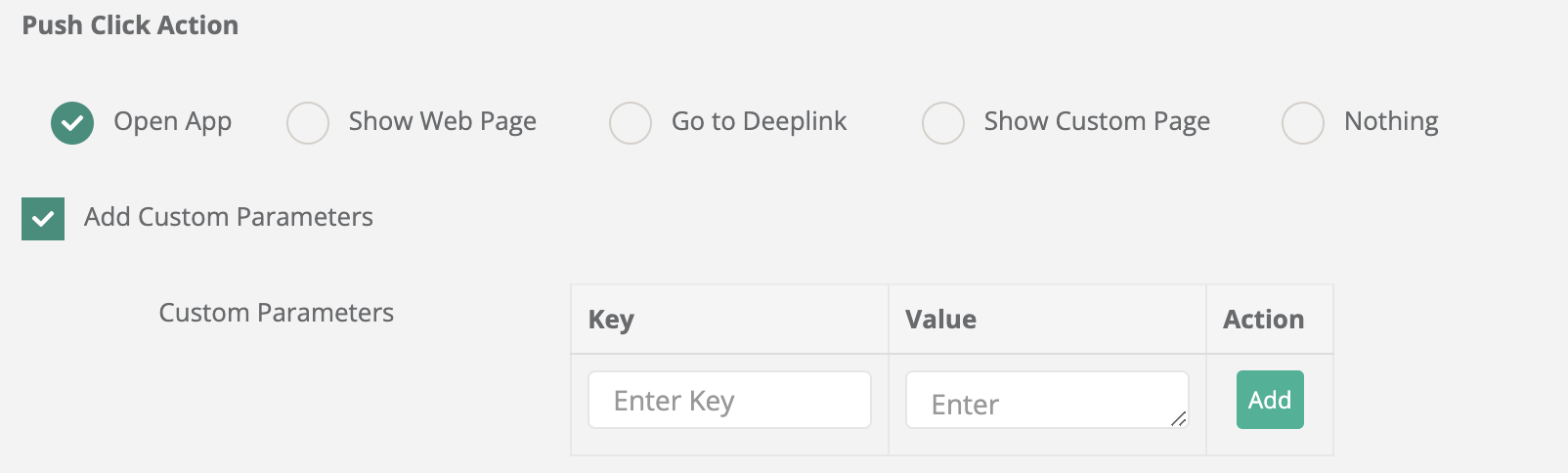
#### Add Custom Parameters

Enhance push behavior with additional key-value data passed alongside the notification. These parameters can be read and interpreted by the app upon user click.

<table><thead><tr><th width="223.90313720703125">Field</th><th>Description</th></tr></thead><tbody><tr><td><strong>Key</strong></td><td>Parameter name (e.g., <code>campaignId</code>, <code>source</code>).</td></tr><tr><td><strong>Value</strong></td><td>Corresponding value (e.g., <code>spring2025</code>, <code>web</code>).</td></tr><tr><td><strong>Action</strong></td><td>Click “Add” to include the parameter.</td></tr></tbody></table>

**Example Use Cases:**

* Open App → add `type: promotion`, `id: 12345`
* Show Web Page → add `url: https://example.com/special`

<figure><img src="https://1642824329-files.gitbook.io/~/files/v0/b/gitbook-x-prod.appspot.com/o/spaces%2FX6uilbEAw42gqsudlclY%2Fuploads%2FkNRoUik0Y7gka4nEe4Pc%2FScreenshot%202024-09-04%20at%2016.42.16.png?alt=media&#x26;token=14cf583e-cbbe-4e25-8571-ebd17bab5f4b" alt="" width="563"><figcaption><p>Add Custom Parameters</p></figcaption></figure>

#### Web Hook for Push Click

When enabled, the **WebhookClick** event is triggered upon notification interaction. This allows your backend systems to log or respond to click events in real time.

| Field             | Description                                                    |
| ----------------- | -------------------------------------------------------------- |
| **Web Hook**      | Select a webhook endpoint from your system.                    |
| **pushParameter** | Pass additional data (e.g., campaign type, user ID, offer ID). |

**Example Use Case:**\
Click triggers a webhook that logs the event and updates CRM with user behavior context.

<figure><img src="https://1642824329-files.gitbook.io/~/files/v0/b/gitbook-x-prod.appspot.com/o/spaces%2FX6uilbEAw42gqsudlclY%2Fuploads%2FAv7HR5PScmKKbtZ0x5rj%2FScreenshot%202024-09-04%20at%2016.57.27.png?alt=media&#x26;token=0361cac4-2aad-4618-b176-816755035887" alt="" width="563"><figcaption><p>Web Hook for Push Click</p></figcaption></figure>

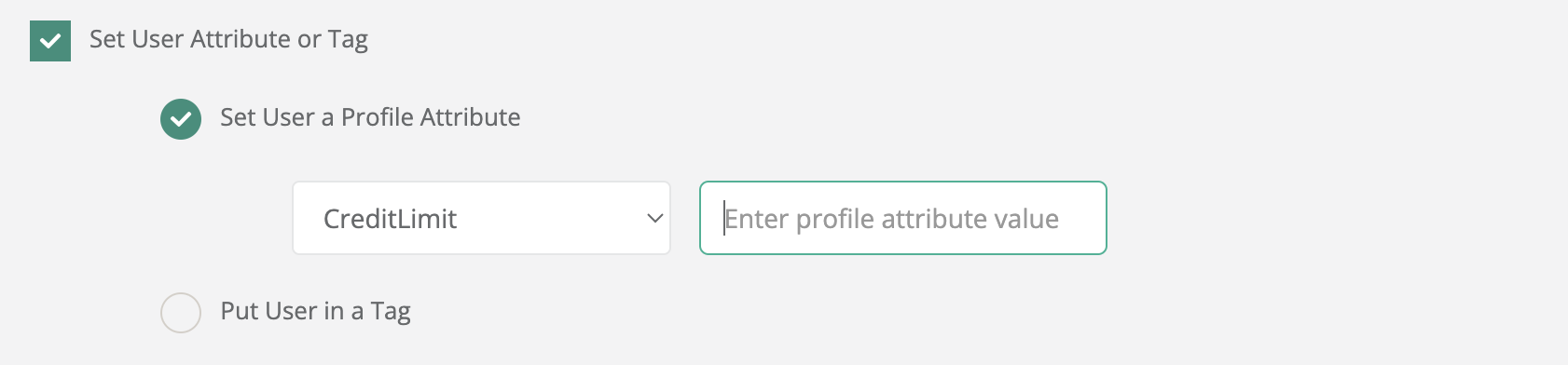
#### Set User a Profile Attribute

Updates user profile data upon click. This is useful for segmentation and campaign personalization.

| Field         | Description                               |
| ------------- | ----------------------------------------- |
| **Attribute** | Name of the attribute (e.g., `Status`)    |
| **Value**     | New value to be assigned (e.g., `Active`) |

**Example Use Case:**\
Clicking a loyalty campaign updates `LoyaltyStatus` to `Gold`.

<figure><img src="https://1642824329-files.gitbook.io/~/files/v0/b/gitbook-x-prod.appspot.com/o/spaces%2FX6uilbEAw42gqsudlclY%2Fuploads%2Fp50qt8YIqGqrOfe8BHdO%2FScreenshot%202024-09-04%20at%2017.19.23.png?alt=media&#x26;token=a4e6e892-1de7-4cba-ac61-55bc6813b431" alt="" width="563"><figcaption></figcaption></figure>

#### Example Use

Suppose you want to update a user's credit limit when they click on a push notification:

* Enter "CreditLimit" as the attribute name.
* Input the desired credit limit value in the text box.

This configuration ensures that when the notification is clicked, the user's profile is updated with the new credit limit. It's like filling out a form to set someone's credit limit. When they press the button (click the notification), the limit gets updated automatically.

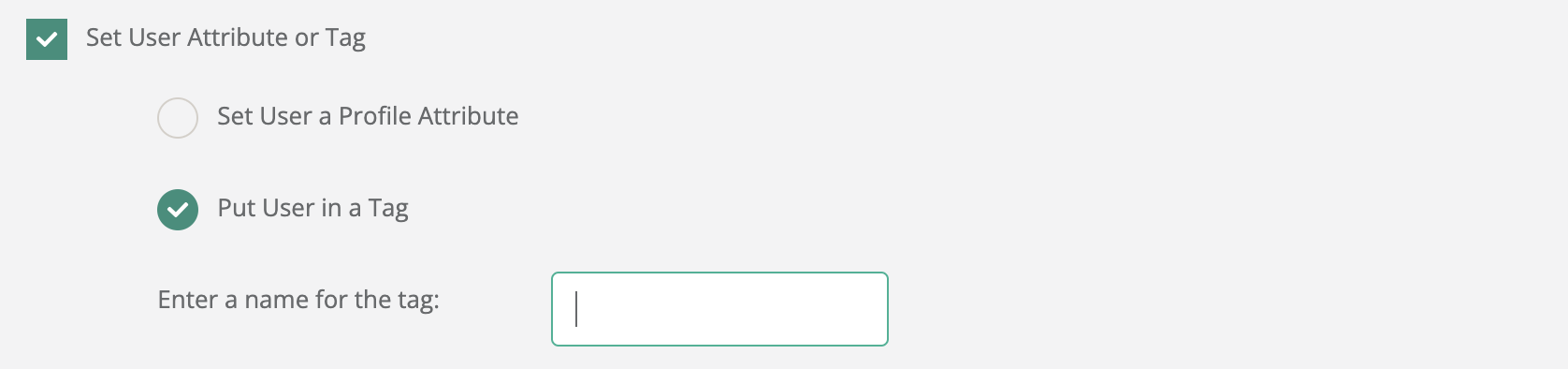
#### Put User in a Tag

This option allows you to assign a tag to the user. Tags are used to group users based on specific characteristics or behaviors. For instance, you might use tags like "VIP", "Newsletter Subscriber", or "Frequent Buyer".

{% hint style="info" %}
If the tag name you enter already exists, the user will be added to that **existing** **tag** rather than creating a new one.
{% endhint %}

<figure><img src="https://1642824329-files.gitbook.io/~/files/v0/b/gitbook-x-prod.appspot.com/o/spaces%2FX6uilbEAw42gqsudlclY%2Fuploads%2F9mO8ChZUVBUMdUoDa7z0%2FScreenshot%202024-09-04%20at%2017.30.52.png?alt=media&#x26;token=71416d14-d1d3-4138-b01f-cfb66155757e" alt="" width="563"><figcaption></figcaption></figure>

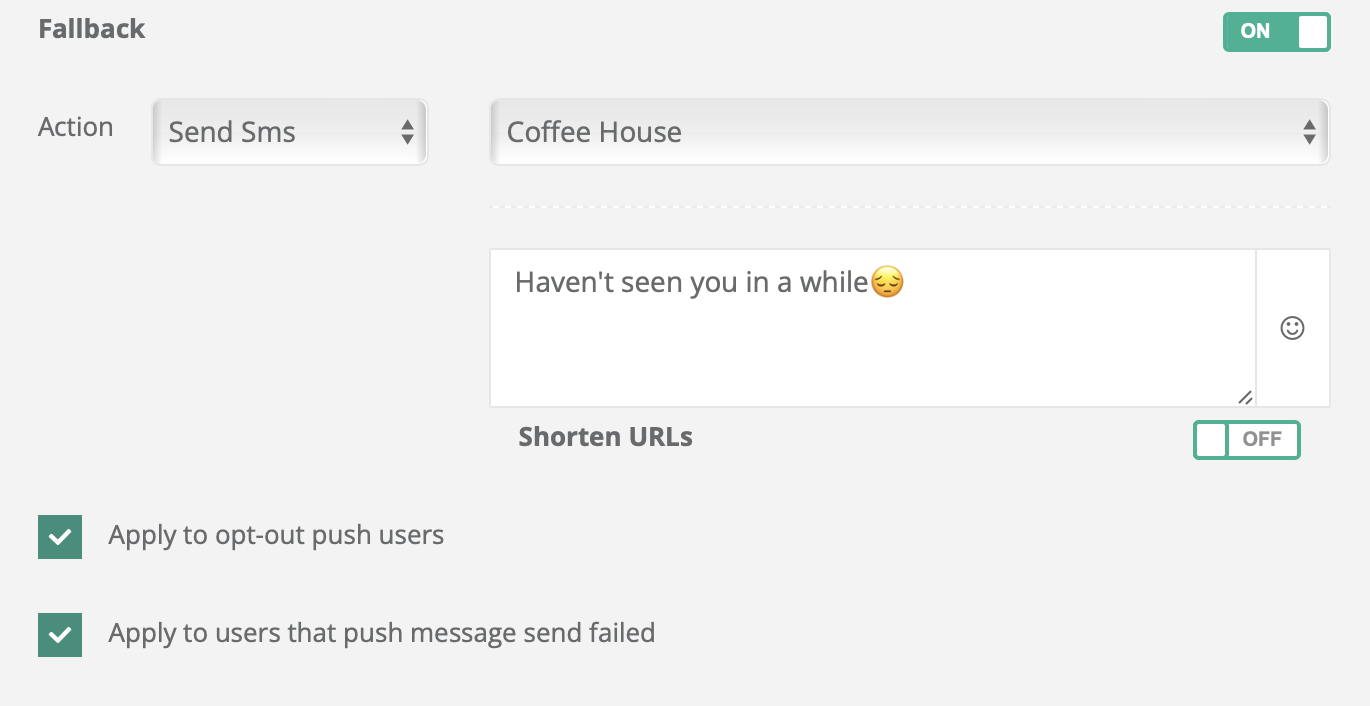
### Fallback

Fallback scenarios can be thought of as a backup plan in case your push notification fails to reach its intended audience. By creating a fallback scenario, you can ensure that users who do not receive your push notification can still receive the message through an alternative channel, such as SMS.

**Example Use Case:**\
If the push is undelivered within X minutes, an SMS is sent with similar content.

<figure><img src="https://files.gitbook.com/v0/b/gitbook-x-prod.appspot.com/o/spaces%2FKVrYQPrAxXrP0zWJer6d%2Fuploads%2FZl9PS6nFTX7CfvjbPgC8%2Ffallback.png?alt=media&#x26;token=2dee35b7-8c01-46c1-b8c9-1e70e4b9cb44" alt="" width="563"><figcaption><p>Fallback</p></figcaption></figure>

### Label

Campaign labels allow internal users to organize and filter campaigns more effectively. Unlike tags or attributes, labels are for internal tracking and do not affect segmentation or targeting.

**Example Labels:**

* `New Users`
* `Promo_May2025`
* `Onboarding_Step1`

> Use labels to streamline campaign reporting and searchability, especially for teams managing high campaign volumes.

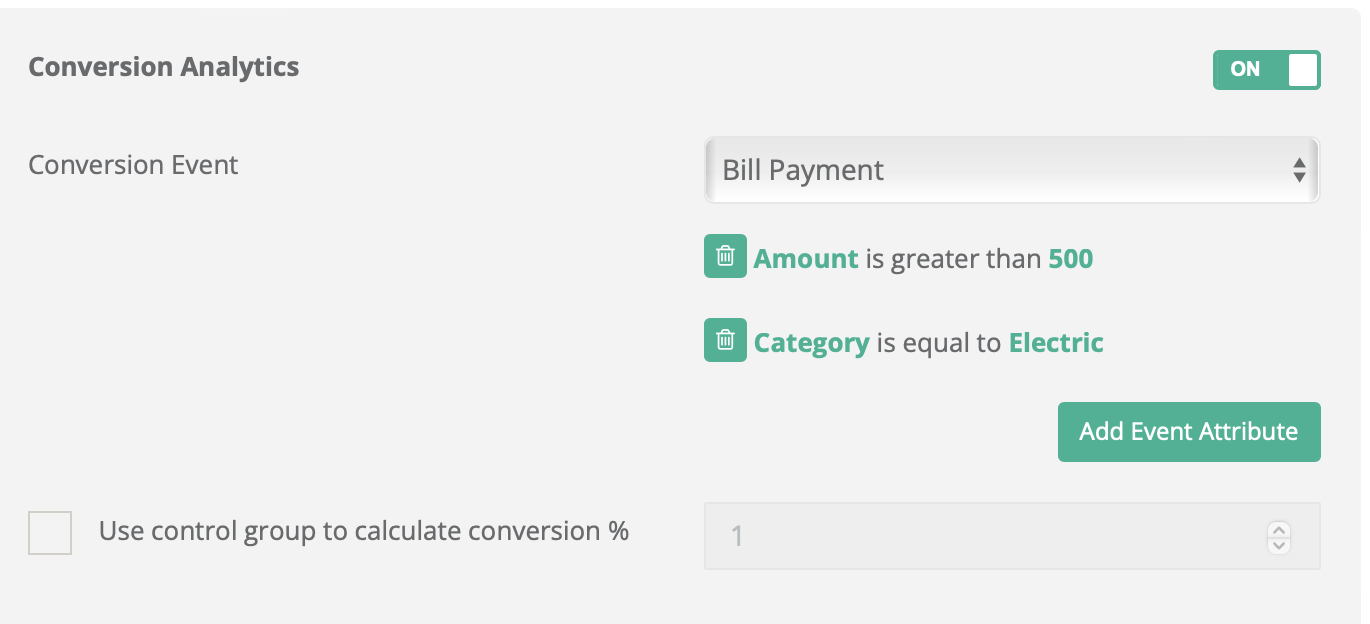
### Conversion Analytics

Measure post-click behavior by setting conversion events. Helps quantify the impact of your notification campaign.

<table><thead><tr><th width="299.72064208984375">Use Case</th><th>Description</th></tr></thead><tbody><tr><td>Purchase Event</td><td>Track how many users bought after clicking.</td></tr><tr><td>Registration Event</td><td>Measure new signups triggered by the notification.</td></tr><tr><td>View Content</td><td>See if users viewed a specific screen or item.</td></tr></tbody></table>

* Multiple events can be tracked per campaign.
* Data is available in real-time on the Netmera Dashboard.

<figure><img src="https://files.gitbook.com/v0/b/gitbook-x-prod.appspot.com/o/spaces%2FKVrYQPrAxXrP0zWJer6d%2Fuploads%2FVUbuddS333uwNY0LITVO%2Fconv_analytic.png?alt=media&#x26;token=bdd20ed1-efcc-4aef-891a-83626a3221f7" alt="" width="563"><figcaption><p>Conversion Analytics</p></figcaption></figure>

#### Control Group

The **Control Group** option enables data-backed performance evaluation. A selected percentage of your audience is excluded from the push to compare outcomes.

**Example:**\
Out of 100,000 users, setting a 1% control group sends the push to 99,000. The behavior of the 1,000 unnotified users is compared against the recipients.

> Use control groups to attribute campaign impact with higher confidence.