> For the complete documentation index, see [llms.txt](https://user.netmera.com/netmera-user-guide/llms.txt). Markdown versions of documentation pages are available by appending `.md` to page URLs; this page is available as [Markdown](https://user.netmera.com/netmera-user-guide/reports-and-analytics/reports/delivery/campaigns/sms-reports.md).
# SMS reports
Track SMS campaign delivery from dispatch to provider-confirmed delivery, investigate failure reasons and compare performance breakdowns.
SMS Reports shows how an SMS campaign performs from dispatch to provider-confirmed delivery. It focuses on reliable delivery visibility, which is especially important for time-sensitive or operational SMS communication.
Use it to answer four practical questions:
* Did the campaign reach the intended audience?
* How many messages were sent, delivered, or failed?
* Which platforms performed best?
* Why did specific messages fail?
### SMS summary
The summary section gives you the campaign context before you inspect delivery results.
Field definitions:
* **Campaign name** and **Message ID** — the campaign title and its unique system identifier. Use them to confirm you are reviewing the correct message.
* **Message type** — the category of SMS message being sent, such as campaign or notification.
* **Message text** — the SMS content recipients receive.
* **Creator** — the user who created the campaign.
* **Method** — how the audience was selected, such as broadcast or targeted delivery.
* **Campaign status** — the current delivery state, such as sending or finished.
* **Create**, **Start**, and **End** times — the timestamps for when the campaign was created, when sending started, and when sending ended.
Use this area to confirm you are reading the right campaign and targeting setup. This helps you avoid reading the wrong campaign when similar operational messages were sent close together.
### Core metrics
The overview cards show the main delivery and conversion metrics for the campaign.
Key metrics:
* **Target Audience** — the total number of recipients the campaign was intended to reach.
* **Sent** — the number of SMS messages dispatched to the provider.
* **Delivered** — the number of messages confirmed as delivered by the provider through delivery receipts.
* **Failed** — the number of messages confirmed as failed after the provider completes delivery attempts.
* **Conversion** — the number of users who completed the selected conversion event within the defined conversion deadline.
* **Revenue** — the total revenue generated from the selected conversion event, if revenue data is available for that event.
Use these metrics together:
* **Target Audience** shows who you intended to reach.
* **Sent** shows what was handed to the provider.
* **Delivered** shows confirmed deliveries.
* **Failed** shows confirmed failures.
* **Conversion** shows how many users completed the selected conversion goal.
* **Revenue** shows the monetary value attributed to the campaign.
{% hint style="info" %}
**Conversion** and **Revenue** are shown when Conversion Analytics is enabled for the SMS campaign.
{% endhint %}
This distinction matters because **Sent** does not mean the message already reached the user. It only means the message entered the provider flow.
{% hint style="info" %}
**Delivery status can finalize later**
Some providers may keep retrying delivery for up to **3 days**. If delivery does not complete within that window, the provider returns **Failed** and may include a failure reason.
{% endhint %}
{% hint style="warning" %}
**Do not expect Sent = Delivered**
If your provider returns delivery receipts, **Sent** and **Delivered** can differ. Also, **Delivered + Failed** can lag behind **Sent** until the provider returns final statuses.
{% endhint %}
#### Control group in reports
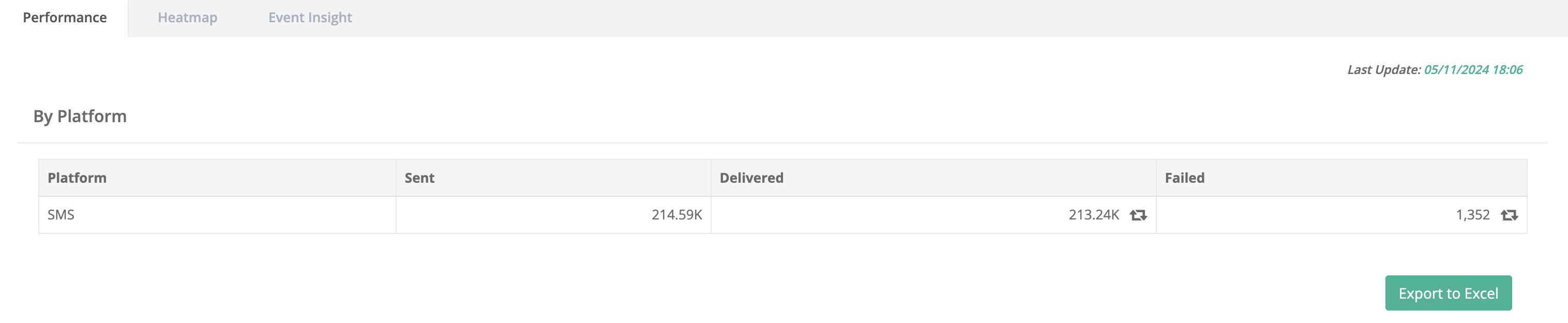
In the **Performance** tab, the **By Platform** section shows the control group breakdown.
You can export the report by clicking **Export to Excel**.
The export file includes:
* **User ID**
* **External ID**
* **Control Group information**
### Investigate failure reasons
Use campaign-level **Failed** when you need totals.
Use user-level history when you need to answer why a specific user failed. This is often the difference between identifying a broad delivery issue and solving a specific operational case.
1. Go to **Targeting → People → Find Person**.
2. Search by **External ID**, **MSISDN**, or **email**.
3. Open the user to go to **User Details**.
4. Open the **Messages** tab.
5. Find the message and check its **status** and **failure reason**.
{% hint style="info" %}
The **Messages** tab works with **30-day date ranges** and supports up to **6 months** of history. See [People](/netmera-user-guide/targeting/people.md) for details.
{% endhint %}
#### Export failed users with fail reason
Use export when you need the full failed user list for analysis or follow-up.
1. Open the relevant campaign report.
2. Go to the **Failed** section.
3. Click **Export**.
4. Select the user identifiers you want to include.
5. Download the file as **.csv** or **.xlsx**.
The export includes:
* only users who failed in that campaign,
* the identifiers you selected,
* and a **Fail Reason** column that explains why each user failed.
Fail reasons can include provider, validation, configuration, or data-related issues depending on the campaign and channel setup.
This is useful when you need to clean data, validate a sending setup, or send the failed subset to another team for follow-up.
For the shared export flow used across reports, see [Export Users](/netmera-user-guide/targeting/export-users.md).
### Performance breakdowns
These sections help you compare SMS delivery performance by platform and over time. They are most useful when you need to identify whether delivery issues are broad or concentrated in one part of the distribution.
#### By platform
This table breaks results down by platform.
Field definitions:
* **Sent** — the number of SMS messages dispatched to the provider for that platform.
* **Delivered** — the number of messages confirmed as delivered for that platform.
* **Failed** — the number of messages confirmed as failed for that platform.
Use this section to spot platform-specific delivery gaps. For example, if one platform consistently underperforms, the issue may be related to data quality, source quality, or provider handling.
#### Heatmap
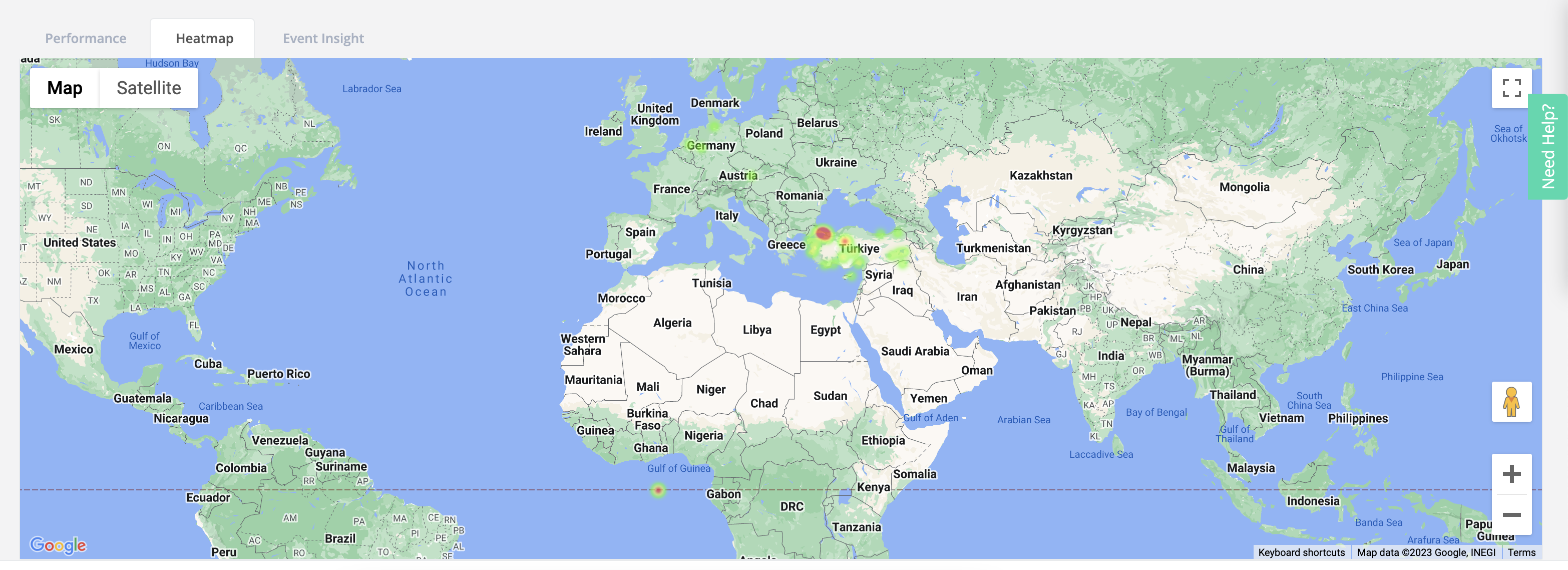
The heatmap shows the distribution of **delivered** messages over time. It gives you a quick visual sense of when delivery volume was concentrated.
Warmer colors show higher delivery volume.
Cooler colors show lower delivery volume.
### Event insight
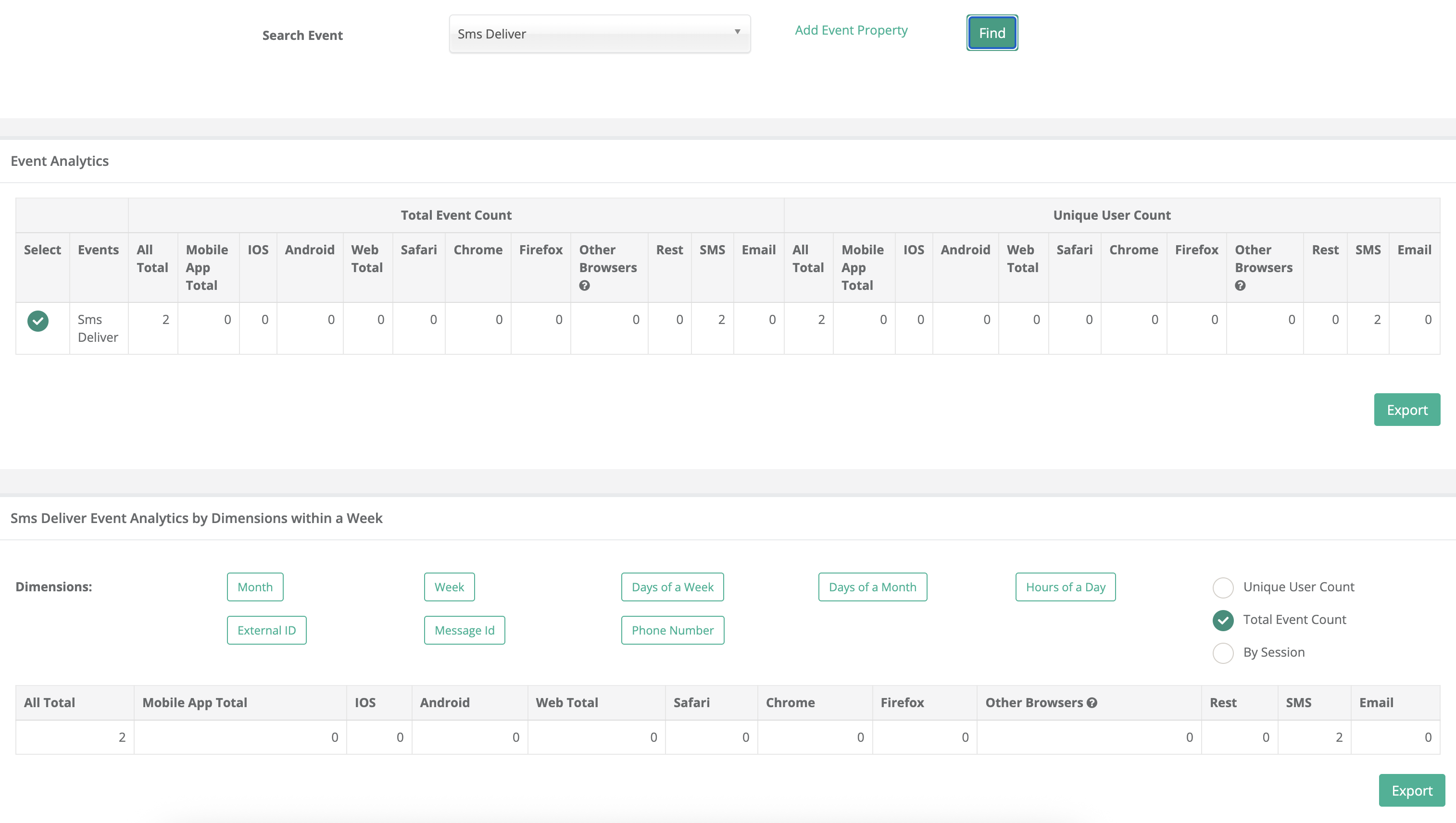
Use Event Insight when you need user-level delivery breakdowns, not just campaign totals. This is useful when the campaign totals look acceptable but you still need to know which users received the message and when.
This is the fastest way to answer who received what and when.
#### SMS Delivered event
Netmera provides an **SMS Delivered** event for delivery-receipt based tracking.
Use it to break down delivery results by:
* **External ID**
* **Phone Number (MSISDN)**, if available
* **Message ID**
#### Drill down by dimensions
Add dimensions to get the level of detail you need.
Use **External ID** when you need a user list.
### FAQs
Why can Delivered and Failed lag behind Sent?
Providers can continue retrying delivery after the message is sent. Until the provider returns the final delivery receipt, **Delivered** and **Failed** may not add up to **Sent**.
Where can I see the failure reason for a specific user?
Open the user from **Targeting → People**, then go to **User Details → Messages** and check the message status and failure reason.
Can I export failed users with their fail reasons?
Yes. Open the campaign report, go to the **Failed** section, and use **Export**. The file includes failed users, the identifiers you choose, and a **Fail Reason** column.
What does the SMS Delivered event show?
It shows delivery-receipt based SMS delivery results. Use it to analyze delivered messages by user, phone number, or message ID.
---
# Agent Instructions
This documentation is published with GitBook. GitBook is the documentation platform designed so that both humans and AI agents can read, navigate, and reason over technical content effectively. Learn more at gitbook.com.
## Querying This Documentation
If you need additional information that is not directly available in this page, you can query the documentation by asking a question.
Perform an HTTP GET request on the following URL with the `ask` and `goal` query parameters:
```
GET https://user.netmera.com/netmera-user-guide/reports-and-analytics/reports/delivery/campaigns/sms-reports.md?ask=&goal=
```
`ask` is the immediate question: it should be specific, self-contained, and written in natural language.
`goal` is what the user is ultimately trying to achieve, the reason they need the answer. Sharing it helps GitBook give you a better, more relevant answer. A goal is most helpful when it describes the outcome the user wants rather than restating the question. For example, with `ask=how do I create an API token`, a goal like `automate deployments from our CI pipeline` lets GitBook tailor the answer to that use case.
The response will contain a direct answer to the question and relevant excerpts and sources from the documentation.
Use this mechanism when the answer is not explicitly present in the current page, you need clarification or additional context, or you want to retrieve related documentation sections.