> For the complete documentation index, see [llms.txt](https://user.netmera.com/netmera-user-guide/llms.txt). Markdown versions of documentation pages are available by appending `.md` to page URLs; this page is available as [Markdown](https://user.netmera.com/netmera-user-guide/panel-settings/settings/app-configuration/landing-pages.md).
# Landing pages
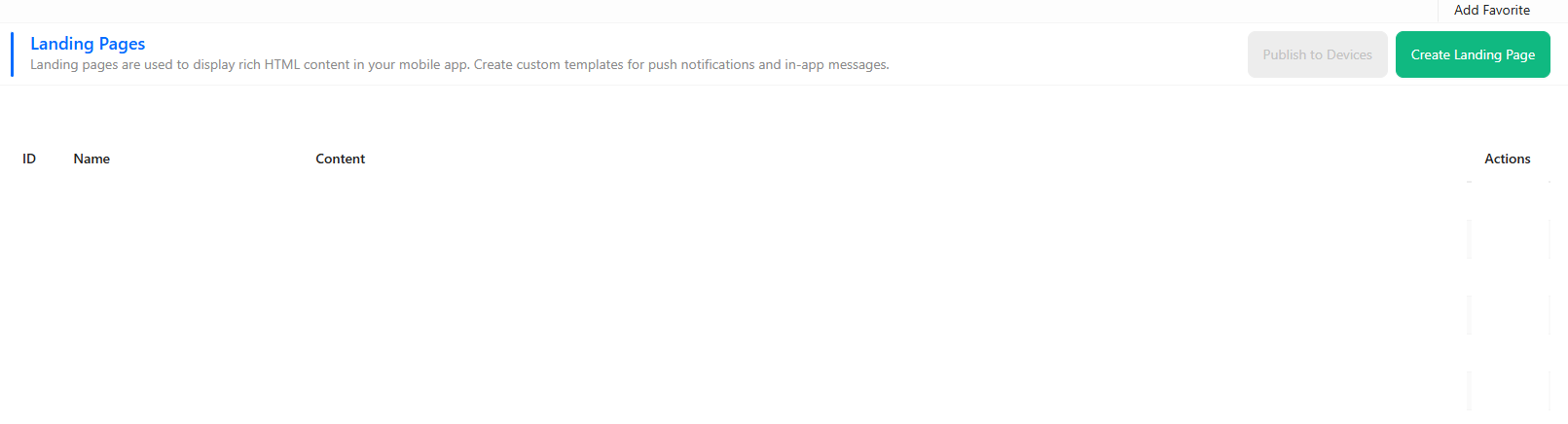
Manage HTML landing page templates, choose between save and publish, and push updates to devices that fetch the template in the background.
**Path**: `Settings > App Configuration > Landing Pages`
Landing Pages let you manage HTML-based landing page templates in the panel. After you publish, devices fetch the updated template in the background.
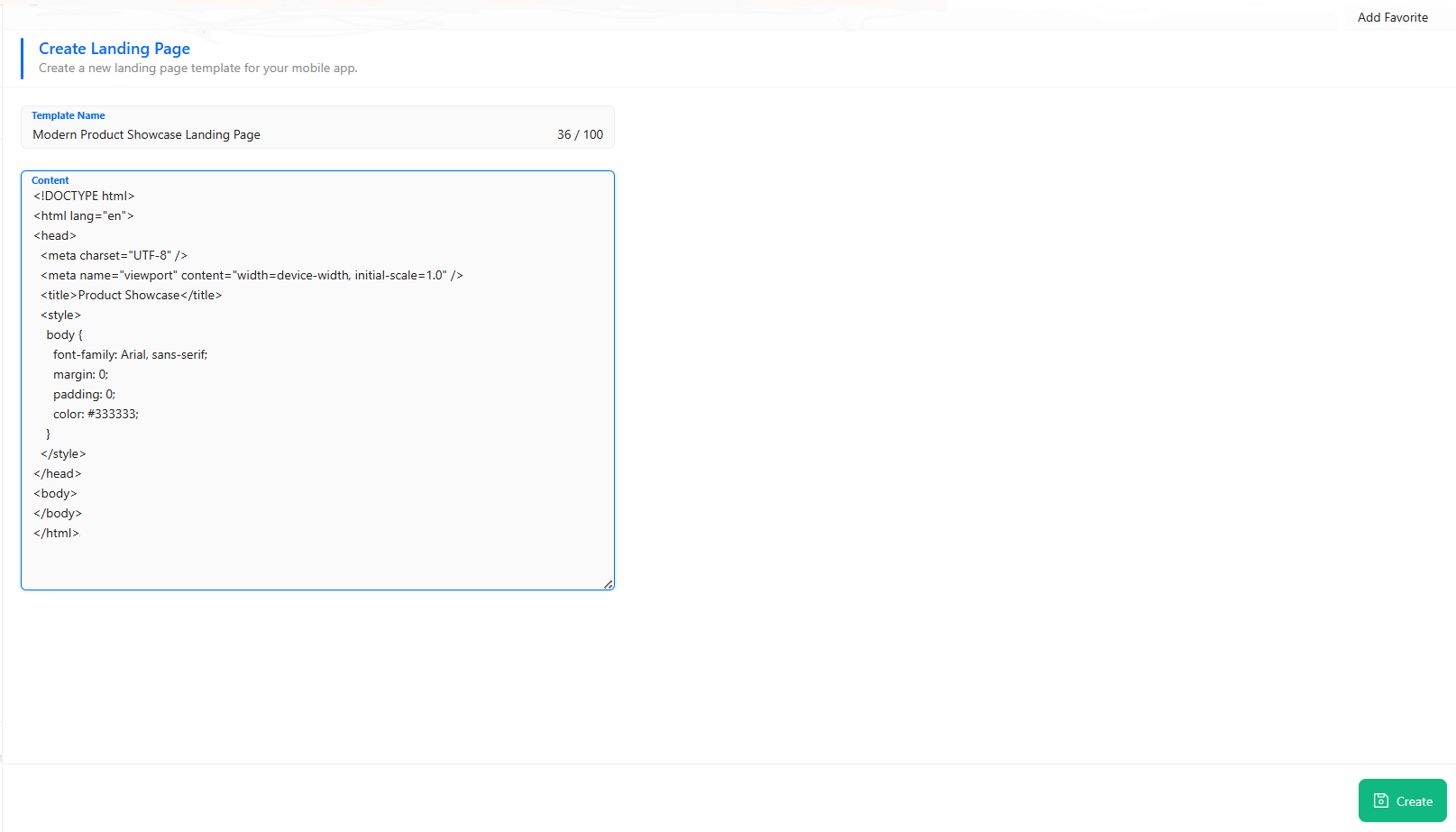
### Create a new template
Use this when you need a new landing page variant. Start from an existing dynamic template if available.
{% hint style="info" %}
Path: **Settings > Landing Pages > Create New Template**
Tip: add a version suffix to the name, like `promo-spring-2026-v1`.
{% endhint %}
#### Fields
**Template Name**
A human-readable name shown in the dashboard. Use a naming convention your team can scan quickly.
**Content**
The HTML content of your landing page template. You can customize it to match your brand and campaign. Dynamic templates may support placeholders for personalization (if configured in your account).
### Save vs publish
Saving updates the template in the panel. Publishing pushes the update to devices.
{% stepper %}
{% step %}
### Save
Click Save to store your changes. You’ll see the landing page listed on the dashboard.
{% endstep %}
{% step %}
### Publish to Devices
Click Publish to Devices to notify devices there is a new version. Netmera sends a silent push to update content in the background.
{% endstep %}
{% endstepper %}
{% hint style="warning" %}
**Publish to Devices** targets all app users. Do it after QA. Prefer off-peak hours for large apps.
{% endhint %}
### What “Publish to Devices” means here
A silent push is sent to update content without showing a user-facing notification. The app receives it in the background. The SDK can then refresh landing page content.
#### Notes
* Silent push delivery depends on OS background rules and user/device settings.
* Some devices may apply the update later (battery saver, network limits, etc.).
* Treat publishing as “best effort near-real-time”, not a guaranteed instant sync.
### Testing checklist
* Preview your HTML and links.
* Test on at least one iOS and one Android device.
* Publish once in a controlled window.
* Verify the updated landing page loads as expected.
---
# Agent Instructions
This documentation is published with GitBook. GitBook is the documentation platform designed so that both humans and AI agents can read, navigate, and reason over technical content effectively. Learn more at gitbook.com.
## Querying This Documentation
If you need additional information that is not directly available in this page, you can query the documentation by asking a question.
Perform an HTTP GET request on the following URL with the `ask` and `goal` query parameters:
```
GET https://user.netmera.com/netmera-user-guide/panel-settings/settings/app-configuration/landing-pages.md?ask=&goal=
```
`ask` is the immediate question: it should be specific, self-contained, and written in natural language.
`goal` is what the user is ultimately trying to achieve, the reason they need the answer. Sharing it helps GitBook give you a better, more relevant answer. A goal is most helpful when it describes the outcome the user wants rather than restating the question. For example, with `ask=how do I create an API token`, a goal like `automate deployments from our CI pipeline` lets GitBook tailor the answer to that use case.
The response will contain a direct answer to the question and relevant excerpts and sources from the documentation.
Use this mechanism when the answer is not explicitly present in the current page, you need clarification or additional context, or you want to retrieve related documentation sections.