> For the complete documentation index, see [llms.txt](https://user.netmera.com/netmera-user-guide/llms.txt). Markdown versions of documentation pages are available by appending `.md` to page URLs; this page is available as [Markdown](https://user.netmera.com/netmera-user-guide/panel-settings/settings/administration/general-settings.md).
# General settings
**Path:** **`Settings`** → **`Administration`** → **`General`**
Configure application, messaging, Control Panel, language, and uninstall-tracking settings.
### Application
**Application Name**
Application Name identifies your app in the Netmera Control Panel and reports.
**Category**
Category defines your app type. Select a category, such as E-Commerce, to use its default events and segments.
**Icon**
Icon defines the app icon shown in the Netmera Control Panel. Upload an icon to identify the app more easily.
{% hint style="info" %}
Fancy Box displays the icon configured for your app.
{% endhint %}
Application settings
### Messaging
**Limit Notifications**
Limit Notifications sets the maximum number of push notifications sent to each user. Use it to prevent excessive messages and reduce app uninstalls.
{% hint style="info" %}
To ignore this limit for one notification, enable **Ignore User Message Limits** in the campaign form.
{% endhint %}
**Default Message Time Restriction**
Default Message Time Restriction defines when push notifications can be sent. Use it to meet corporate policies or restrict delivery hours.
**SMS Cost Per Message**
SMS Cost Per Message defines the cost of one SMS. Use it to compare SMS and push-notification costs.
**Use Push Inbox**
Enable Use Push Inbox for apps with a Message Inbox screen. This enables Netmera’s push notification inbox.
**UTM Parameter**
UTM Parameter adds UTM source, medium, and ID values to web push notifications. Use these values for campaign tracking.
{% hint style="info" %}
Example: `UTM Source: Netmera`, `UTM Medium: Campaign Title`, and `UTM ID: Campaign Name`
{% endhint %}
**iOS Badge Handling**
iOS Badge Handling offers App manages badges and Netmera manages badges. Choose Netmera manages badges to send badges from the campaign screen.
**Rest Bulk Notification Approval**
Rest Bulk Notification Approval controls whether bulk push notifications sent through the REST API require approval.
Messaging settings
### Control Panel
**Authentication**
Authentication controls the Netmera Control Panel sign-in method. Choose Only password Authentication or SMS OTP authentication. The Netmera operations team registers GSM numbers for SMS OTP.
### Style
Use Style Settings to customize fonts for the Netmera Widget Panel and widgets.
**Font Name**
Specify the font used by widgets in the Netmera Widget Panel.
**Font Upload**
Upload a custom font for your widgets.
{% hint style="info" %}
Supported font types: `ttf`, `otf`, `woff`, `woff2`, and `eot`
{% endhint %}
Control Panel style settings
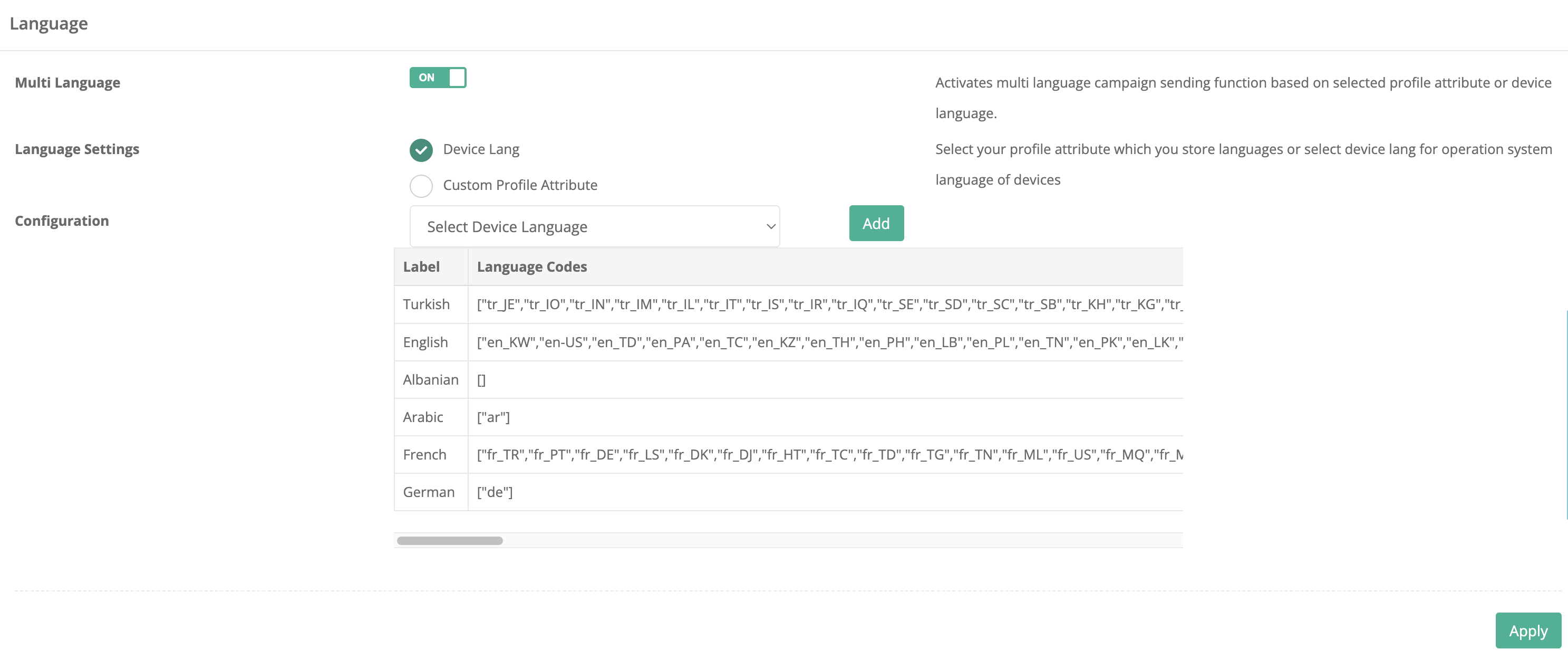
### Language
**Multi Language**
Enable Multi Language to send campaigns in multiple languages. Base messages on device language or a profile attribute.
**Language Settings**
Choose Device Language or Custom Profile Attribute as the messaging language source.
Language settings
### Uninstall tracking
Uninstall Tracking uses silent push notifications. Set the sending time, then test the configuration with Send Test Push.
{% hint style="info" %}
Silent push notifications run in the background without a visible alert. Use them for tasks like content updates, data synchronization, and background processes. Configure and test silent push notifications in the Netmera API or Control Panel.
{% endhint %}
**Enable Uninstall Tracking**
Enable this option to send silent push notifications for uninstall tracking.
**Schedule Time**
Set when to send silent push notifications.
**Test Targeting**
Send Test Push sends a test silent push to the specified tag.
{% hint style="info" %}
#### Why uninstall data can increase on Android devices
Netmera receives device tokens through Firebase Cloud Messaging (FCM). FCM marks tokens as inactive after 270 days without a connection. These tokens often belong to inactive devices, and messages sent to them aren't delivered.
Tokens can become inactive when devices are:
* Lost, destroyed, or no longer used
* Inactive for a long period
When a device reconnects, it receives a new token. Netmera then assigns a new installation ID. This can increase uninstall counts because delivery failures to former tokens count as uninstalls. This behavior affects Android devices inactive for 270 days or more.
{% endhint %}
Uninstall tracking settings
### User products
**Available Products**
Available Products lists products available to the app.
**Assigned Products**
Assigned Products lists product modules assigned to the app.
**Available Modules**
Available Modules lists modules you can add to the app.
**Assigned Modules**
Assigned Modules lists modules integrated with the app.
User Products settings
---
# Agent Instructions
This documentation is published with GitBook. GitBook is the documentation platform designed so that both humans and AI agents can read, navigate, and reason over technical content effectively. Learn more at gitbook.com.
## Querying This Documentation
If you need additional information that is not directly available in this page, you can query the documentation dynamically by asking a question.
Perform an HTTP GET request on the current page URL with the `ask` query parameter, and the optional `goal` query parameter:
```
GET https://user.netmera.com/netmera-user-guide/panel-settings/settings/administration/general-settings.md?ask=&goal=
```
`ask` is the immediate question: it should be specific, self-contained, and written in natural language.
`goal` is optional and describes the broader end goal you are ultimately trying to accomplish on behalf of the user. GitBook uses it to tailor the answer towards what is most useful for that goal.
The response will contain a direct answer to the question and relevant excerpts and sources from the documentation.
Use this mechanism when the answer is not explicitly present in the current page, you need clarification or additional context, or you want to retrieve related documentation sections.