> For the complete documentation index, see [llms.txt](https://user.netmera.com/netmera-user-guide/llms.txt). Markdown versions of documentation pages are available by appending `.md` to page URLs; this page is available as [Markdown](https://user.netmera.com/netmera-user-guide/omnichannel-engagement/web-push/create-web-push/personalized-web-push.md).
# Personalized web push
Personalize web push title, message and subtext with user data such as name, offers or cart values.
{% columns %}
{% column width="58.333333333333336%" %}
Personalized web push adds user-specific data to the **title**, **message**, and **subtext**. Use it to make notifications more relevant to each recipient.
For example, you can:
* greeting the user by name,
* reminding them about an offer, cart, or deadline,
* or inserting loyalty, promotion, or profile-based values.
{% endcolumn %}
{% column width="41.666666666666664%" %}
{% endcolumn %}
{% endcolumns %}
### Step 1: Confirm profile data
Before creating the campaign, confirm that Netmera has the required user data. Common attributes include `name`, `surname`, `age`, `goal`, and `loyaltyTier`.
Confirm that each attribute has a value for the audience you plan to target. Netmera can receive profile values through SDKs, backend APIs, or CSV uploads. A placeholder cannot display a value that is not stored on the user profile.
{% hint style="danger" %}
#### Personalization needs data first
If an attribute is missing for a user, the personalized text cannot be resolved for that user.
Set up the data first in:
* [Profile Attributes](/netmera-user-guide/customer-data/profile-attributes.md)
* [Coupon Code Lists](/netmera-user-guide/panel-settings/settings/messaging-and-content/coupon-code-lists.md) — if you want to include promotion or coupon-related values
{% endhint %}
### Step 2: Create the web push
Go to **Messages** → **Campaigns** → **Create New Campaign**. In **Setup**, select **Web Push**, then choose the notification format.
Continue to **What** and enter the title, message, and optional subtext that recipients see.
### Step 3: Add profile attributes
In the campaign's **What** step, Netmera replaces each placeholder with the matching profile value for each recipient. For example, `Hi {@name}` becomes `Hi Simon` for a recipient whose `name` value is `Simon`.
Insert profile attributes into supported fields. Enter them in the `{@attribute}` format, or select an attribute from the dropdown and select **Add**.
Use the attribute name displayed in Netmera. For example, `{@name}` uses the value stored in the user's `name` profile attribute.
Examples:
* `Wishing you a sweet {@age}th birthday, {@name}!`
* `Hey {@name}, your {@goal} reminder is ready.`
* `Your coupon code is {@couponcode}.`
{% hint style="info" %}
Keep the message readable after substitution. Short, natural text performs better than heavily templated copy.
{% endhint %}
#### Choose a field
Web push supports personalization in three fields. Choose the field based on the information the recipient needs first:
* **Title** — the first line recipients see. Use it for the main hook or status.
* **Message** — the main notification copy. Use it for the offer, context, or next step.
* **Subtext** — supporting detail. Use it for concise information, such as a tier or code.
### Personalized title
Use a personalized title when the first line needs immediate relevance. This works well when a user's identity, status, or urgency adds useful context.
For example:
* `{@name}, your order is ready`
* `Hey {@name}, your offer expires today`
* `{@loyaltyTier} member reward unlocked`
### Personalized message
Use **Personalized Message** for the notification's main body. Add dynamic details that help the recipient understand the message or next step, including:
* product names,
* profile values,
* coupon or loyalty details,
* or next-step reminders.
Example:
* **Default message:** `Happy birthday!`
* **Personalized message:** `Wishing you a sweet {@age}th birthday, {@name}!`
* **Rendered result:** `Wishing you a sweet 26th birthday, Simon!`
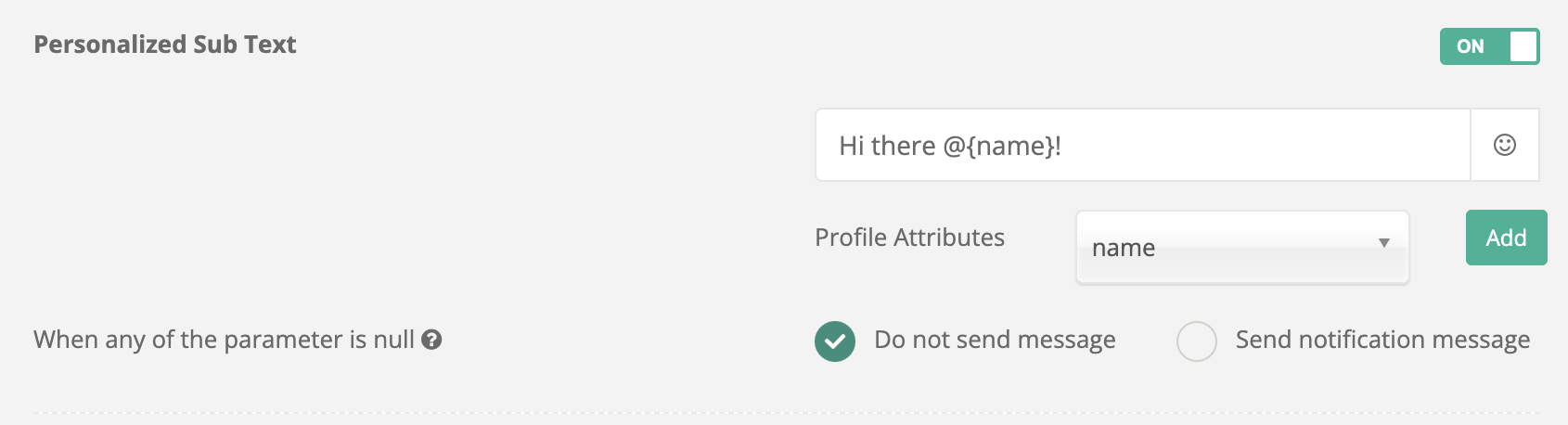
### Personalized subtext
Use **Personalized Subtext** for short secondary context. For example:
* `Tier: {@loyaltyTier}`
* `Nearest store: {@nearestStore}`
* `Code: {@couponcode}`
Keep subtext brief. Use it to support the title and message rather than repeat them.
### Step 4: Choose missing-data behavior
If a selected attribute is null or missing, choose how Netmera handles that recipient:
* **Do not send message** — Netmera excludes users with missing data from that web push. Choose this when incomplete content could mislead recipients.
* **Send default notification message** — users with missing data receive the default **Notification Message** instead. Choose this when a generic message remains useful.
Choose **Do not send message** when accuracy matters most. Choose **Send default notification message** when reaching more users matters most.
{% hint style="info" %}
The same fallback logic applies to personalized title, message, and subtext. Write the default message without placeholders so it works for recipients with missing data.
{% endhint %}
### Step 5: Test and launch
Use **Test on My Device** to preview the notification in your current browser. Enter sample values when prompted, then confirm that the resolved text is clear and complete.
After testing, choose the audience, schedule the campaign, and review it in **GO** before launch.
### Example patterns
{% tabs %}
{% tab title="E-commerce" %}
* **Title:** `{@name}, you left something behind`
* **Message:** `The items in your cart are still available.`
* **Subtext:** `Complete your order today`
{% endtab %}
{% tab title="Loyalty" %}
* **Title:** `{@loyaltyTier} reward unlocked`
* **Message:** `Hi {@name}, your new member benefit is ready.`
* **Subtext:** `Check your rewards now`
{% endtab %}
{% tab title="Coupon" %}
* **Title:** `Your offer is ready`
* **Message:** `Use code {@couponcode} before it expires.`
* **Subtext:** `Limited-time benefit`
{% endtab %}
{% endtabs %}
---
# Agent Instructions
This documentation is published with GitBook. GitBook is the documentation platform designed so that both humans and AI agents can read, navigate, and reason over technical content effectively. Learn more at gitbook.com.
## Querying This Documentation
If you need additional information that is not directly available in this page, you can query the documentation by asking a question.
Perform an HTTP GET request on the following URL with the `ask` and `goal` query parameters:
```
GET https://user.netmera.com/netmera-user-guide/omnichannel-engagement/web-push/create-web-push/personalized-web-push.md?ask=&goal=
```
`ask` is the immediate question: it should be specific, self-contained, and written in natural language.
`goal` is what the user is ultimately trying to achieve, the reason they need the answer. Sharing it helps GitBook give you a better, more relevant answer. A goal is most helpful when it describes the outcome the user wants rather than restating the question. For example, with `ask=how do I create an API token`, a goal like `automate deployments from our CI pipeline` lets GitBook tailor the answer to that use case.
The response will contain a direct answer to the question and relevant excerpts and sources from the documentation.
Use this mechanism when the answer is not explicitly present in the current page, you need clarification or additional context, or you want to retrieve related documentation sections.