# Push A/B Testing

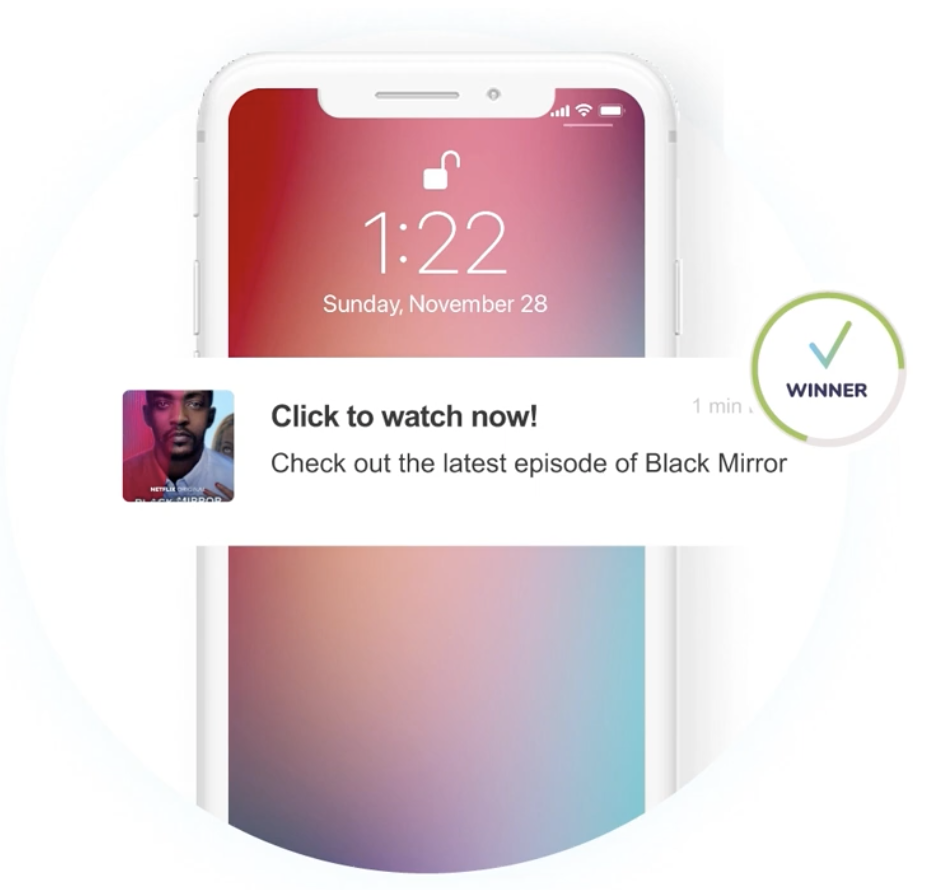
A/B testing lets you compare two push variants against the same audience and keep the better-performing message. Use it to test copy, visuals, personalization, or calls to action before sending a winner to the remaining audience.

{% hint style="success" %}
You can run A/B tests for **Mobile Push** and **Web Push** campaigns.
{% endhint %}

### Before you start

Before creating a test, make sure:

* your push or web push channel is already configured,
* you know which **single element** you want to test,
* your audience is large enough to split into two meaningful groups,
* and your success metric is clear before launch.

If you want to measure post-click impact, define your **conversion event** while preparing both variants.

{% hint style="info" %}
The overall flow is the same for **Mobile Push** and **Web Push**. Available content fields and rich media options can differ by channel and selected push type.
{% endhint %}

<figure><img src="/files/G5bC6juEuYyJxVTJJSRE" alt="" width="375"><figcaption><p>Start a new A/B test campaign</p></figcaption></figure>

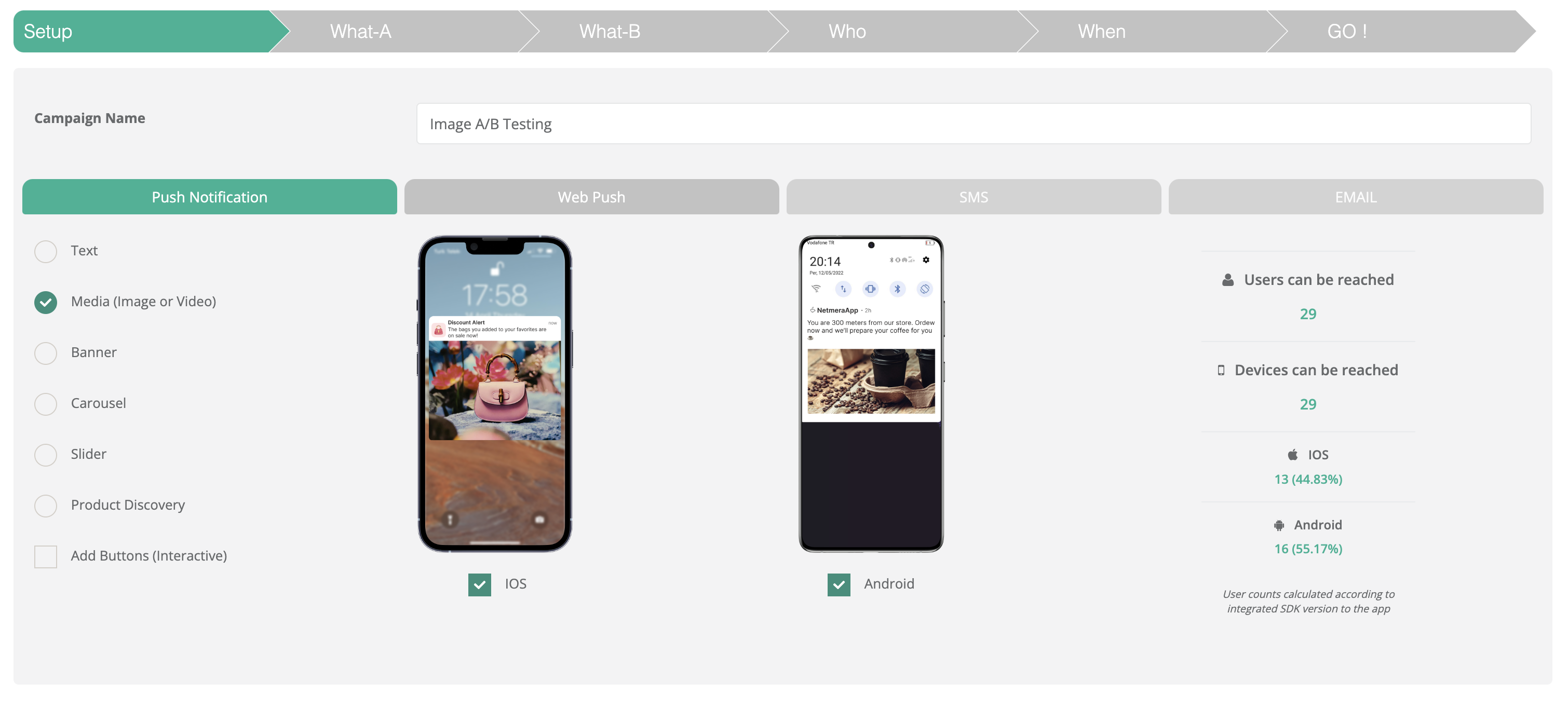
### Step 1: Setup

Go to **Messages > Campaigns > Start A/B Testing**.

In **Setup**:

1. Enter a **Campaign Name**.
2. Select the campaign type: **Push Notification** or **Web Push**.
3. Select the push type you want to test.
4. Review the **Estimated Reach** before moving on.

<figure><img src="/files/ZQxGDHqppoEmROP4LpBb" alt=""><figcaption><p>Setup step with campaign type and estimated reach</p></figcaption></figure>

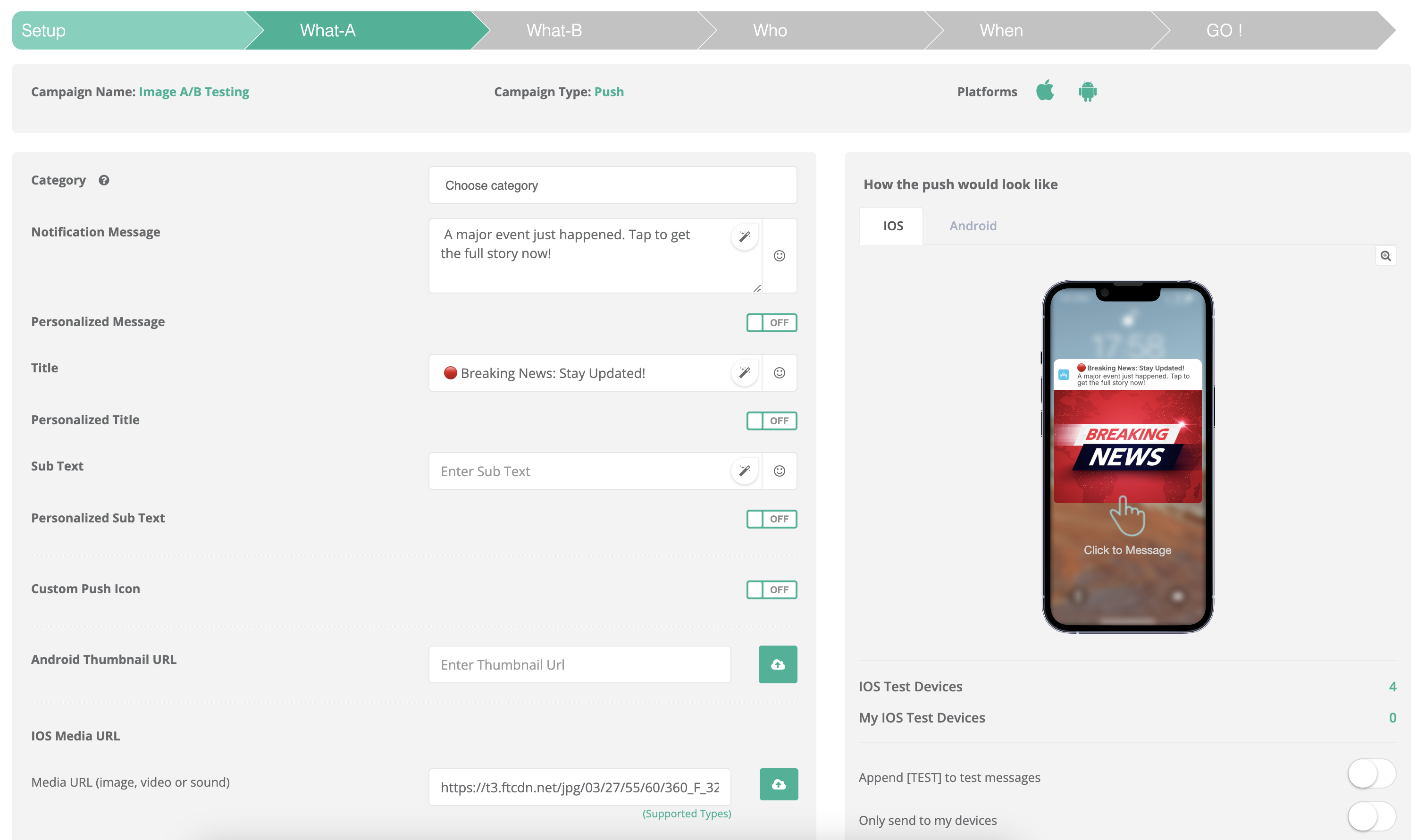
### Step 2: Variant A

Create the first version of your message.

Common fields to configure:

* **Category** for consent and reporting
* **Title**
* **Notification Message**
* **Subtext**
* **Media**
* **Click action**
* **Conversion event**, if you want conversion reporting

Keep this version as your baseline. You will compare Variant B against it.

<figure><img src="/files/0lsVm1wld0mEuMny2h6i" alt=""><figcaption><p>Variant A content configuration</p></figcaption></figure>

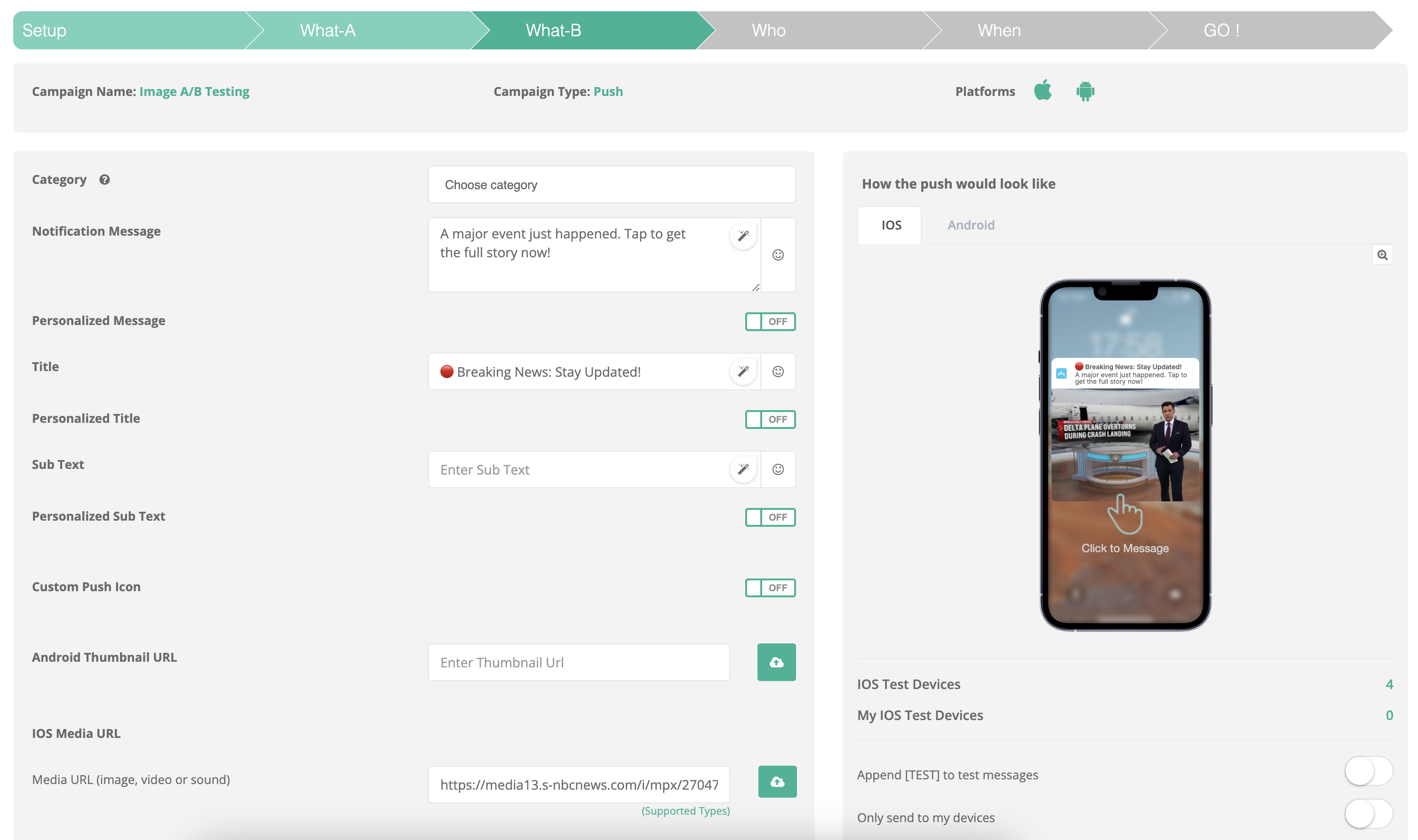
### Step 3: Variant B

Create the second version of the message.

Change only the element you want to test. Keep the rest identical. This makes the result easier to interpret.

Good test candidates:

* **Title**: “Your order is ready” vs. “Pickup is ready now”
* **CTA**: “Open App” vs. “Track Order”
* **Personalization**: generic copy vs. `{@name}`-based copy
* **Media**: image A vs. image B
* **Message length**: short copy vs. detailed copy

{% hint style="warning" %}
Test **one major variable at a time**. If you change title, image, and CTA together, you won't know which change caused the result.
{% endhint %}

<figure><img src="/files/teZBWIdAgimhU33Rne6W" alt=""><figcaption><p>Variant B content configuration</p></figcaption></figure>

### Step 4: Audience

Select who will receive the test.

Targeting options include:

* Send All
* Select Users
* Advanced
* Distribution List

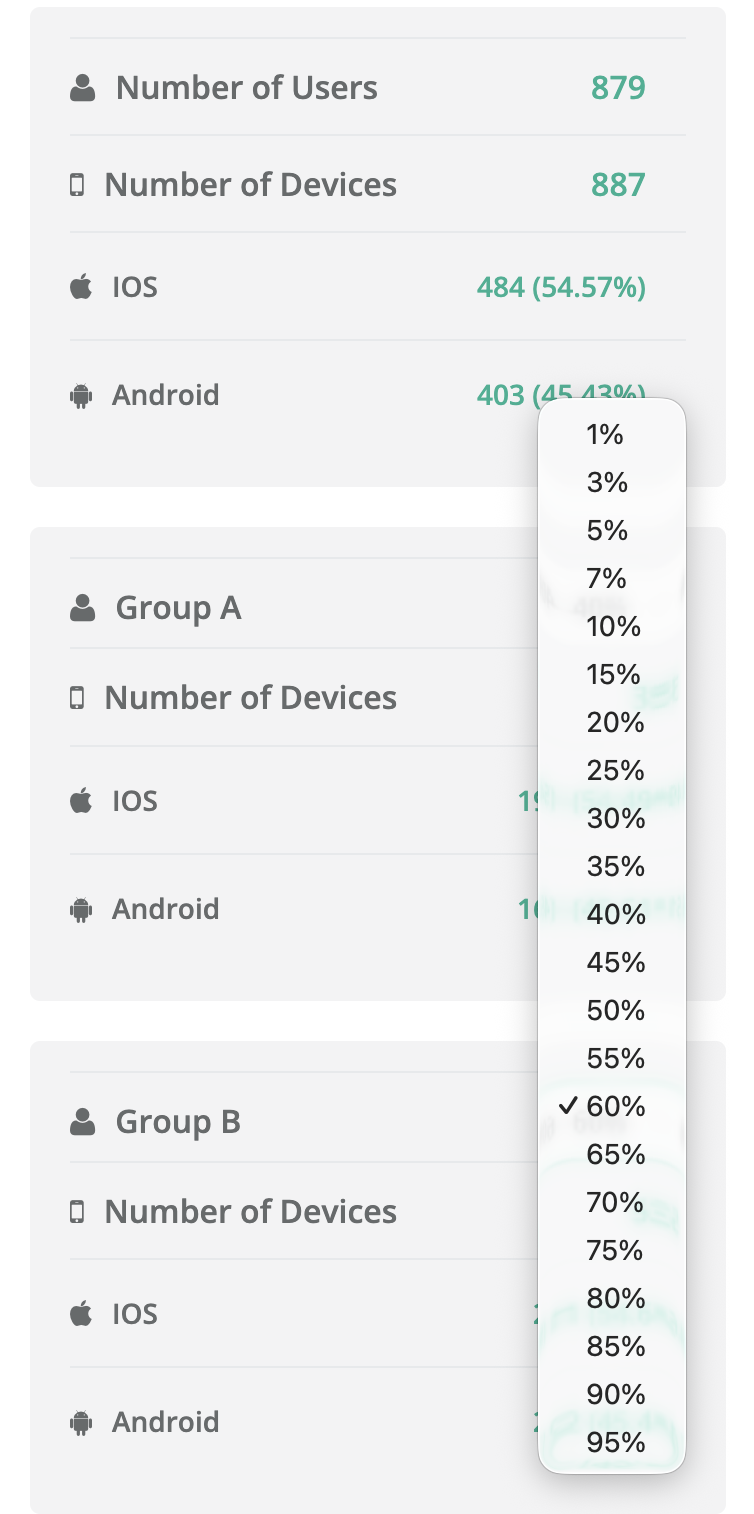
Then set how much of that audience goes to each test group:

* Variant A %
* Variant B %

{% columns %}
{% column %}

#### How audience split works

* **Variant A** receives the percentage assigned to A.
* **Variant B** receives the percentage assigned to B.
* If **A + B = 100%**, there is **no control group**.
* If **A + B < 100%**, the remaining audience becomes the **control group**.

Examples:

* **50 / 50** → no control group
* **70 / 30** → no control group
* **30 / 30** → remaining **40%** becomes the control group
* **40 / 20** → remaining **40%** becomes the control group
  {% endcolumn %}

{% column %}

<figure><img src="/files/jhxPwnCOtTGRZV7qcMq9" alt="" width="563"><figcaption></figcaption></figure>
{% endcolumn %}
{% endcolumns %}

When no control group exists, the test **ends** after the A/B send completes. When a control group exists, you can review test performance against that untreated audience.

{% hint style="success" %}
Use a control group when you want a cleaner measurement of campaign impact. Use **100% split tests** when your goal is to choose a winner and move fast.
{% endhint %}

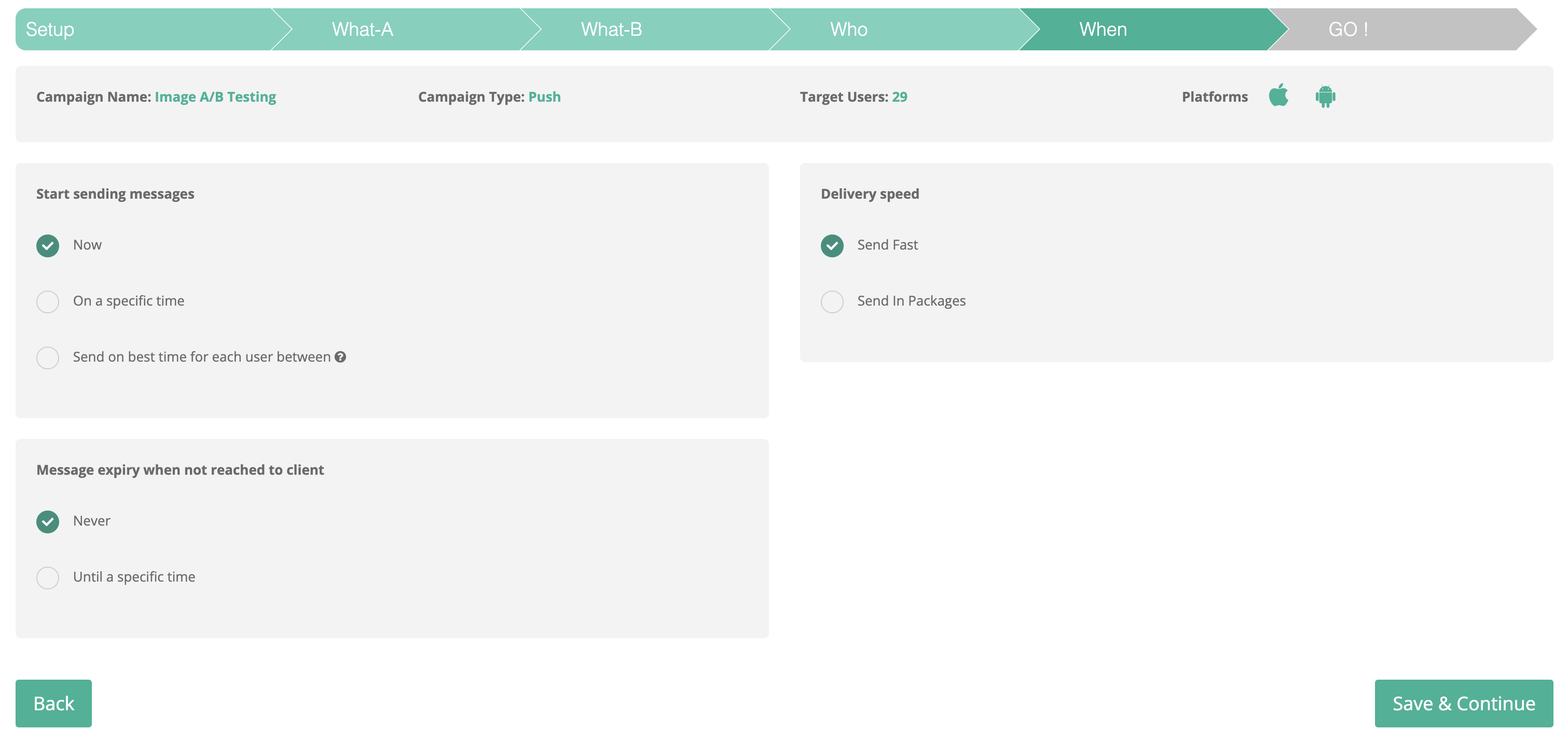
### Step 5: Schedule

Choose when the test runs and how fast it is delivered.

You can configure:

1. **Start Sending Messages**
   * Now
   * On a Specific Time
   * Send on Best Time for Each User Between
2. **Message Expiry**
   * Never
   * Until a Specific Time
3. **Delivery Speed**
   * Send Fast
   * Send in Packages

Use packaged delivery for large audiences or traffic-sensitive campaigns.

<figure><img src="/files/5x4kfU3oT3omUXbd1uej" alt=""><figcaption><p>Scheduling, expiry, and delivery speed</p></figcaption></figure>

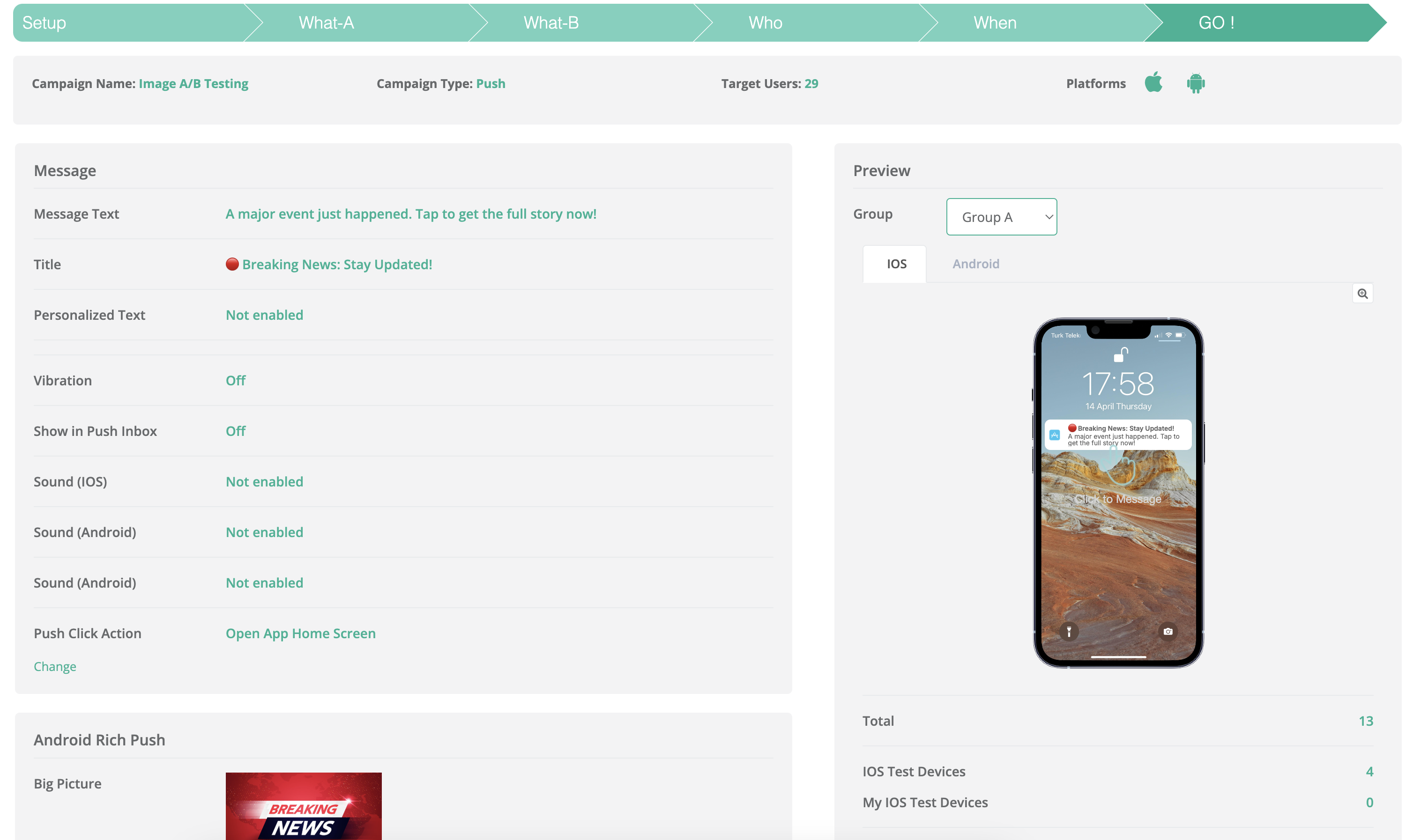
### Step 6: Review and Launch

Before sending:

* verify targeting and percentages,
* preview both variants,
* review scheduling and expiry settings,
* and confirm the test.

Once launched, Netmera sends each variant to its assigned audience.

<figure><img src="/files/9tSW8ze7544YZIXlNzYb" alt=""><figcaption><p>Final review before launch</p></figcaption></figure>

### Reports and winner selection

After the test runs, compare both variants in the report.

Metrics include:

* **Target Audience**
* **Sent**
* **Success**
* **Clicked**
* **Conversion**
* **Revenue**

Choose the winner based on your campaign goal:

* use **Clicked** for traffic-focused campaigns,
* use **Conversion** for action-focused campaigns,
* and use **Revenue** when business value matters most.

If a control group exists, include that comparison in your decision. After choosing the winner, you can send that winning variant to the **remaining audience**.

{% hint style="warning" %}
A conversion event must be configured in **Variant A** and **Variant B** if you want conversion reporting.
{% endhint %}

#### Report behavior

* If a control group is used, **Control Group Performance** appears in the report.
* If no control group is used, that section is hidden.
* **Variant A** and **Variant B** always remain visible separately.
* Audience percentages are shown under **Target Audience**.

<figure><img src="/files/Juj2fe1q5pnLLGL6AmVP" alt=""><figcaption><p>A/B test report with performance comparison</p></figcaption></figure>

### Best practices

* Define the success metric before you launch.
* Test one major variable at a time.
* Keep audience splits intentional.
* Use a control group only when you need incremental measurement.
* Let the test collect enough data before choosing a winner.

### Related pages

* [Notification Content: What](/netmera-user-guide/omnichannel-engagement/mobile-push/create-mobile-push/what.md)
* [Audience: Who](/netmera-user-guide/omnichannel-engagement/mobile-push/create-mobile-push/who.md)
* [Campaign Schedule: When](/netmera-user-guide/omnichannel-engagement/mobile-push/create-mobile-push/when.md)
* [Message Categories](/netmera-user-guide/omnichannel-engagement/mobile-push/message-categories.md)


---

# Agent Instructions: Querying This Documentation

If you need additional information that is not directly available in this page, you can query the documentation dynamically by asking a question.

Perform an HTTP GET request on the current page URL with the `ask` query parameter:

```
GET https://user.netmera.com/netmera-user-guide/omnichannel-engagement/mobile-push/push-a-b-testing.md?ask=<question>
```

The question should be specific, self-contained, and written in natural language.
The response will contain a direct answer to the question and relevant excerpts and sources from the documentation.

Use this mechanism when the answer is not explicitly present in the current page, you need clarification or additional context, or you want to retrieve related documentation sections.