> For the complete documentation index, see [llms.txt](https://user.netmera.com/netmera-user-guide/llms.txt). Markdown versions of documentation pages are available by appending `.md` to page URLs; this page is available as [Markdown](https://user.netmera.com/netmera-user-guide/omnichannel-engagement/email/send-email-campaign/step-3-who.md).
# Email step 3: Who
Choose who receives an email campaign in Step 3: send to all eligible subscribers or target users with tags, segments, filters or advanced rules.
Choose the audience for your email campaign. You can send to all eligible users or target a specific group.
### Choose an audience option
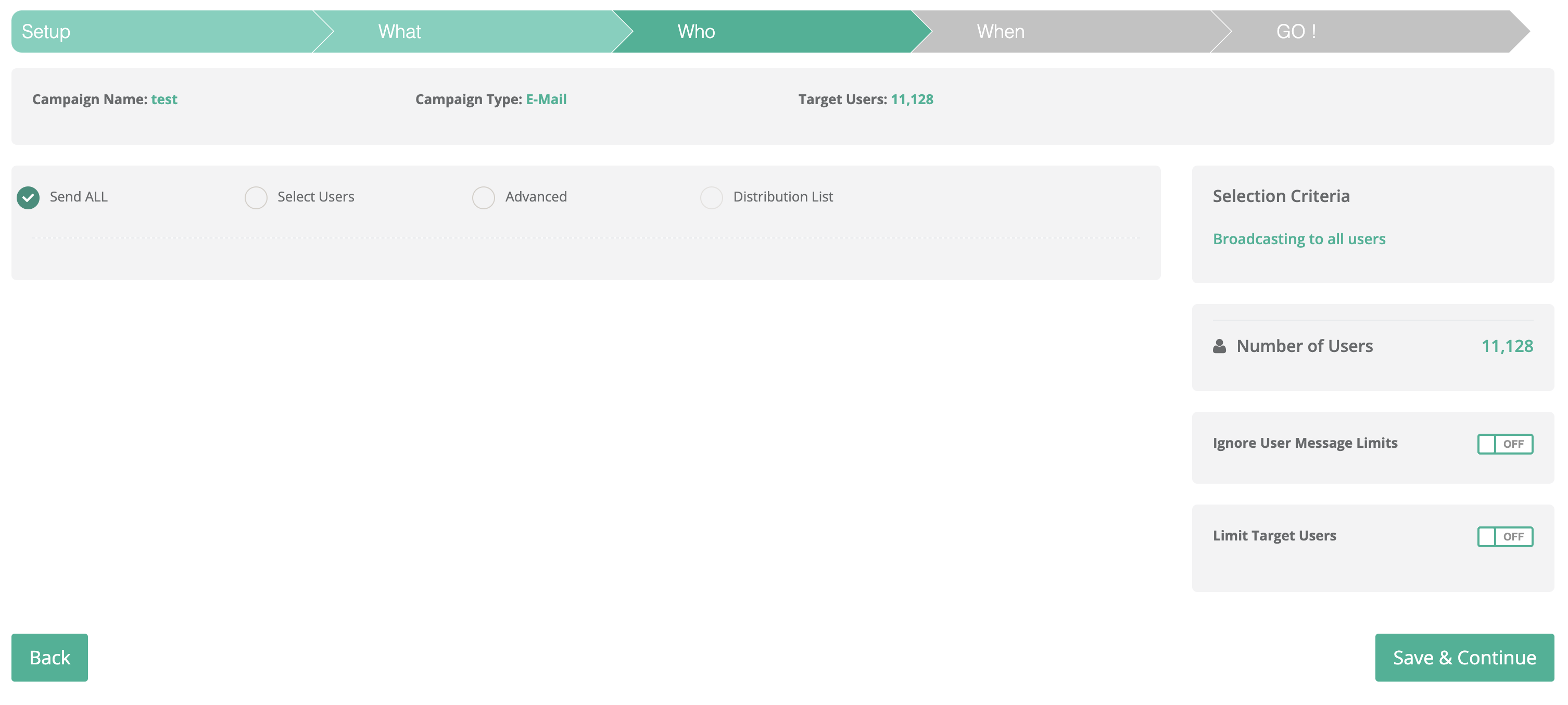
Use one of these options:
* **Send All:** Send to all eligible subscribers.
* **Select Users:** Filter recipients by tags, segments, devices, profiles, responses, or location.
* **Advanced:** Combine detailed conditions and groups with logical rules.
* **Distribution List:** Send to a prepared distribution list.
#### Send all
Select **Send All** to send your campaign to all subscribers who opted in to email marketing. This option applies to **Campaign/Advertisement** email.
Before you continue, confirm that the campaign type matches your message. Promotional content requires the opt-in check. Use the notification type only for required regulatory communications.
#### Select users
Select **Select Users** to target recipients with one or more filters. Use this option when your campaign applies to a specific audience, such as customers in one region or members of a loyalty tier.
Add each filter that defines the audience. If you add multiple values for the same filter, choose **AND** or **OR** to control how Netmera combines them:
* **AND:** A recipient must meet every selected condition.
* **OR:** A recipient can meet any selected condition.
#### Tag
Use **Tag** to target users with tags created in **Targeting** > **Tags**. Tags help you group users by stable categories, interests, or campaign states.
Add two or more tags to choose **AND** or **OR** logic. For example, use **AND** to target users tagged both `loyalty-member` and `summer-sale`. Use **OR** to target either group.

#### Segment
Use **Segment** to target a saved segment. Segments update as users meet or stop meeting their criteria.
Add two or more segments to choose **AND** or **OR** logic. Create and manage segments in **Targeting** > **Segments** before building the campaign.

#### Device type
Use **Device Type** to target users on **Desktop**, **Mobile**, or **Tablet** devices. Add two or more device types to choose **AND** or **OR** logic.
Use this filter when content or landing pages differ by device. Confirm that the email experience works on every selected device type.
#### Profile
Use **Profile** to target recipients whose profile attribute matches a value. Profile attributes store data about individual users, such as a membership tier, preferred category, or location.
For example, target users where `membership_tier` equals `gold`. Add two or more profile conditions to choose **AND** or **OR** logic.

#### Response
Use **Response** to target users who did or did not interact with a previous push notification. For example, target users who did not interact with a sale announcement, then send a follow-up offer.

#### Location
Use **Location** to target users within a geographic area. Search by place name, latitude and longitude, or select a location on the map.
Set a radius and radius type to define the area. Use location targeting only when it supports the campaign’s purpose and audience.

#### Advanced
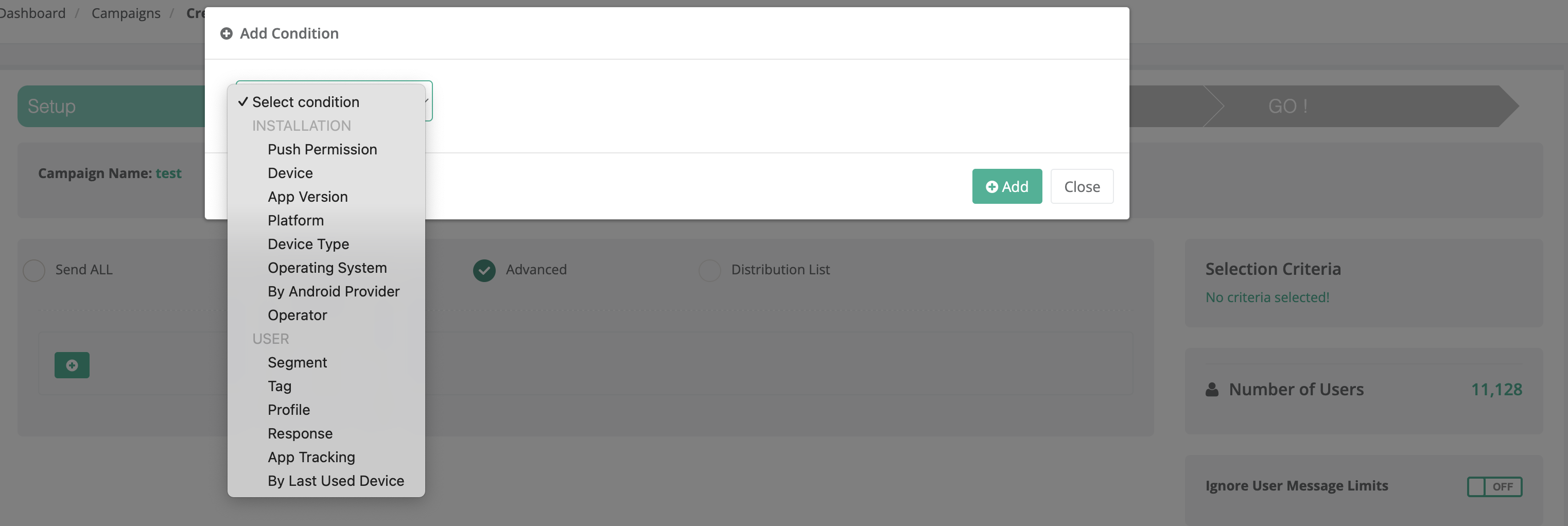
Select **Advanced** for detailed targeting based on user behavior and actions in your app or website. Build conditions and groups to define the audience.
1. Select **Add Condition** to define one targeting rule. Select **Add Group** to combine related rules.
2. Combine conditions or groups with **AND** or **OR**:
* **AND:** A recipient must meet every condition or group.
* **OR:** A recipient can meet any condition or group.
3. Review the audience count in **Selection Criteria** before you continue.
The panel updates the resulting audience as you define the rules. Review the count after every major change. This helps you avoid sending to an unexpectedly broad audience.
#### Ignore user message limits
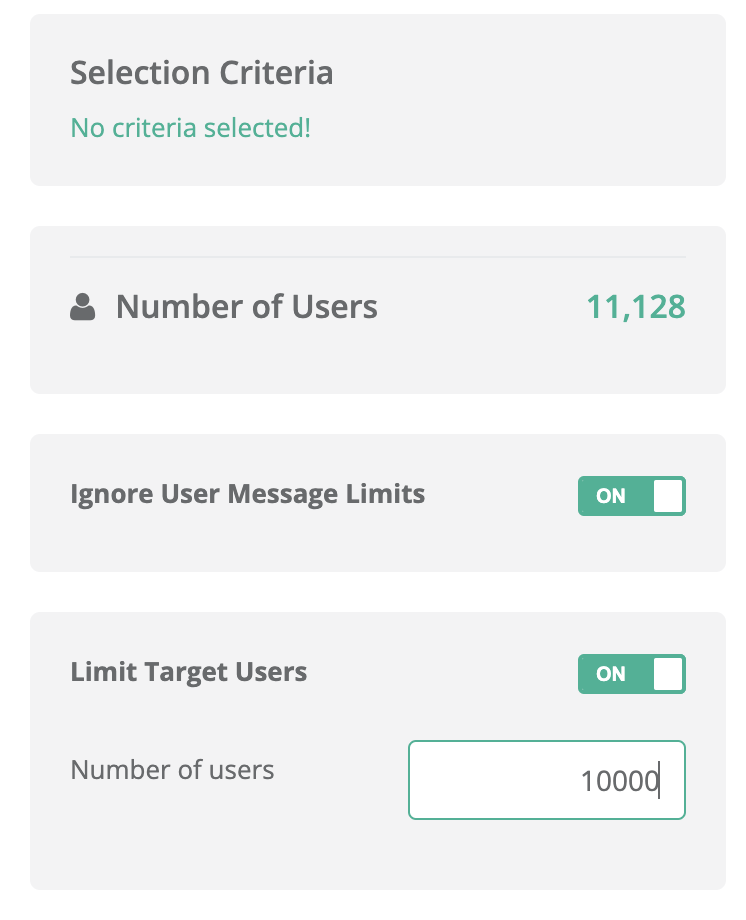
Select **Ignore user message limits** to include users who reached their normal message limit. Message limits help prevent excessive communication.
Use this option for urgent or time-sensitive messages. Frequent use can increase opt-outs and reduce engagement.
#### Limit target users
Select **Limit target users** to set a maximum audience size. Use a limit when inventory, capacity, or a test audience restricts campaign reach.
Once the campaign reaches the limit, no additional matching users receive the email. Review the target count before sending.
---
# Agent Instructions
This documentation is published with GitBook. GitBook is the documentation platform designed so that both humans and AI agents can read, navigate, and reason over technical content effectively. Learn more at gitbook.com.
## Querying This Documentation
If you need additional information that is not directly available in this page, you can query the documentation by asking a question.
Perform an HTTP GET request on the following URL with the `ask` and `goal` query parameters:
```
GET https://user.netmera.com/netmera-user-guide/omnichannel-engagement/email/send-email-campaign/step-3-who.md?ask=&goal=
```
`ask` is the immediate question: it should be specific, self-contained, and written in natural language.
`goal` is what the user is ultimately trying to achieve, the reason they need the answer. Sharing it helps GitBook give you a better, more relevant answer. A goal is most helpful when it describes the outcome the user wants rather than restating the question. For example, with `ask=how do I create an API token`, a goal like `automate deployments from our CI pipeline` lets GitBook tailor the answer to that use case.
The response will contain a direct answer to the question and relevant excerpts and sources from the documentation.
Use this mechanism when the answer is not explicitly present in the current page, you need clarification or additional context, or you want to retrieve related documentation sections.
 #### Profile
Use **Profile** to target recipients whose profile attribute matches a value. Profile attributes store data about individual users, such as a membership tier, preferred category, or location.
For example, target users where `membership_tier` equals `gold`. Add two or more profile conditions to choose **AND** or **OR** logic.

#### Response
Use **Response** to target users who did or did not interact with a previous push notification. For example, target users who did not interact with a sale announcement, then send a follow-up offer.

#### Location
Use **Location** to target users within a geographic area. Search by place name, latitude and longitude, or select a location on the map.
Set a radius and radius type to define the area. Use location targeting only when it supports the campaign’s purpose and audience.

#### Profile
Use **Profile** to target recipients whose profile attribute matches a value. Profile attributes store data about individual users, such as a membership tier, preferred category, or location.
For example, target users where `membership_tier` equals `gold`. Add two or more profile conditions to choose **AND** or **OR** logic.

#### Response
Use **Response** to target users who did or did not interact with a previous push notification. For example, target users who did not interact with a sale announcement, then send a follow-up offer.

#### Location
Use **Location** to target users within a geographic area. Search by place name, latitude and longitude, or select a location on the map.
Set a radius and radius type to define the area. Use location targeting only when it supports the campaign’s purpose and audience.