> For the complete documentation index, see [llms.txt](https://user.netmera.com/netmera-user-guide/llms.txt). Markdown versions of documentation pages are available by appending `.md` to page URLs; this page is available as [Markdown](https://user.netmera.com/netmera-user-guide/omnichannel-engagement/email/send-email-campaign/step-2-what.md).
# Email step 2: What
Configure email content in Step 2 by selecting a mail template created under Settings, then setting the sender, subject and message settings.
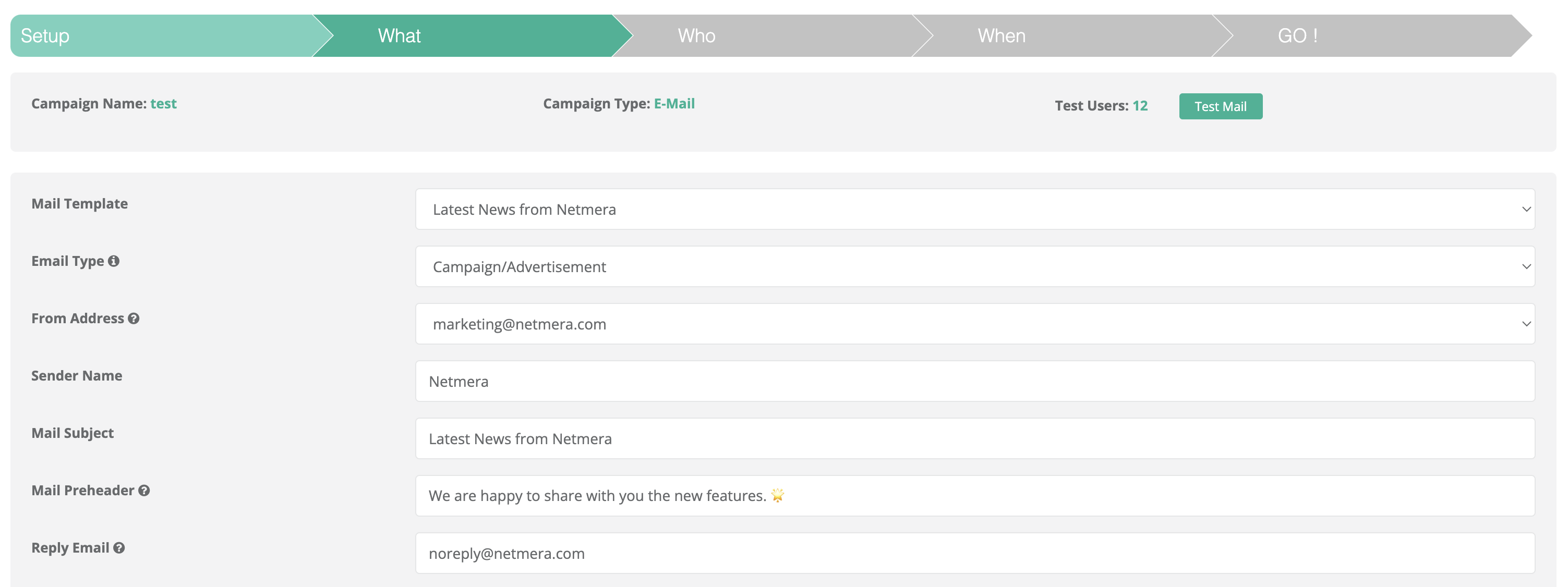
Configure the content and settings of your email campaign on this page.
#### Mail template
Select from the email templates you’ve created under **Settings > Mail Templates**. If you haven’t created any yet, refer to the [Mail templates](/netmera-user-guide/panel-settings/settings/messaging-and-content/mail-templates.md) guide. After selecting a template, you can edit it here to customize it for your campaign.
#### Email type
Choose between two email types:
* **Notification:** Used to inform subscribers about events, updates, or important information.
* **Campaign/Advertisement:** Used to promote products, services, or special offers.\
Select the type that matches the purpose of your campaign.
{% hint style="info" %}
**Important Opt-in Policy Notice**
If you select **Notification**, the email will be sent to all users regardless of their email opt-in status. This option should only be used for mandatory regulatory notifications that users are required to receive. For promotional content such as product announcements or special offers, always choose **Campaign/Advertisement** to ensure the opt-in check mechanism is enforced.
{% endhint %}
#### From address
Specify the sender email address that will appear to recipients. This address must be registered and transmitted to Netmera by authorized panel users.
#### Sender name
Enter the name that appears as the sender. Use a recognizable name (like your company or brand) so subscribers can easily identify you as a trusted source.
#### Mail subject
Write a concise, clear, and attention-grabbing subject line that accurately reflects your email content to encourage recipients to open it.
#### Mail pre-header
This optional text appears next to the subject line in the inbox preview. It helps give subscribers more context and entice them to open your email. Your pre-header should be at least 40 characters.
#### Reply email
Specify the email address where replies should be sent. If left blank, subscribers will not be able to reply, and no reply email will be set.
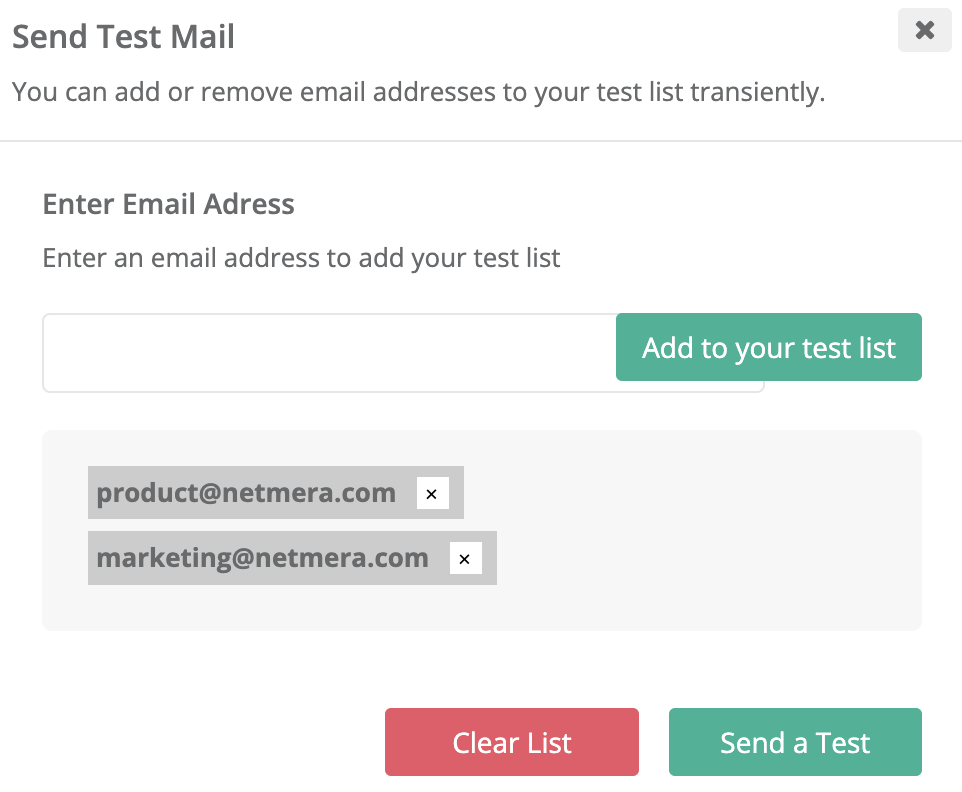
#### Test mail
Before sending to your full list, test your email to check formatting, layout, and content:
* Specify how many users you want to send the test to.
* Add testers by making them panel users first.
* Manage the test list on the **Send Test Mail** sidebar screen; you can add or remove testers, or clear the entire list with the **Clear List** button.
* Send the test email by clicking **Send a Test**.\
Test emails are sent only to these testers, ensuring the rest of your subscribers do not receive it.
#### Profile attributes
Use [Profile attributes](/netmera-user-guide/customer-data/profile-attributes.md) to target your campaign based on your contacts’ specific characteristics or data stored in their profiles. Selecting relevant attributes lets you tailor your message precisely to your audience. Please refer to the guide [Contact upload](/netmera-user-guide/targeting/contact-upload.md) on transferring email lists with profile attributes to your Netmera Panel for detailed instructions.
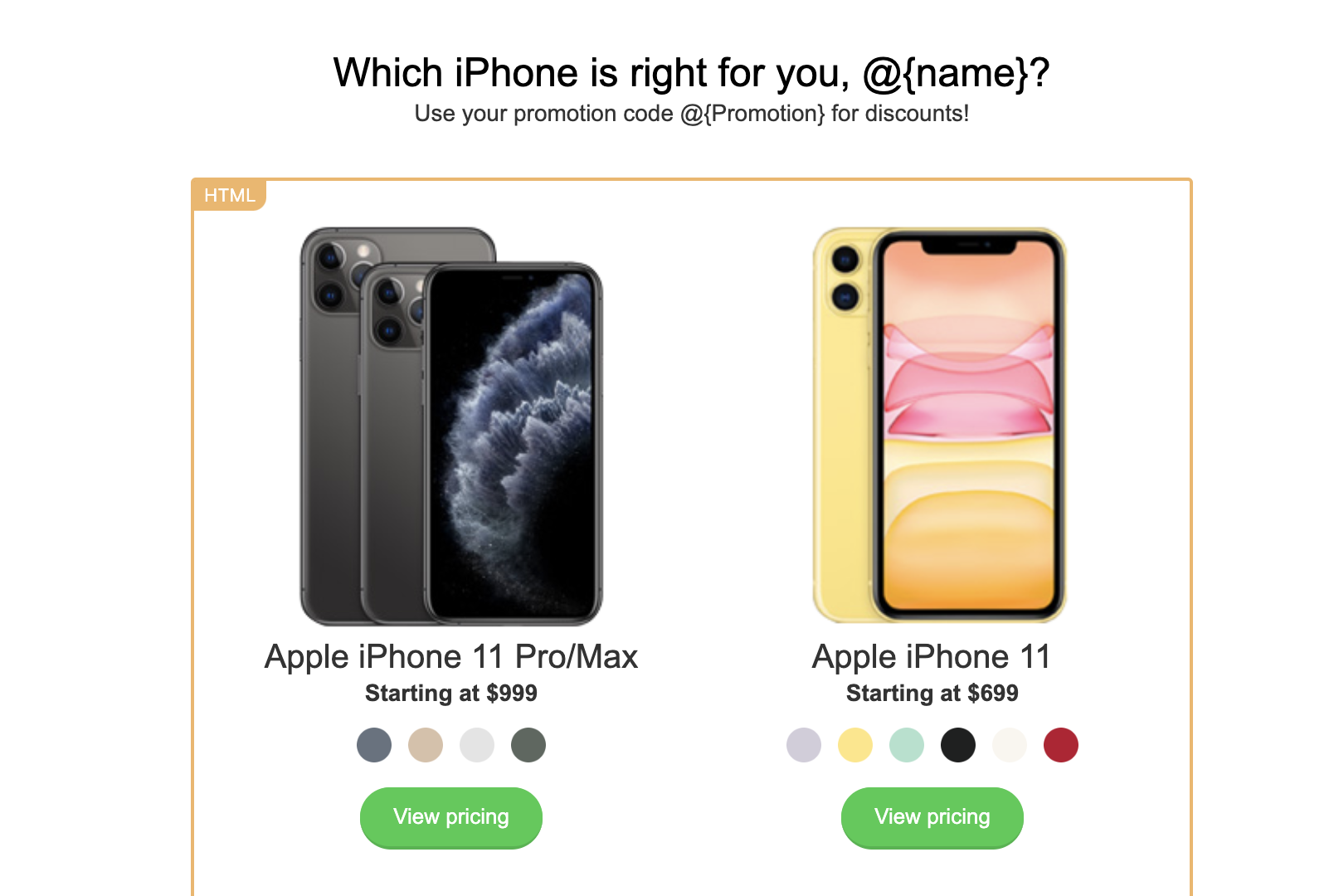
#### Promotion code
Include promotion codes or discounts to encourage desired actions from your audience, such as purchases. Choose codes from your predefined promotion value lists in Netmera. Click the **copy** button next to the code and paste it where you want it to appear in your email.
#### Message label
Assign labels to your messages for better organization and reporting. This is especially useful when sending multiple campaigns or notifications. Labels allow you to filter and analyze campaign performance by categories such as product type, promotion, or target group.
#### Conversion analytics
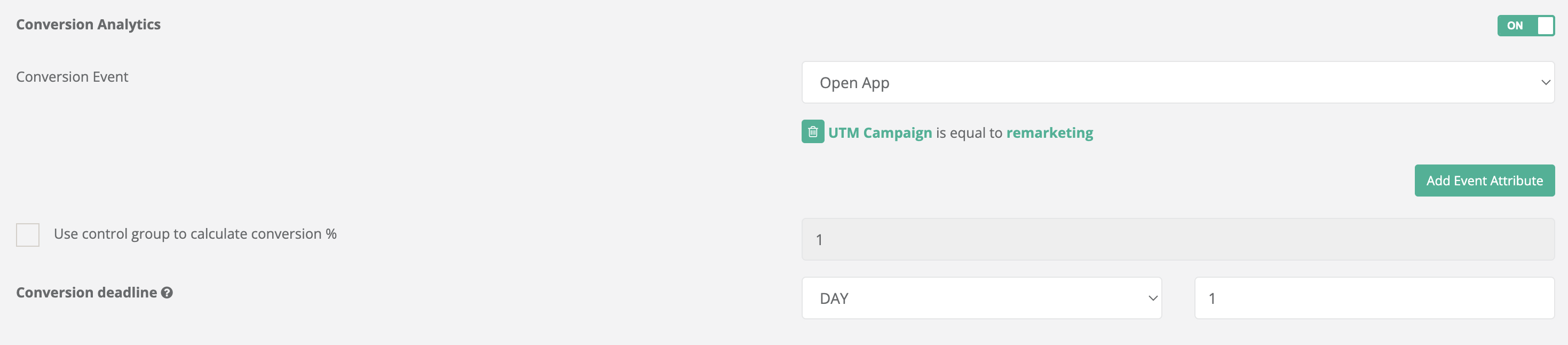
Use the **Conversion Analytics** settings to define and measure the effectiveness of your campaign by tracking user actions and conversions.
**Conversion Event**
Select the specific **event** that represents a successful conversion for your campaign (e.g., purchase completed, app install, form submission).
**Event Attribute**
Optionally, specify one or more **event attributes** to filter or segment your conversion data, allowing for more detailed analysis based on event properties.
**Control Group**
Enable the **control group** feature to create a subset of users who do not receive the campaign. This allows you to compare conversion rates between exposed and unexposed users and accurately calculate the campaign’s impact.
#### Conversion Deadline
A conversion is counted when the user receives the message, clicks it, and completes the conversion event within the same session.
For a click to be attributed, it must happen within the **Conversion Deadline** window. This window starts at message delivery.
Clicks outside this window are not counted as conversions, even if the conversion event is completed later in the same session.
**Example**
Scenario
Delivery
Click
Deadline
Result
Within window
14:00
17:30
2 hours
✅ Conversion +1
Outside window
14:00
18:30
2 hours
❌ Not counted
#### Conversion and revenue metrics
* **Conversion**: The total number of times the specified conversion event is triggered.
* **Revenue**: The cumulative value of the `revenue` parameter associated with the conversion event, aggregated across all users (only applicable if revenue events are integrated).
{% hint style="info" %}
**Prerequisites for Conversion and Revenue Tracking**
To display conversion and revenue metrics in your campaign reports (such as email performance reports), you must define a **Conversion Event** in this step.
Additionally, to enable revenue tracking, ensure that your application sends revenue data within the relevant conversion events to Netmera. Refer to the Developer Guide for detailed integration instructions.
{% endhint %}
---
# Agent Instructions
This documentation is published with GitBook. GitBook is the documentation platform designed so that both humans and AI agents can read, navigate, and reason over technical content effectively. Learn more at gitbook.com.
## Querying This Documentation
If you need additional information that is not directly available in this page, you can query the documentation by asking a question.
Perform an HTTP GET request on the following URL with the `ask` and `goal` query parameters:
```
GET https://user.netmera.com/netmera-user-guide/omnichannel-engagement/email/send-email-campaign/step-2-what.md?ask=&goal=
```
`ask` is the immediate question: it should be specific, self-contained, and written in natural language.
`goal` is what the user is ultimately trying to achieve, the reason they need the answer. Sharing it helps GitBook give you a better, more relevant answer. A goal is most helpful when it describes the outcome the user wants rather than restating the question. For example, with `ask=how do I create an API token`, a goal like `automate deployments from our CI pipeline` lets GitBook tailor the answer to that use case.
The response will contain a direct answer to the question and relevant excerpts and sources from the documentation.
Use this mechanism when the answer is not explicitly present in the current page, you need clarification or additional context, or you want to retrieve related documentation sections.