# Events

Netmera offers a complete set of trackable events, giving you valuable insights into user behavior and app performance. These events fall into two main categories: ***Standard Events***, which include Automated and Pre-defined Events and ***Custom Events**.*

{% hint style="success" %}
**Detailed Event Definitions:**

For detailed information on event definitions, please consult our [User Guide.](https://user.netmera.com/netmera-user-guide/customer-data/events/netmera-events)
{% endhint %}

<figure><img src="https://2578508252-files.gitbook.io/~/files/v0/b/gitbook-x-prod.appspot.com/o/spaces%2F0bOAscrXzPSujyzq8DEz%2Fuploads%2FuwG8zlaBKZoXeLnvYMAL%2FGroup%2042%20(1).png?alt=media&#x26;token=d9615f73-6879-4867-b98e-7a44ec63288e" alt=""><figcaption></figcaption></figure>

### Automated Events

Netmera's Automated Events begin tracking automatically upon SDK integration—no further setup is required. These tracked events include:

* App Installs
* App Opens
* Push Receipts (requires dashboard configuration)
* Push Opens
* Log Events
* Time in App
* Geofence Enter/Exit (requires geofence setup)
* Web View Actions

### Pre-defined Events

Pre-defined Events are built-in, ready-to-use events that you can easily integrate into your application. These events come with pre-written code examples to simplify implementation. You can trigger these events using the provided sample code patterns:

<details>

<summary>Pre-defined Events List</summary>

**Screen View Event**: Logs when a specific screen is viewed.

**Login Event**: Captures user login actions.

**Register Event**: Tracks user registration actions.

**Search Event**: Records search actions performed by users.

**Share Event**: Logs when content is shared from the app.

**In-App Purchase Event**: Captures in-app purchase transactions.

**Banner Click Event**: Tracks clicks on banners within the app.

**Category View Event**: Logs views of specific categories.

**Battery Level Event**: Monitors the battery level during app usage.

**Product View Event**: Tracks when a product is viewed.

**Product Rate Event**: Logs when a product is rated.

**Product Comment Event**: Captures comments made on products.

**Order Cancel Event**: Records when an order is canceled.

**Purchase Event**: Logs completed purchase transactions.

**Cart View Event**: Tracks views of the shopping cart.

**Add To Cart Event**: Captures when items are added to the cart.

**Remove From Cart Event**: Logs when items are removed from the cart.

**Add To Wishlist Event**: Tracks when items are added to a wishlist.

**Content Comment Event**: Captures comments made on content.

**Content Rate Event**: Logs ratings given to content.

**Content View Event**: Tracks views of media content.

</details>

{% tabs %}
{% tab title="React Native" %}

```javascript
const sendLoginEvent = () => {
    // Generate event instance
    const loginEvent = new NetmeraEventLogin();
    loginEvent.setUserId(<userId>);

    // Send event
    Netmera.sendEvent(loginEvent);
}
```

{% endtab %}
{% endtabs %}

### Custom Events

Custom Events provide flexibility beyond the standard and pre-defined options to allow you to track specific user interactions and behaviors within your application.

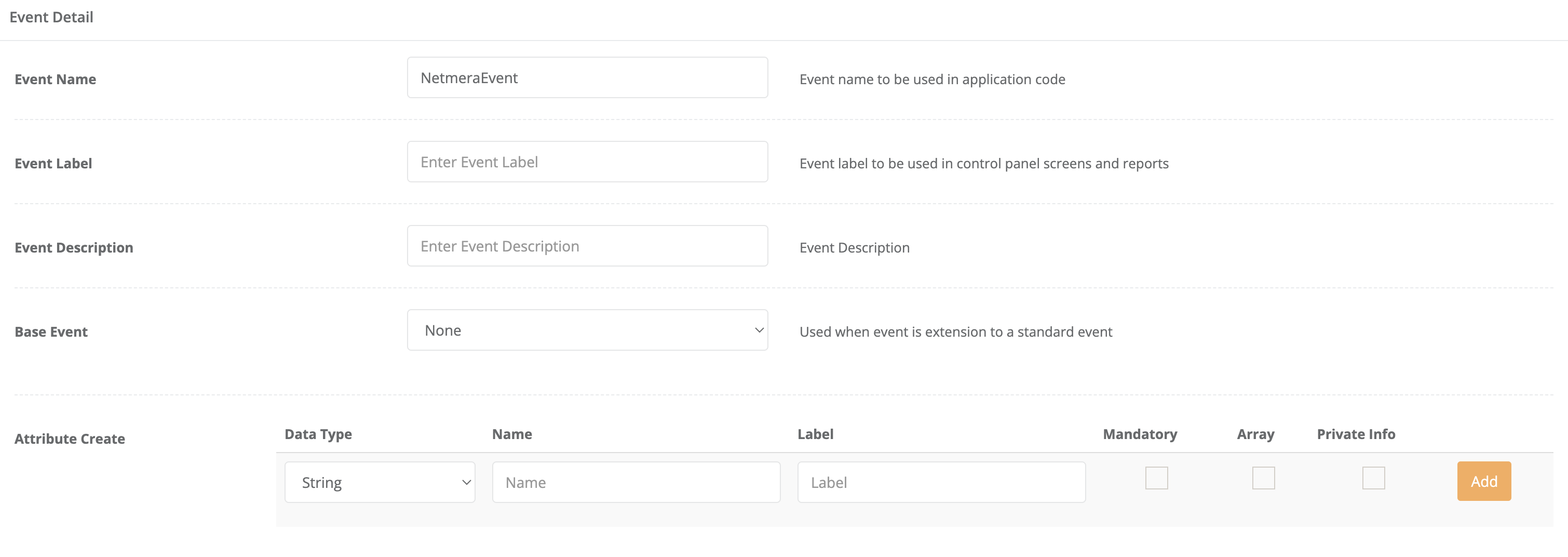
**Step 1: Define the Event in the Netmera Panel**

1. Go to the **Netmera Panel** and navigate to **Developers > Events > Create New Event** section.
2. Create a new event and specify the event parameters.
3. Set parameter types, define mandatory fields, and configure arrays if required.
4. Refer to the [**Creating Custom Events**](https://user.netmera.com/netmera-user-guide/customer-data/events/creating-custom-events) guide for detailed instructions.

<figure><img src="https://2578508252-files.gitbook.io/~/files/v0/b/gitbook-x-prod.appspot.com/o/spaces%2F0bOAscrXzPSujyzq8DEz%2Fuploads%2FvcLg7auKnolWcShPiyKp%2FScreenshot%202025-02-05%20at%2012.17.04.png?alt=media&#x26;token=994979af-4816-4582-8976-e2e3b5f761b9" alt="" width="563"><figcaption></figcaption></figure>

**Step 2: Import the Generated Code**

1. After creating the event, **Netmera** generates a code snippet.
2. Import this generated code into your project to integrate the custom event.

<figure><img src="https://2578508252-files.gitbook.io/~/files/v0/b/gitbook-x-prod.appspot.com/o/spaces%2F0bOAscrXzPSujyzq8DEz%2Fuploads%2FMbUesC6O8bI4X6e3o9qW%2FScreenshot%202025-02-05%20at%2012.16.23.png?alt=media&#x26;token=fa6cf1bb-1fc8-4c45-a1a3-0a24c0a6b36a" alt="" width="563"><figcaption><p>Sample Generated Code</p></figcaption></figure>

**Step 3: Extend the Event Class in Your Code**

1. Choose a built-in event subclass or extend from `NetmeraEvent`.
2. Define event parameters and ensure they match the panel setup.

**Step 4: Fire the Event**

1. Make sure the event is correctly set up in the **Netmera Panel** before triggering it.
2. Implement the event call in your application code.

{% hint style="warning" %}
**Ensure Mandatory Parameters Are Included**

If a required parameter is missing, the request will fail with a ***bad request*** error. Always send mandatory parameters to avoid rejection.
{% endhint %}

#### Custom Events Sample Codes

When you create an event on the panel, you will receive a code. You are supposed to import the code the panel created for you in your project. Below you will see examples.

{% tabs %}
{% tab title="React Native" %}

```tsx
const sendSampleEvent = () => {
    const sampleEvent = new SampleEvent();
    sampleEvent.sampleAttribute = "SampleAttribute";
    Netmera.sendEvent(sampleEvent);
}
```

{% endtab %}
{% endtabs %}

### Revenue Event

Revenue tracking records and reports user purchase transactions. For example, if a user clicks a push notification, opens your app, and makes a purchase during that session, you can log this as revenue data. This helps measure how effective the push notification was in driving revenue.

* Use `event.setRevenue()` to assign a revenue value to any event (custom or standard).
* Revenue data appears in push reports **only if** the user opens the app after clicking the push notification.
* Any events (like purchases) that happen during the session triggered by the push click are linked to that notification in your reports.

#### **How to Implement Revenue Tracking**

If a user makes a purchase after clicking a push notification and opening your app, send the revenue data to Netmera like this:

{% tabs %}
{% tab title="React Native" %}

```javascript
let customEvent = new NetmeraEvent("Purchase");
customEvent.revenue = Number(revenue);
Netmera.sendEvent(customEvent);
```

{% endtab %}
{% endtabs %}

### Importing Events to Apps

If you have multiple apps in the Netmera Panel, you can import events from one app to another. This lets you reuse events across apps efficiently.

1. Go to the **Developers** section and select **Events.**
2. Click **Import Event Definition.**
3. Choose the **Application Name** from which you want to import events.

<figure><img src="https://2578508252-files.gitbook.io/~/files/v0/b/gitbook-x-prod.appspot.com/o/spaces%2F0bOAscrXzPSujyzq8DEz%2Fuploads%2FeV4iSsO8mD98kq01Rxdy%2Fimage.png?alt=media&#x26;token=3e1ce62f-a008-4014-8c24-b4739bf58a1f" alt="" width="563"><figcaption></figcaption></figure>

1. Select the specific **custom event(s)** you want to import.
2. Click the **Import** button in the **Action** section.

<figure><img src="https://2578508252-files.gitbook.io/~/files/v0/b/gitbook-x-prod.appspot.com/o/spaces%2F0bOAscrXzPSujyzq8DEz%2Fuploads%2FUs79G9mFQIbxbpfaMBT6%2Fimage.png?alt=media&#x26;token=b85d7002-51b5-41f5-a199-e75b10edadd2" alt="" width="268"><figcaption></figcaption></figure>